Add up to four of your drawings and the SplitCam avatar opens its mouth when you talk, blinks and turns with your head. It is a normal layer, so it goes out to every stream destination and into the recording.
A PNGtuber is a streamer who shows a flat character made of a few still pictures that swap while they talk, instead of their own face. It is usually seen as the simplest kind of VTubing: nothing is rigged, there is just a picture for each state. In SplitCam the states are these four, and you draw (or commission) them yourself.
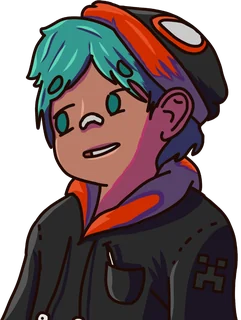
The resting picture, mouth closed and eyes open. It is the only one you must add. If a state has no picture of its own, SplitCam shows the nearest one, starting with “Quiet”.
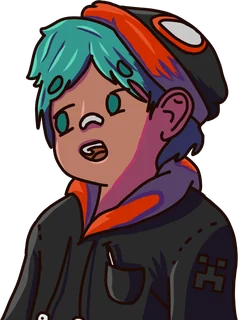
Shown while you speak: the mouth open, eyes open. This is the picture that makes it feel like the character is talking.
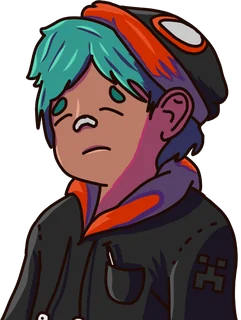
Eyes closed, mouth closed. It flashes for a moment to give the character a blink.
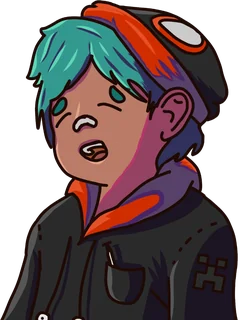
Eyes closed and mouth open, for the moment when a blink lands in the middle of a word.
Choose “All four in one picture” and SplitCam cuts it for you: a 2×2 sheet, four in a row or four in a column, in reading order (Quiet, Talking, Blinking, Blinking and talking).
A PNG with a transparent background. A picture with one plain background color is cleaned up automatically, but a photo or a gradient is not. Pictures are scaled down to 1024 pixels on the long side.
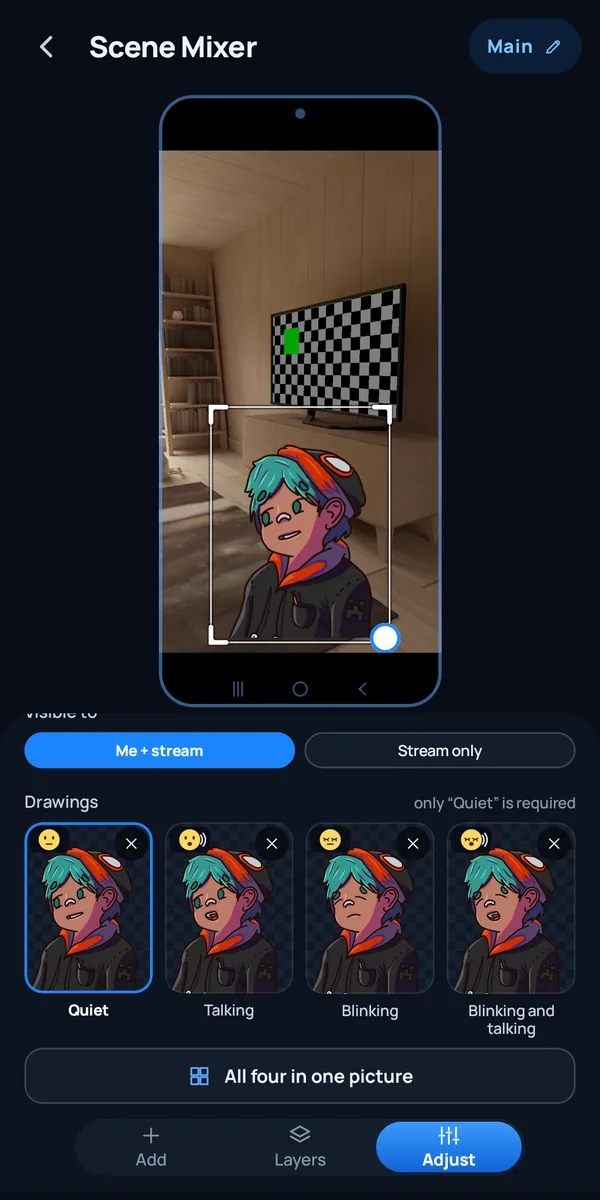
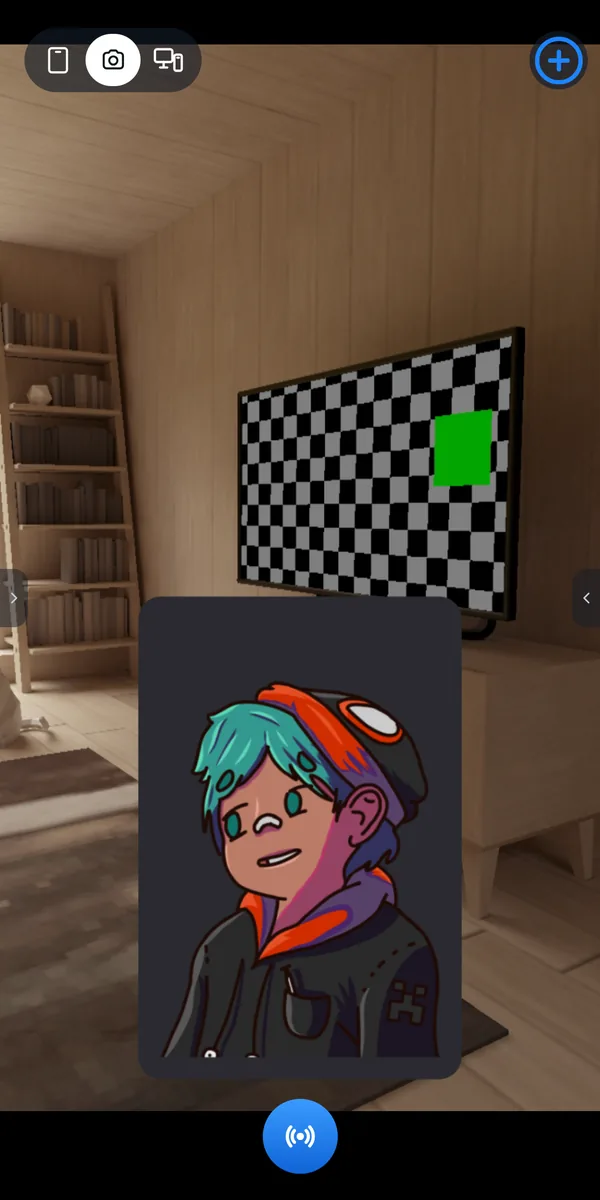
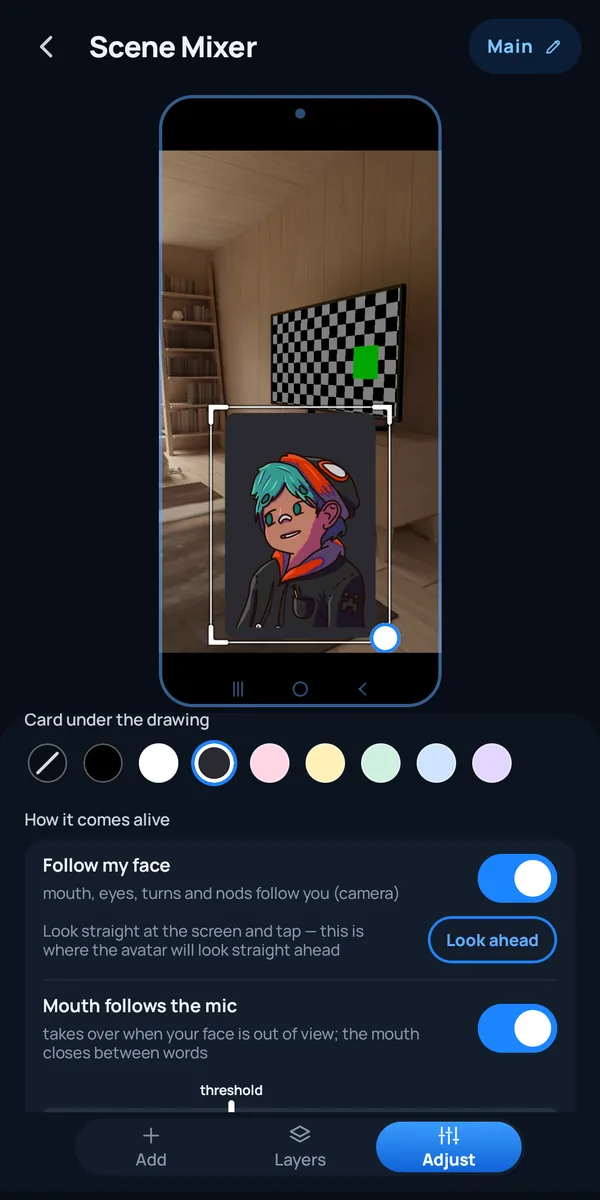
Face tracking and the microphone are two ways to move the character, and you choose which to use. You set all of this in the layer settings, mostly under “How it comes alive”.
The phone camera reads your mouth, eyes, head turns and nods. The mouth and eyes follow you, and the picture turns and tips like a sheet of paper. The face is recognized on the phone, and the small copy of the picture used for it is not sent anywhere. One face is tracked. When you broadcast the phone screen, the front camera reads your face only while you are live or recording.
Look straight at the screen and tap “Look ahead”: that is where the avatar will look straight ahead. Repeat it after you restart the app. On the screen canvas it works only while you are live or recording.
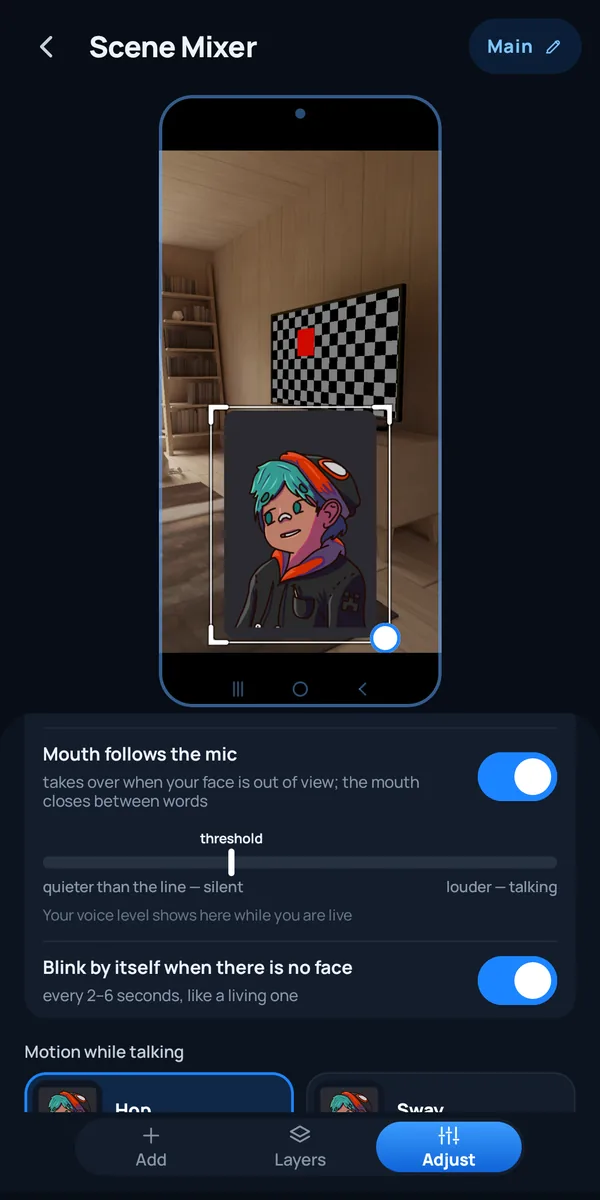
The mouth opens when your voice is louder than a threshold you set, and closes between words. It takes over when your face is out of view, or when face tracking is off. It works while you are live or recording.
With no face in view the avatar blinks on its own every 2–6 seconds, like a living character. With your face in view it blinks when you blink.
Pick how it moves when you speak: Hop (bounces on words), Sway (rocks gently), Shake (trembles as if laughing) or No motion (it only breathes).
Put a card under the drawing (none, or one of 8 colors), rotate the layer from 0 to 360° and set opacity from 10 to 100%. On the camera canvas you can also choose “Visible to”: “Me + stream” or “Stream only”; on the screen canvas the avatar is always “Stream only”.
It is a simple layer, and it is worth knowing where it stops.
The avatar is flat 2D: four pictures that swap. The turn and the nod tilt the picture like a sheet of paper. It is not a Live2D, VRM or 3D model, and there are no mouth shapes beyond open and closed.
There is one character with four states. A second expression, such as angry or sad, is not part of the layer.
The Avatar layer can be added on the camera canvas and on the phone-screen canvas. When you broadcast the screen, SplitCam reads your face with the front camera only while you are live or recording. If the scene has a visible “Camera” layer, that layer may already be using the camera: then the face is not tracked, the app tells you so, and the mouth follows the microphone.
The mouth follows your voice while you are live or recording. In the Scene Mixer, before you go live, the avatar shows a demo loop.
It runs on the processor and slows down a little on a slow or warm phone. On a phone that overheats it stops and the avatar goes back to the microphone.
SplitCam for Android 6.11.9.4 or newer. The phone needs Android 10 or newer (64-bit), plus the camera and microphone permissions the app already asks for when you stream.
Every control of the Avatar layer, with the names the app shows.
| Setting | Choices | Good to know |
|---|---|---|
| Drawings | Quiet (required), Talking, Blinking, Blinking and talking | One picture with all four also works: 2×2, a row or a column |
| Follow my face | On or off | “Look ahead” sets where the avatar looks straight ahead |
| Mouth follows the mic | On or off, with a volume threshold | Takes over when your face is out of view; works while live or recording |
| Blink by itself when there is no face | On or off | Every 2–6 seconds |
| Motion while talking | Hop, Sway, Shake, No motion | Hop is the default |
| Card under the drawing | No card, or 8 colors | A little wider than the drawing, with rounded corners |
| Rotation and opacity | Rotation 0–360°, opacity 10–100% | The same sliders as for other layers |
| Visible to | Me + stream, or Stream only | “Stream only” keeps it off your own screen but in the broadcast and the recording. Camera canvas only: on the screen canvas the avatar is always Stream only |
Other ways to be a PNGtuber. On a computer, programs such as PNGTuber Plus and veadotube mini animate the same kind of pictures (their project pages list Windows, macOS and Linux), and PRISM Live Studio describes a PNG Tuber mode for phones. We read these pages on November 8, 2026.
A PNGtuber is a streamer who appears as a flat character made of a few still pictures that swap while they talk, instead of showing their face. It is usually seen as the simplest kind of VTubing: the character is not rigged, it just changes picture.
No. Switch “Follow my face” off and the mouth follows your microphone, and the avatar blinks by itself every 2–6 seconds. With it on, the camera also moves the mouth, eyes and head.
It animates your pictures but does not draw them. You bring your own drawings, made in any drawing app or commissioned, and the Avatar layer brings them to life. Use pictures you own or have the right to use.
Face recognition runs on the phone, and the small copy of the camera picture it uses is not sent anywhere. The camera picture itself is different: on the camera canvas it is the base of your broadcast, so viewers see it behind the avatar unless a full-frame picture layer under the Avatar covers it. When you broadcast the phone screen, the front camera only reads your face, and the picture it sees is not part of the broadcast. The avatar itself is part of the picture you broadcast.
PNG files with a transparent background. You can add four separate pictures or one picture with all four. Pictures are scaled down to 1024 pixels on the long side.
Yes. The Avatar is a normal layer of the scene, so it appears in every multistream destination and in the recording, together with your other layers.
SplitCam for Android 6.11.9.4 or newer, on Android 10 or newer (64-bit). The Avatar layer is offered when you stream the camera and when you broadcast the phone screen. On the screen canvas the face is tracked only while you are live or recording.
Get SplitCam for Android, add the Avatar layer to a scene and go live.