For gamers

How to stream games from a PC or a phone — free software.

Capture a game on Windows, stream the screen of an Android phone, add a face cam and send it all to Twitch, YouTube and Kick at once. This guide shows what SplitCam does on each device, in the order you will set it up. SplitCam for Windows and Mac has no paid plan and no watermark.
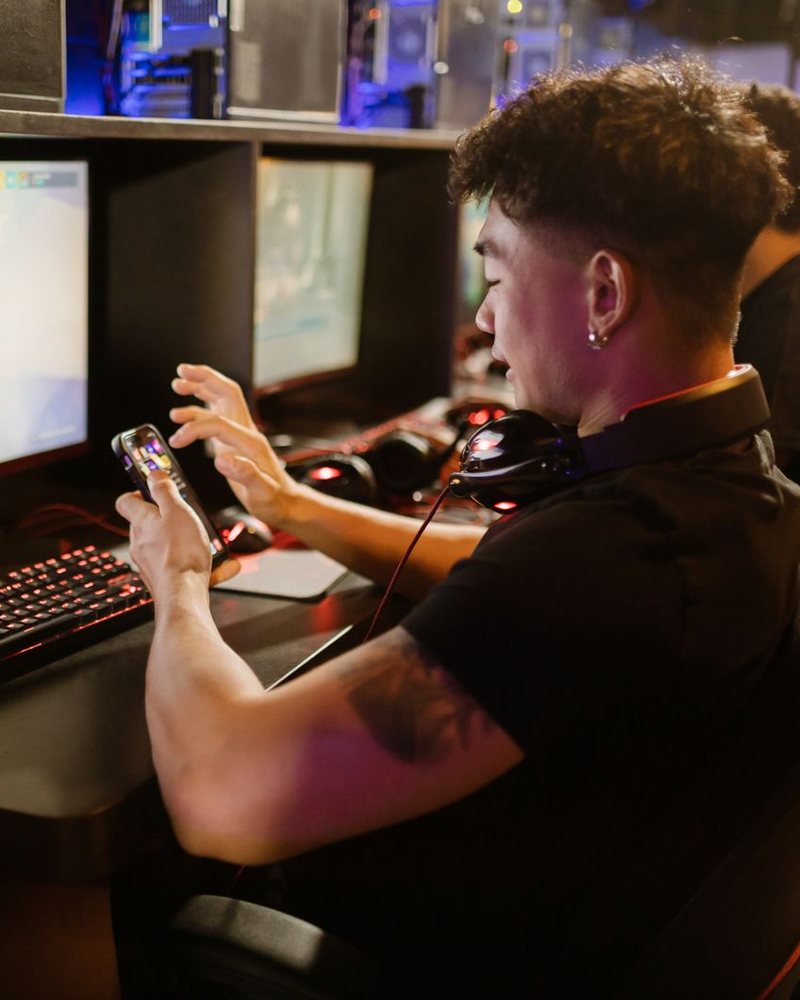
A young man with headphones around his neck holds a phone in front of a monitor and a glowing keyboard; a LIVE mark and platform labels were added to the photo.
Photo: Pexels. The LIVE mark and the platform labels are added to show how a stream can look.
Free · no watermark Windows 10/11 · macOS 13+ · iOS 16.6+ · Android 8+ PC game + phone game
Quick answer — how do you stream games with SplitCam?
Use SplitCam on the device the game runs on. On Windows, add a Game Capture source, choose the running game, add your webcam and microphone, sign in to Twitch, YouTube or Kick and click Go Live. On an Android phone, open SplitCam for Android (beta), choose to stream the screen or a mobile game, pick your platforms and go live. One stream can reach several platforms at once, and the recording works without going live. A Mac captures a screen or a window instead of using Game Capture.

Pick your setup: a PC game, a mobile game or both at once

Most gamers fall into one of three setups. Start with the device you play on today; the others are one step away, because the same stream can come from a PC, a phone or both.

A dark gaming desk lit in red and blue with a monitor, a keyboard and a glass PC case; a LIVE mark was added to the photo.

A PC game on Windows

  • Game Capture takes the picture from the game itself, and your webcam sits on top of it as a layer.
  • Switch scenes with Alt+Shift+1 to Alt+Shift+6 without leaving the game.
  • Stream to Twitch, YouTube and Kick together, or only record.
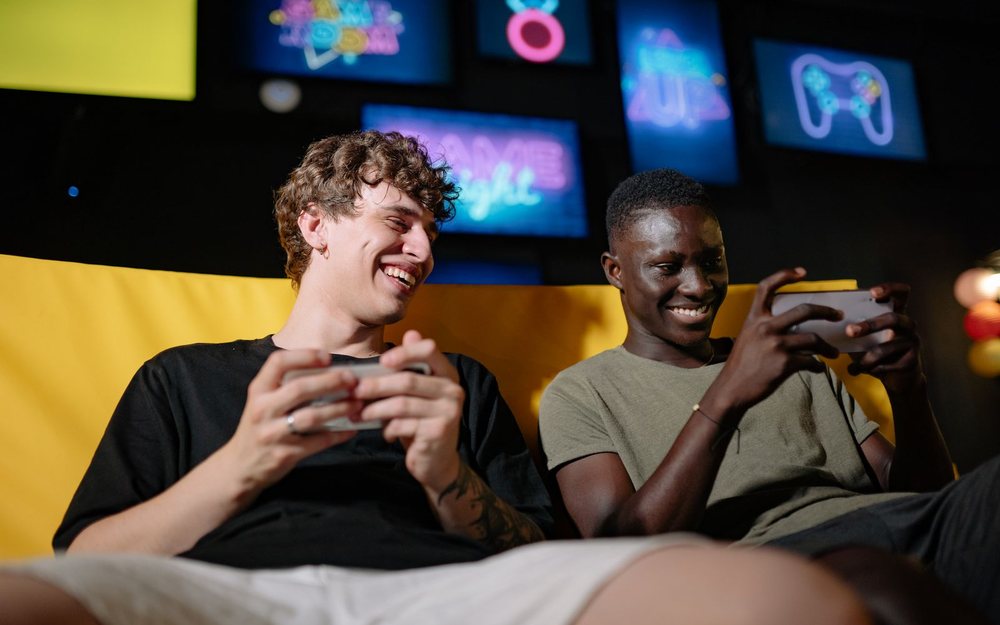
Two friends sit side by side, one holding a phone and playing a game, in a room with neon signs; a LIVE mark was added to the photo.

A mobile game on Android

  • SplitCam for Android streams the phone's screen or a mobile game at up to 60 fps, vertical or horizontal.
  • Scenes with fade, slide and push transitions, and stingers of your own.
  • The app is in beta; find it on the products page.
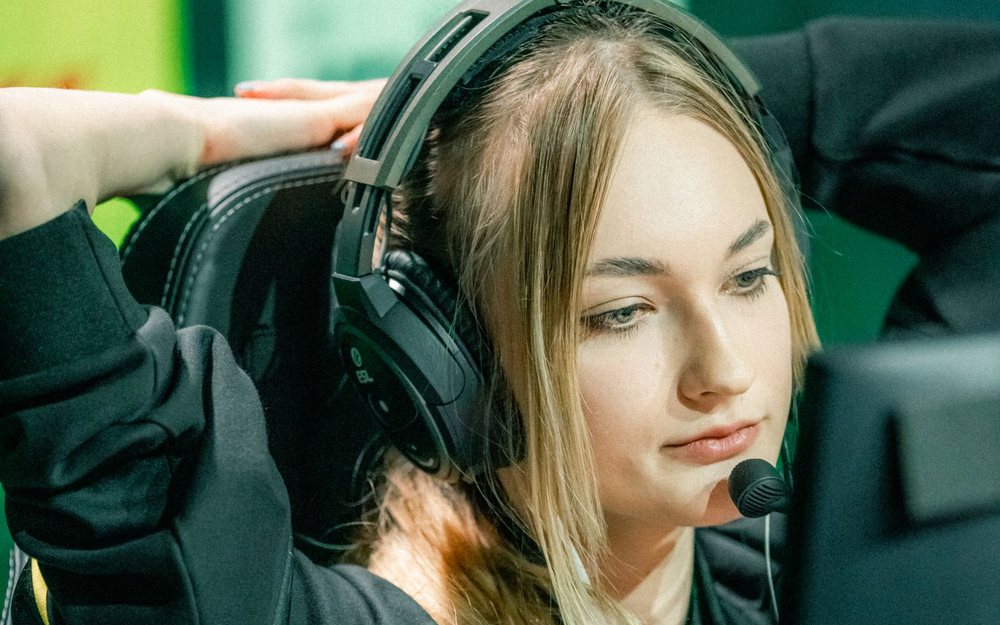
A young woman in a headset with a microphone looks at a monitor; a LIVE mark was added to the photo.

Face cam, chat and alerts

  • Face cam: your webcam on Windows, or the front camera of an Android phone.
  • Chat: the Android app merges every platform's chat into one feed.
  • Alerts: on Windows, add your Streamlabs or StreamElements widget address as a Browser source.

Photos: Pexels. The LIVE marks are added to show the idea.

Any game, any genre: what you send is the picture on the screen

SplitCam does not care which game you play, only what is on the screen. The six cards below are our own drawings of kinds of games, not real titles, and each says how you would send that kind of game.

PC

Racing and fast action

A fast picture needs a steady frame rate more than a high resolution. On Windows, capture the game, set the stream's frame rate before you go live and keep your face cam small, in a corner.

PC · Phone

Platformers and retro games

One scene with the game and a small face cam is enough. Add a Be right back scene for a break and jump to it with one shortcut.

PC

Shooters and team games

Give your microphone its own level in the Audio Mixer so your callouts stay clear over the gunfire, and watch the meters instead of trusting your ears. Check the game's anti-cheat and streaming rules first.

PC

Strategy and long sessions

A three-hour session needs the mini window that shows your stream's state while the game is full screen, and a recording as a backup. On Windows the recording is saved in fragmented MP4.

Phone

Mobile puzzles and casual games

Stream the phone's screen from SplitCam for Android, vertical for short clips or horizontal for Twitch, and add a face cam in a corner.

Phone

Mobile action games

Up to 60 fps from the phone's screen, with scenes and your own stinger between rounds. Keep the phone on a charger: streaming drains the battery.

Illustrations: our own drawings. They are not screenshots of real games and do not show real titles or characters.

What SplitCam does on Windows while you play

Everything in this section comes from the Windows build and its release notes. Scenes, the Audio Mixer, recording and hotkeys also exist on a Mac; the note at the end says what differs there.

🎮 Game Capture

Add a Game Capture source and pick the running game: SplitCam takes the picture from the game itself. If the game cannot be hooked, SplitCam switches that source to window capture, so you do not find out in the middle of the stream. Game capture sources are saved with the project, so next week the scene opens already pointed at the right game.

🎬 Scenes and transitions

Build a scene for the game, one with the game and your face cam, one for Starting soon and one for a break. On Windows you choose how one scene changes into the next: cross-fade, slide, swipe, wipe or a stinger, your own short animated clip.

⌨️ Hotkeys that work in the game

The first six scenes switch with Alt+Shift+1 to Alt+Shift+6 from any window, so you never alt-tab out of the game. Starting and stopping the stream and the recording, a snapshot, mute and pause have shortcuts too; all of them are listed in Settings.

🎚️ Audio Mixer and meters

The Audio Mixer keeps game sound, microphone and music on separate levels. The meters mark a source yellow above 75 dB and red above 85 dB, and an audio source monitor lets you check what a source sends.

🪟 A mini window over the game

Minimise SplitCam while a game is full screen and a small always-on-top window shows an indicator for each stream. Click an indicator to see that stream's name and status. Statistics have a floating panel with graphs of their own.

🔑 Sign in instead of copying keys

Sign in to Twitch, YouTube or Kick (Kick since version 11.0.13) and SplitCam fetches the stream key itself. Add every destination before you start: on Windows a new one cannot be added during a stream.

🔔 Alerts through a Browser source

SplitCam has no donation alerts of its own. Add the widget address from Streamlabs, StreamElements or a similar service as a Browser source and the alert appears in the scene.

🧰 Extras that suit a game

An official Stream Deck plugin (Windows), a virtual camera that can show a single layer for a Discord or Zoom call (Windows, from version 10.8.70), and import of an OBS project, which only the Windows version does.

On a Mac, SplitCam captures a whole screen or one window instead of using Game Capture, and it signs in to Twitch, YouTube and Kick. The floating statistics panel is Windows-only; on a Mac the compact view window carries the statistics.

What SplitCam does on an Android phone

SplitCam for Android is made for the phone you are playing on. It is in beta, so check its Google Play page for the current version and terms, and note that it needs a 64-bit phone with Android 8 or later. Find the download buttons on the products page.

Open the app, add your platforms, choose to stream the screen or a mobile game and go live. The list below is what the app does today.

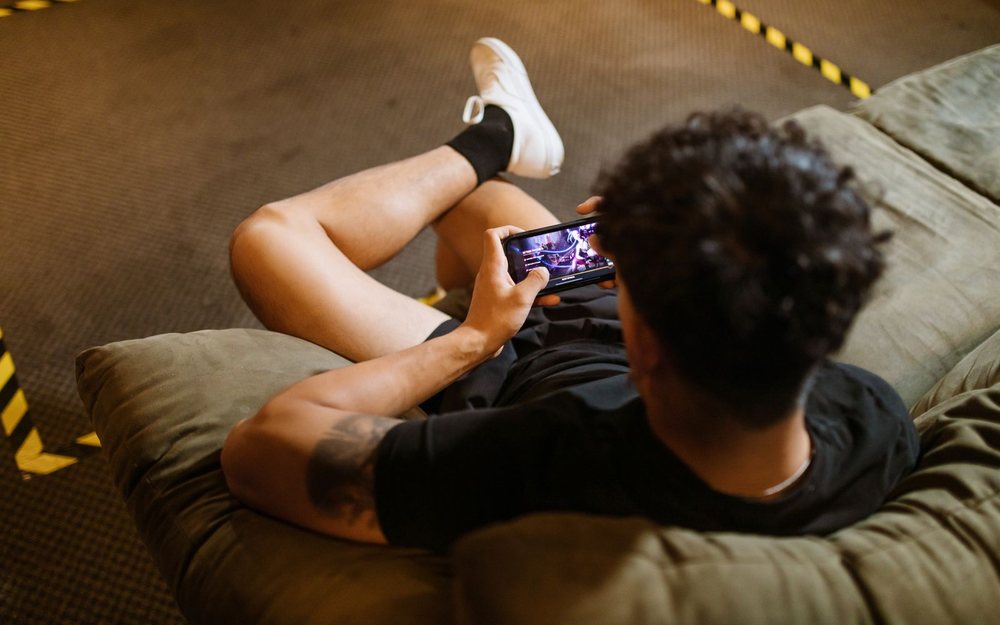
A person lies back on a sofa with their feet up and plays a game on a phone; a LIVE mark was added to the photo.

Photo: Pexels. The LIVE mark is added to show how a stream can look.

📱 The screen or the game, up to 60 fps

Stream the phone's screen or a mobile game at up to 60 frames per second, in vertical for short-video platforms or horizontal for Twitch and YouTube.

🎬 Scenes, transitions and stingers

Scenes with fade, slide and push transitions, plus stingers of your own, so a round change or a break does not look like a cut.

📡 One tap, many platforms

Go live to Twitch, YouTube, Kick, Facebook and any RTMP address at the same time.

💬 One chat for every platform

The chats of all the platforms you stream to are merged into one feed, so you read everyone without switching apps.

✨ Face cam, filters and effects

Add your face as a small picture, with AR filters, beauty filters and real-time effects. Two cameras at the same time work only on phones whose system allows it; on other phones a second lens would stop the running one.

🔁 Recording and reconnecting

Record locally while you broadcast, and let the app reconnect by itself if the connection drops for a moment.

How to stream a PC game in six steps

These steps are for Windows and take about twenty minutes the first time. For an Android phone, skip to the app list above: you add your platforms, choose the screen or the game and go live.

1
Install SplitCam and add your channels ~ 3 min

Download SplitCam for Windows and open the Stream Settings dialog. Sign in to Twitch, YouTube or Kick and SplitCam fetches the stream key for you (Kick since version 11.0.13), or paste a key by hand. Add every destination now: on Windows a new destination cannot be added during a stream.

Check your upload speed. Each destination gets its own copy of the stream, so the speed has to cover all the bitrates added together plus about 20 percent: 6 + 4.5 + 3 Mbit/s is 13.5, so plan for about 17.
2
Start the game and add it with Game Capture ~ 4 min

Start the game first, then add a Game Capture source in SplitCam and pick the running game from the list. If the game cannot be hooked, SplitCam switches that source to window capture. The source is saved with the project, so next week the scene opens already pointed at the same game.

Anti-cheat. The release notes for version 10.7.11 mention more supported games, some with anti-cheat protection. Read the game publisher's own rules for streaming before you go live.
3
Add your face cam and microphone ~ 4 min

Add your webcam as a layer on top of the game and shrink it into a corner. SplitCam can remove the background behind you with AI, with no green screen, also on graphics cards without RTX. Add the microphone in the Audio Mixer and keep game sound and voice on separate levels.

Speak under the red line. The meters mark a source yellow above 75 dB and red above 85 dB.
4
Build three scenes and learn their shortcuts ~ 5 min

Make one scene for the game with the face cam, one for Starting soon and one for Be right back. Choose the transition between scenes and use Alt+Shift+1 to Alt+Shift+3 to jump between them while the game has the focus.

Let a timer do the cue. An Automation Timer layer in the Starting soon scene can move you to the game scene when the countdown ends (Windows).
5
Test with a recording, not with viewers ~ 5 min

Start the recording without clicking Go Live, play for two minutes and open the file. Check that the game sound and your voice are balanced, that the picture is smooth and that the face cam does not cover the game's own indicators. Set the resolution and frame rate first: on Windows they are locked once a stream or a recording has started.

One file. The recording is one file with the picture and sound you would send, not a separate file for each source.
6
Go live and watch the mini window ~ 2 min

Click Go Live. Minimise SplitCam and a small always-on-top window shows an indicator for each stream while the game stays full screen; click an indicator to see its name and status. When you finish, stop the stream first and the recording after it.

Not streaming yet? Record your gameplay

You can use all of this with the stream switched off. Build the scenes, start the recording and leave Go Live alone: SplitCam saves the picture and sound it would have sent as one video file. Post it later, cut clips from it, or just watch your own run.

It is also the calmest way to learn the setup. On Windows the file is saved in fragmented MP4, so a crash does not lose what was already recorded, and there is no bitrate cap on recording to a file. The Android app records locally while you broadcast.

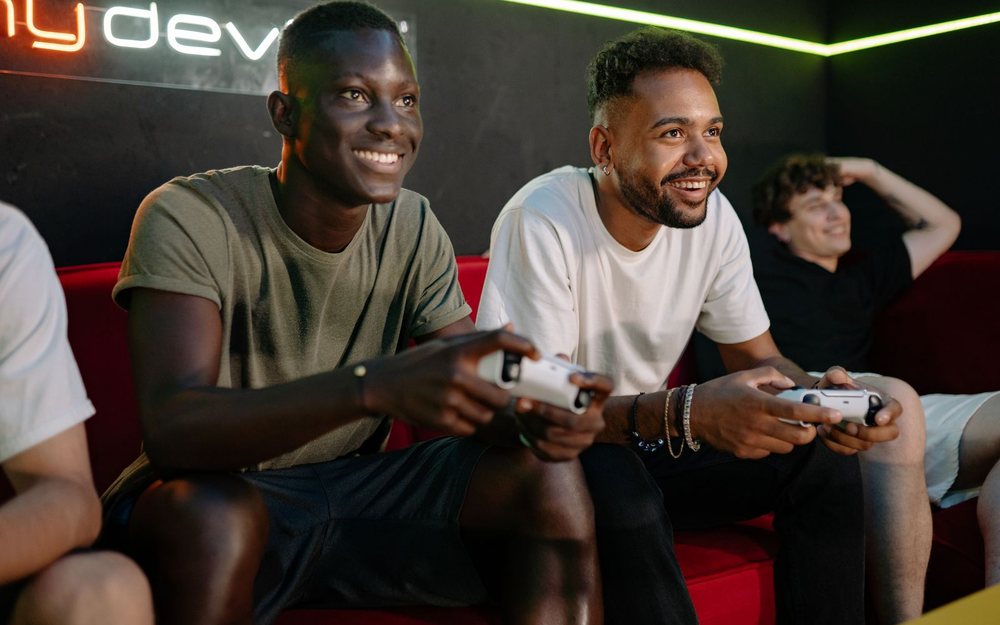
Friends on a couch laugh and play a video game together; a REC mark was added to the photo.

Photo: Pexels. The REC mark is added to show the idea.

🧪 Record first, stream later

A test recording shows what viewers would see: sound balance, frame rate, where the face cam sits. Fix it before anyone watches.

✂️ Clips for later

A long session is one file. Open it in a video editor of your choice to cut the best moments for short videos.

🎞️ What the file contains

The picture and sound of the scene you were on, with the game, the face cam and the microphone as the scene shows them, not one file for each source.

📱 A remote from the sofa

SplitCam Remote is a separate phone app that can switch scenes and start or stop the stream and the recording on your computer, on the same Wi-Fi (check its store page for its terms; on a Mac, use the iPhone or iPad version).

On Windows, set the resolution and frame rate before you press record: they are locked while a recording runs.

Before the first stream: four things gamers forget

🎵 Music and the game's own rules

Platforms flag recorded music, and publishers set their own rules for streaming and earning from their games. Read both before you go live and keep copyrighted music out of the stream mix. This is general information, not legal advice.

📶 Upload speed

A game, a face cam and three platforms ask more of your connection than a video call. Test your upload speed, close downloads, and if the connection is slow lower the stream's resolution or frame rate before you touch the game's graphics settings.

🎧 Calls with friends

On Windows the virtual camera can show a single layer instead of the whole scene (Settings → Additional → Virtual video device input), so a guest on Discord or Zoom sees your face cam and not your overlays.

🕹️ Console games

A PlayStation or an Xbox needs a capture card. The Windows release notes list AverMedia and other external video devices, but no model is certified, so test yours before the stream.

FAQ: streaming games from a PC or a phone

How do I stream PC games for free?

Download SplitCam for Windows, add a Game Capture source, choose your game, add your webcam and microphone and click Go Live. SplitCam for Windows and macOS is free, with no watermark and no paid plan.

Can I stream mobile games from an Android phone?

Yes. SplitCam for Android (beta, on Google Play) can stream the phone's screen or a mobile game at up to 60 fps to Twitch, YouTube, Kick, Facebook or any RTMP address, in vertical or horizontal.

Which platforms can I stream games to?

Twitch, YouTube and Kick, and any other service that accepts an RTMP address. One stream can go to several platforms at once; each destination gets its own copy, so check that your upload speed covers all of them.

Do I need OBS to stream games?

No. SplitCam has its own Game Capture, scenes, Audio Mixer and recording. If you already have an OBS project, SplitCam for Windows can import it; the Mac version cannot import OBS projects yet.

Can I stream PlayStation or Xbox games?

With a capture card, yes: the card appears as a video source. The Windows release notes list AverMedia and other external video devices, but no model is certified, so test yours before you go live.

Can I show donation alerts on my stream?

SplitCam has no alerts of its own. Add the widget address from Streamlabs, StreamElements or a similar service as a Browser source, and the alerts appear in your scene.

Can I record gameplay without streaming?

Yes. Start the recording and do not click Go Live. SplitCam saves the picture and sound it would have sent as one video file on your computer; on Android the app records locally while you broadcast.

Does SplitCam work on a Mac for games?

Yes for streaming: on a Mac SplitCam captures a screen or a window instead of using Game Capture, and it signs in to Twitch, YouTube and Kick. The Game Capture described on this page is part of the Windows version.

Can I use my phone as a face cam on a PC stream?

Yes. Add the phone as a Phone Camera source: on Windows you scan the code it shows and nothing is installed on the phone. Put the picture in the scene as a face cam, in a corner of the game.

Can I stream any game I like?

Not always: publishers set their own rules for streaming and for earning money from their games, and some games forbid it. Check the publisher's rules and the platform's rules before you go live. This is general information, not legal advice.

Can I stream in vertical for short videos?

On Android, yes: the app streams in vertical or horizontal. Check the destination's rules for vertical streams before you go live.

Set up your first game stream

SplitCam for Windows and macOS is free, with no watermark and no paid plan. Add your game, record a test and go live in about twenty minutes.

⬇ Free Download