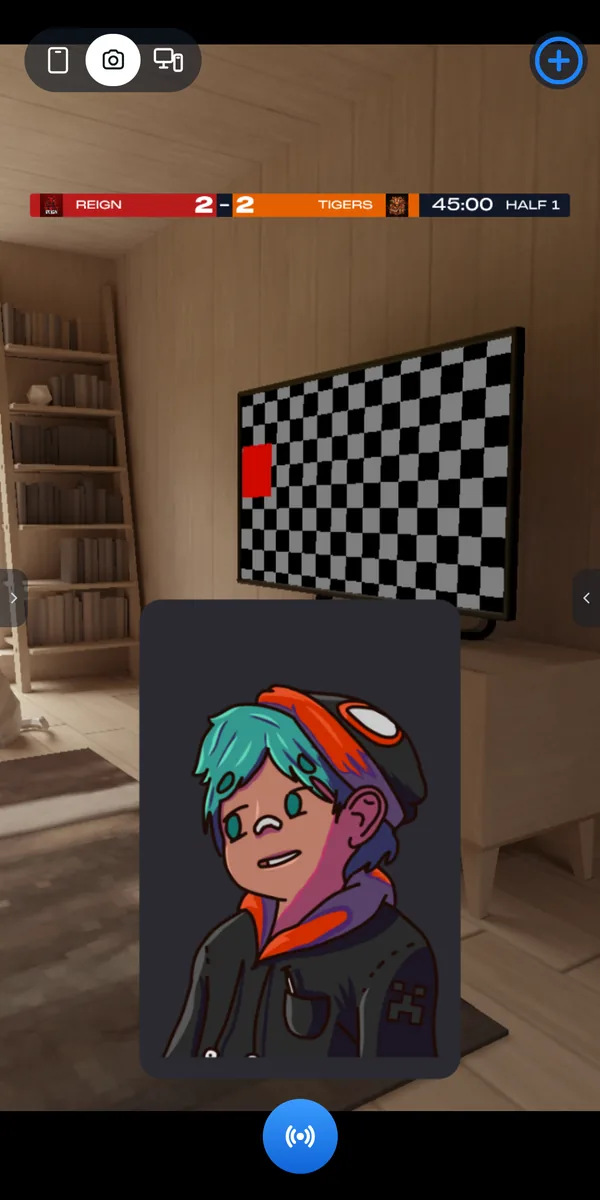
Pick your service, paste the link you would give OBS, and SplitCam for Android draws the overlay on top of your picture: donation alerts, a goal bar, an event list or a sports scoreboard.
A donation alert is the pop-up a stream shows when a viewer donates. Services such as Streamlabs or DonationAlerts give you a web link for it, and for a goal bar or an event list too: the same link you would paste into OBS. SplitCam for Android draws that page over your picture, so alerts work from a phone.
Streamlabs, StreamElements, DonationAlerts, Ko-fi, Tipeee, Throne, Tiltify, DonatePay, Donatty or Donatello. For anything else choose “Other” and use any link meant for OBS.
Paste the widget link from the service: an alert, a goal, an event list or a whole overlay. SplitCam guesses the kind from words in the link, and you can correct it under “What is it”. If the link has no https://, SplitCam adds it.
You make and style the widget in the service itself, with its own steps. SplitCam does not sign in to the services, read your donations or list your widgets.
On the camera screen, when you tap Go Live and a scene has a page, SplitCam asks “Scene sound on air”. Tap “Allow”, then allow what Android asks: it calls it “screen recording” and shares app sound no other way. “Without scene sound” goes live with your microphone only. Test it once before the stream.
The page is loaded from the internet while you stream, so the phone has to stay online.
A busy page can make the stream stutter. Choose a smaller page size in the layer settings, and test the layer before you go live.
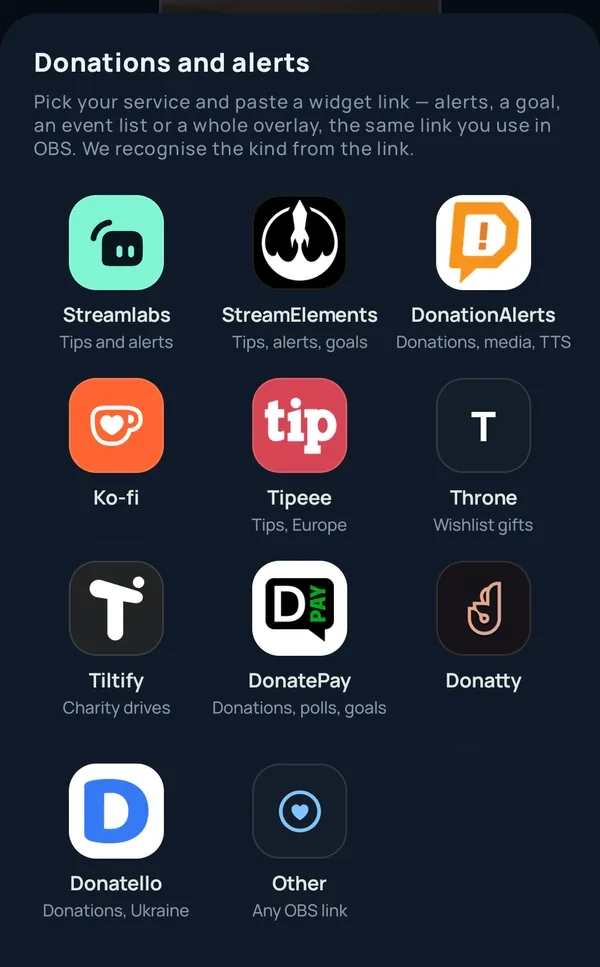
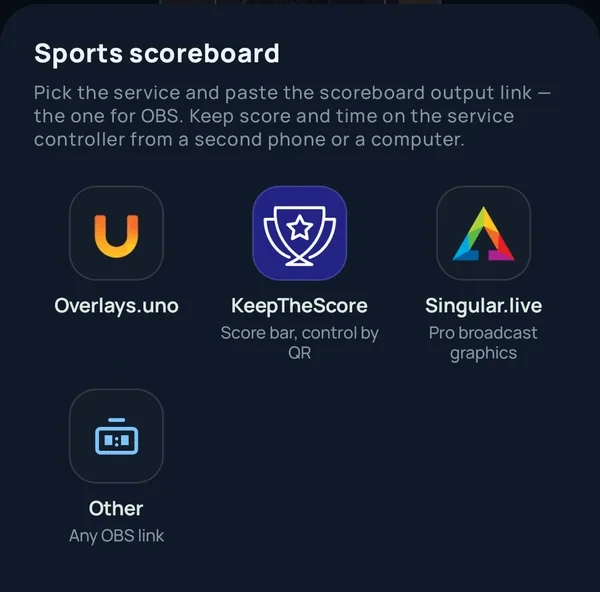
A scorebug is the bar that stays on screen in a sports broadcast and shows the score, often with the clock. A web scoreboard is the same thing as a page: you show it in the stream and change the score from a controller on another device.
Overlays.uno, KeepTheScore or Singular.live. For any other scoreboard choose “Other” and use its link for OBS.
Paste the scoreboard's output link, the one for OBS, not the link of its control page.
You keep the score and the time in the service's controller, on a second phone or on a computer. SplitCam only shows the scoreboard page.
For KeepTheScore the app's own note says: for a bar over the stream, pick Scorebug → Narrow and wide. Layout names can differ by sport.
SplitCam shows the page as it loads and changes. A delay can come from the service, your connection or the phone.
In the layer settings, choose the page size (Auto, 1280×720 or 1920×1080) and the zoom. A smaller page is easier on the phone.


They show a web page in your stream, and that sets the limits.
You paste a link. SplitCam does not log in to Streamlabs, KeepTheScore or any other service, and it does not pick a widget or a scoreboard from a list.
The service receives the donations and holds the score. SplitCam does not read donations or keep score.
Alerts, goal, events or overlay are told apart by words in the link. If it guesses wrong, change “What is it” in the layer settings.
The question comes only before the broadcast starts and cannot be answered later. If you tap “Without scene sound”, SplitCam does not ask again until you restart it. When you broadcast the screen, the sound of pages already goes out.
Video alerts and busy overlays use the processor. If a page slows the stream, choose a smaller page size.
You need the link from your own widget or scoreboard at the service; most services ask you to sign up first.
Menu names come from each service's own help pages, read on November 9, 2026. Services rename things, so follow your screen.
| Service | Where the link is |
|---|---|
| Streamlabs | Open the widget in the Dashboard (for example Alert Box): the Widget URL is at the top of its settings |
| StreamElements | My Overlays, then Copy URL for the overlay |
| DonationAlerts | Alerts, then copy your OBS (or XSplit/Kast) link |
| Throne | Integrations, Stream Alerts: customize the alert, then copy the link |
| Donatty | Widgets, open a widget: the link is at the top of its settings, with a copy button |
| Ko-fi, Tipeee, Tiltify, DonatePay, Donatello | In the service's help, look for the link meant for OBS or a browser source |
| Overlays.uno | In the overlay, Copy Output URL (the controller has its own Control URL) |
| KeepTheScore | Create a scoreboard, then Open Display Scoreboard at the top of the control panel and copy the link |
| Singular.live | The Output URL, copied from the control app |
A stream overlay is graphics drawn on top of live video, and a stream widget is a small piece of one that shows things like alerts, chat, goals or recent events. Many widgets are published as a web address that the streaming program loads like a web page.
Yes, in SplitCam for Android. Add the layer, pick your service, paste its widget link and go live. You make the alert itself in the service.
You set up and style the widget in the service's own dashboard, and the services' guides are written for a computer. The link itself is only text: copy it there and paste it on the phone.
A scorebug is the small bar that stays on screen during a sports broadcast with the score and often the clock. A scoreboard is the full display of a game. KeepTheScore's blog (read November 9, 2026) describes a scorebug overlay for the stream and a full scoreboard on a TV. SplitCam shows whichever page the service gives you.
Yes. You keep the score and time in the service's controller from a second phone or a computer, and the stream shows the page as it changes.
On the camera screen, SplitCam asks “Scene sound on air” when you tap Go Live. Tap “Allow”, then allow Android’s screen-recording prompt; “Without scene sound” sends your microphone only. The question comes only before the broadcast starts, and after “Without scene sound” it is not asked again until you restart SplitCam. Scene sound also needs microphone permission and Android 10 or newer. When you broadcast the screen, the sound of pages already goes out.
A busy page can. Choose a smaller page size in the layer settings, and test the layer before you go live.
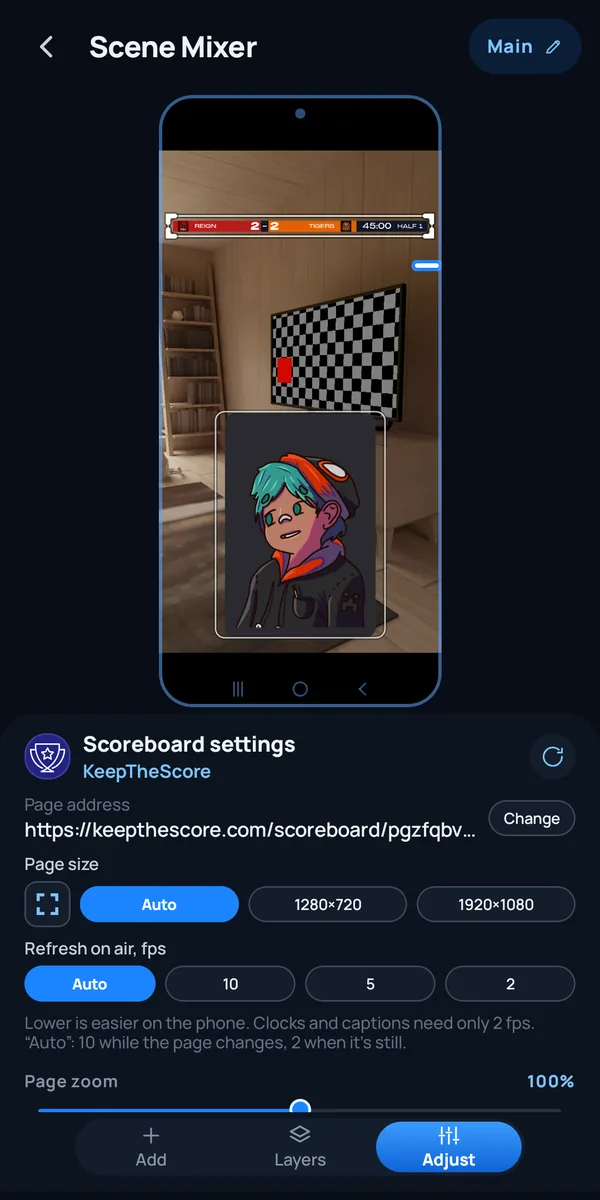
Get SplitCam for Android, add a widget layer and go live.