Sports

How to live stream a sports game — free software, step by step.

Volleyball, basketball, handball, football (soccer) and more: use a phone on a tripod as the match camera, put the score and your club logo on screen, and send the match to YouTube, Facebook and other platforms at once. SplitCam is free software that runs it all from one laptop — for club, school and youth matches, tournaments, or just your own child's game.

Free · no watermark A phone and a laptop are enough to start Windows 10 (version 2004+) · Windows 11 · macOS 13+ Records while you stream
Quick answer — how do you live stream a sports game?
Put a camera where it sees the whole court or pitch — a phone on a tripod works. Bring it into SplitCam as a Phone Camera (scan a QR code, nothing to install on the phone), add the score as a text layer, connect your YouTube or Facebook account and click Go Live. First check that you are allowed to stream the match: ask your club, school or the organiser, and never rebroadcast a league's TV feed, a pay-TV signal or someone else's stream.

Where to put the camera: volleyball, basketball, football, handball

These examples show common starting points for one camera and an optional second one. Height and position make a big difference. Use a tripod, do not zoom during play, and keep the sun and bright windows behind the camera, never in front of it. A second camera that stands far from the laptop has to send its picture over the network, for example as an IP camera. Ask the venue before you place any camera.

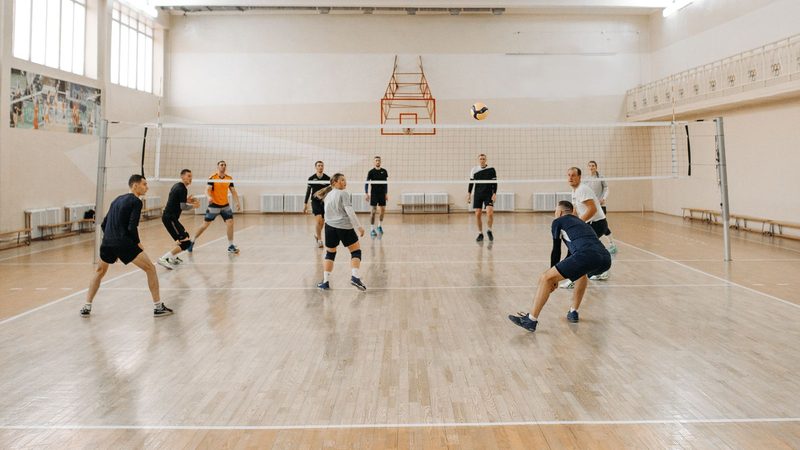
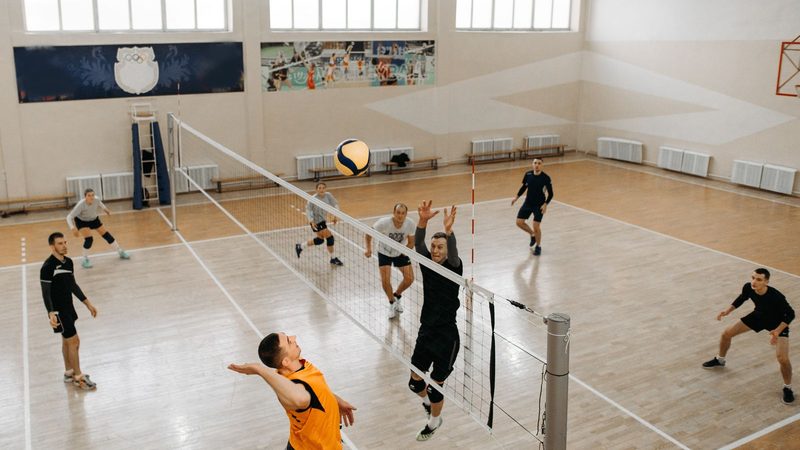
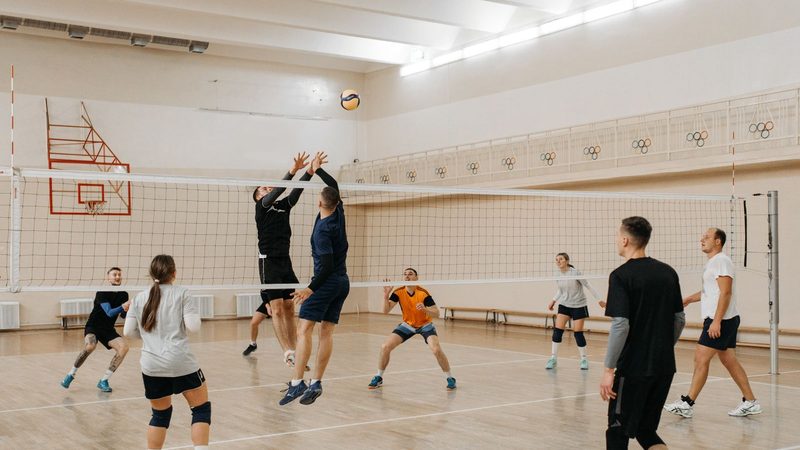
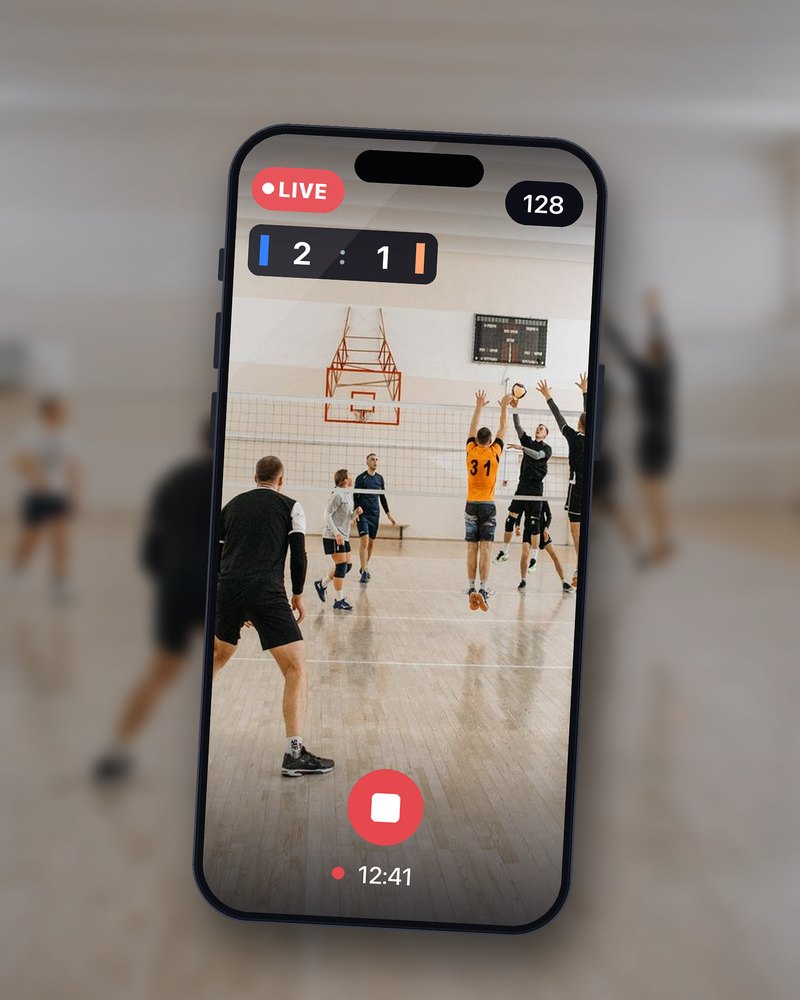
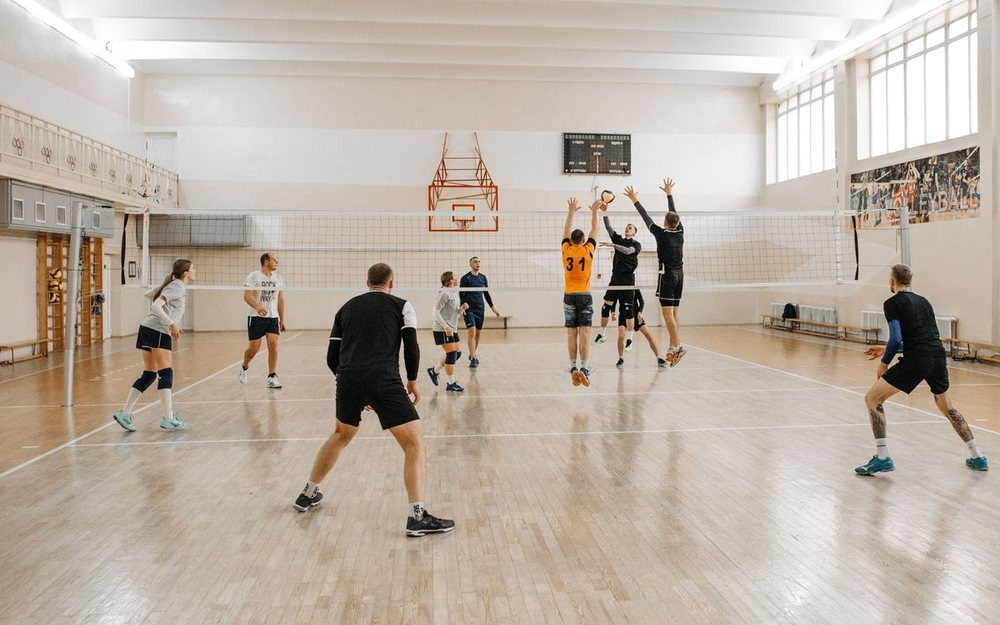
A volleyball match with a LIVE badge and a score bar added to the photo, as an example of how your stream can look.

Volleyball

  • Main camera: high enough to see over the net, for example on a tall tripod or in the first rows of the stands, on the side of the scorer's table, in line with the net. A position much higher than that makes the players look small.
  • Second camera (optional): behind the end line, high and out of the way of balls and players, looking along the court.
  • Sound: a commentary microphone near the scorer's table, away from the hall speakers.
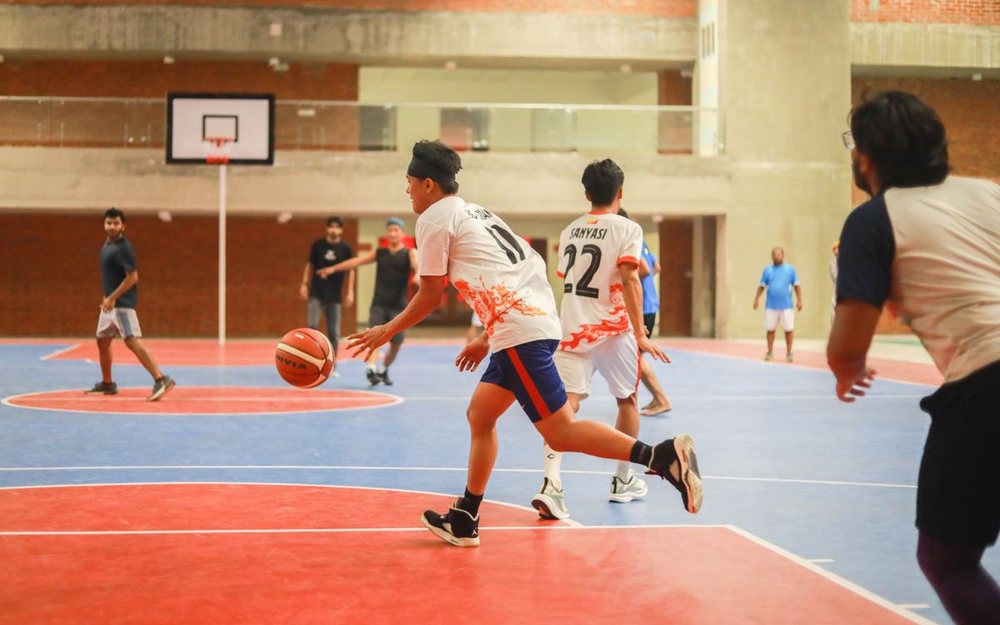
A basketball match with a LIVE badge and a score bar added to the photo, as an example of how your stream can look.

Basketball

  • Main camera: at half-court, above the heads of the crowd, so that both baskets look the same size. Keep the scorer's table and the table officials out of the frame.
  • Second camera (optional): behind one basket, high and out of the way of balls and players. Bright lights can flare on the glass backboard.
  • Sound: a headset microphone for commentary; the phone's own microphone picks up the crowd.
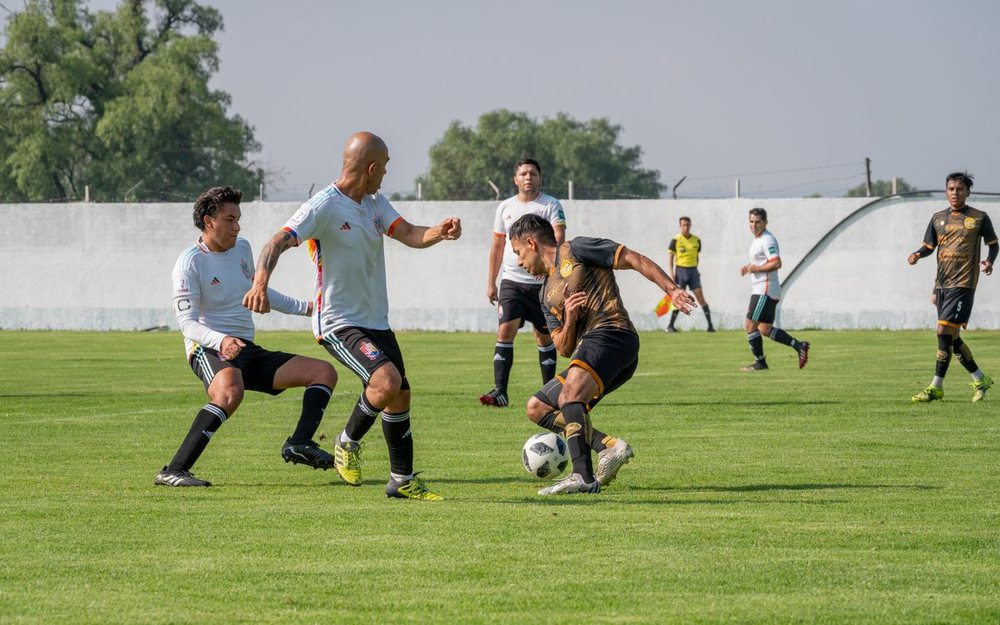
A football match with a LIVE badge and a score bar added to the photo, as an example of how your stream can look.

Football

  • Main camera: at the halfway line on the side of the pitch, as high as the venue allows, with the sun behind it. Mount the phone in landscape.
  • Second camera (optional): behind one goal, as high as you can and out of the way of balls and players, for shots on goal and the goalkeeper. It is not a good main camera: you lose most of the pitch and it is hard to follow play across the width.
  • Sound: a headset microphone at the side of the pitch for commentary; the phone's own microphone picks up the crowd.
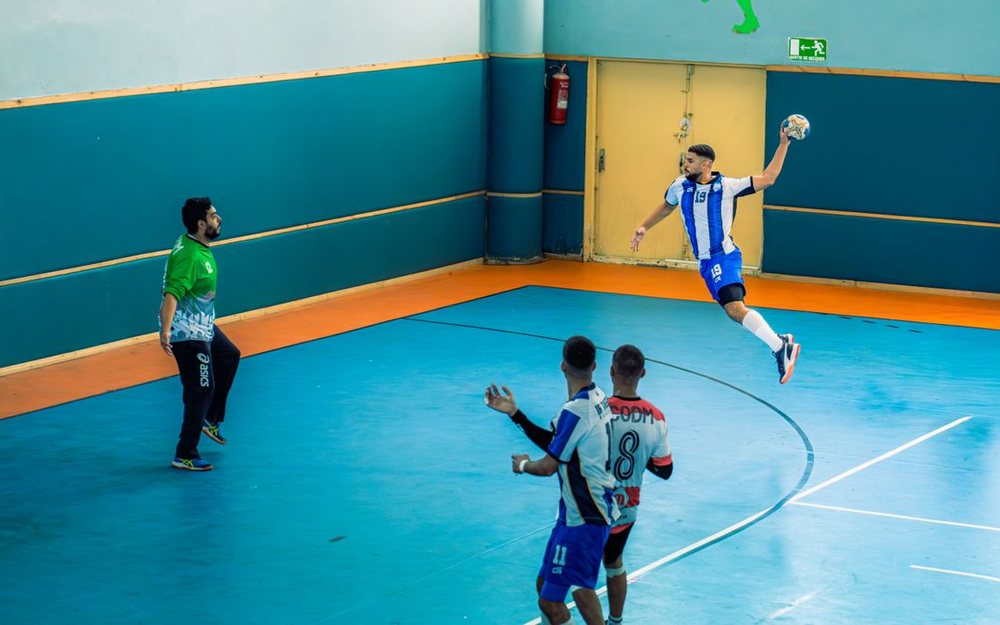
A handball match with a LIVE badge and a score bar added to the photo, as an example of how your stream can look.

Handball

  • Main camera: high at the halfway line, on the side of the benches and the table, with bright windows behind the camera rather than in front of it.
  • Second camera (optional): behind one goal, high and out of the way of balls and players, for 7-metre throws and goalkeeper saves.
  • Sound: an ambient microphone, with a quick mute for when the hall plays music during the game.

The score bars and the LIVE marks are added to the photos to show how a stream can look. In SplitCam you type the score yourself, and the Replay source is available on Windows only. Photos: Pexels, free to use.

Three ways to start

Start small and add what you need.

Starting pointWhat you needWhat you get
One phoneA phone on a tripod, a laptop, an internet connectionA wide shot with the score and your logo on screen, streamed to YouTube or Facebook and recorded to a file
Two angles and commentaryA second camera (an IP camera, or a webcam within cable reach of the laptop), plus a headset microphoneA wide scene and a close-up scene, a commentator, and switching by hotkey or from the SplitCam Remote app on another device
Camcorder or DSLR (Windows)An HDMI camcorder or a DSLR, either one connected through a capture card, and a laptop that is plugged inA picture from a dedicated camera, with its own lens and zoom, instead of the phone's

On Windows you can add the Replay source and the Timer layer at any of these starting points.

Before you go live: permission, music and children

This is general information, not legal advice. Rules differ by sport, country, competition and platform, so ask your club, school, league or the venue first.

📜 Stream only what you may broadcast

A match you organise, or one whose organiser agrees, is a different case from a league's TV feed, a pay-TV signal or someone else's live stream: you need the rights holder's permission to rebroadcast those. YouTube and Facebook check live streams for copyrighted content, and on any platform a rights holder can send a takedown notice. On YouTube, a stream that matches another live broadcast can get a placeholder, be interrupted or be ended, and the channel can get a copyright strike. Competitions also differ on who owns the media rights, so ask.

🎵 Music in the hall

Music from the hall speakers or a DJ is someone else's music in your stream. Platforms can block, mute or remove content that uses music without the right licence, and Twitch can mute the saved video. Keep a quick mute on the microphone that hears the hall, or ask the venue to keep the music off during play.

🧒 Children in the picture

Some federations and leagues ask you to tell the other team and the parents in advance, some require the parents' written consent, and some limit who can watch. Check the rules of your own federation or league. Platforms add rules of their own: on YouTube, live chat is switched off when the audience is set to made for kids, and a stream with minors under 16 and no adult visibly present can be removed or lose its chat.

🔒 Who can watch

Decide before you go live who can watch, and check the setting where you create the broadcast. On YouTube a private stream can be seen only by the people you invite, an unlisted one by anyone who has the link, and a public one by everyone; for adult accounts the default is public. Facebook and other platforms have their own options.

How to live stream a match with SplitCam, in six steps

Before step 1: download and install SplitCam (it is free), set up an account or channel on the platform you want, for example YouTube or Facebook, and check that you may stream the match (see Before you go live). On YouTube, switch live streaming on at least a day before the first match: the first time it can take up to 24 hours. You can try steps 3 to 5 at home with the phone on a table. On match day, arrive early, test the internet (step 1), place the camera and check that its picture arrives in your scenes (step 2), then go live (step 6).

1
Test the internet at the venue

Test your upload speed where the laptop will sit, at the hour the match is played: a shared connection can slow down when the venue fills up. The bitrate of your stream must stay below your upload speed, and YouTube advises leaving about 20% of it spare. If the venue's Wi-Fi is weak, use a cable to the laptop, or keep a mobile hotspot ready as a fallback.

On Windows, the setup wizard tests your upload speed and your computer. SplitCam also has an optional restream server for slow internet (off by default, documented for Windows); it sends the video through a SplitCam server instead of straight to the platforms.
2
Set up the match camera

Put a phone on a tripod, in landscape, at one of the camera positions above. In SplitCam add a Phone Camera source, scan the QR code with the phone and allow the camera and the microphone in its browser. Nothing is installed on the phone. Pairing goes through SplitCam's servers; the video then runs between the phone and your computer. Check that the picture arrives from the spot where the camera will stand. A webcam or an IP camera works too, and on Windows so does an HDMI camcorder or a DSLR connected through a capture card.

Keep the phone charging. A phone that streams video drains its battery fast, so plug it in or bring a power bank.
3
Build your scenes

A scene is a stack of layers. Start with one scene: the camera full frame, a text layer for the team names and the score, and an image layer for your club logo or a sponsor. That is enough for a whole match. If you add a second camera angle, build a second scene the same way. Also make a break scene, for half-time or between sets, with a title or a picture. Each layer belongs to its scene, so when the score changes, change it in every scene you will switch to. The score is typed by hand, because SplitCam does not keep score for you. If you prefer a web scoreboard, put its address in a Web Browser layer (called Browser on a Mac), or capture the window of a scoring app that runs on the same laptop.

4
Set up the sound

A phone's microphone picks up the hall and the crowd. For commentary add a headset microphone as its own source, and set the level and the mute of each source separately. Sound belongs to the scene it was added to, so check that every scene you will switch to has its sound. Keep the commentary microphone away from the hall speakers, and keep a quick mute at hand for the microphone that hears the hall, for when music plays. On Windows, switch on Accentuate microphone for the commentary microphone: it lowers the other sources while you speak, and it reacts to any sound, so wear a headset.

5
Connect your platforms

Open Stream Settings and add YouTube, Facebook or any other platform (see multistreaming): sign in where the app offers it, or paste the stream key. Every platform has its own settings. Add all of them before you start, because on Windows a destination cannot be added during a broadcast. YouTube also lets you schedule a stream and share its link in advance, so families and fans know where to wait.

6
Record, then go live

First start the recording, then click Go Live. During play, switch scenes with a click or a hotkey (on Windows, Alt+Shift+1 to 6 works from any window), update the score text and, on Windows, press your replay hotkey after a goal or a point. At the break switch to the break scene. At the end, stop the stream first and the recording after it. On a Mac, do not close the lid while you stream: the stream stops.

Test first. Before the first match, run a test stream and check it on a second phone: picture, sound and score. On YouTube you can set the stream to private for the test. On Facebook, check that your profile or Page really offers a private audience; if you are not sure, treat the test as public. On Windows the stream settings are locked once recording or streaming has started, so finish them first.

What makes it look like a broadcast

None of this is needed for a first match. Add it one piece at a time.

🧮 The score on screen

A text layer shows the team names and the score, in the typeface, colours and outline you choose, and you change the numbers by hand. SplitCam does not fetch the score by itself.

⏪ Instant replay (Windows)

Add a Replay source to a scene and give it a hotkey in Settings. Press it after a goal or a point to replay the last 5 to 10 seconds of the scene. The source also has a speed setting. Replay is available on Windows only.

🎛️ Switching between cameras

Make one scene for each camera angle and switch with a click, a hotkey or the SplitCam Remote app. The first six scenes get hotkeys. On Windows you can also choose a transition between scenes, such as a cross-fade, a slide or your own short clip. More about switching between cameras.

🏷️ Logos and sponsors

Put your club logo, a sponsor banner or a bar with names over the video as image layers. A slideshow layer can cycle through several sponsor pictures.

⏱️ A break countdown (Windows)

The Timer layer counts down a time you set. Put it in your break scene: it can start when the scene is shown and, at zero, switch to another scene, such as the match. Use it for the break, not as the game clock.

💾 A recording of the match

SplitCam records the finished picture to a file while it streams, for coaches, players or a later upload. It is one file with the same picture and sound as the stream, not a separate file for each camera.

Control the broadcast from a second phone

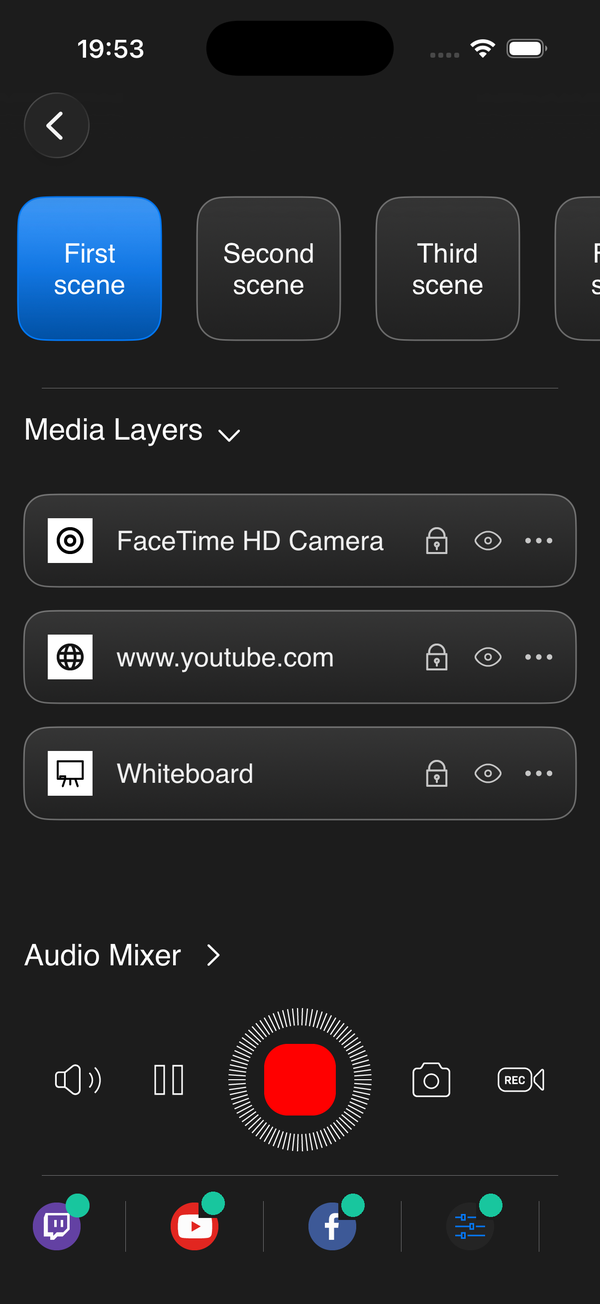
The SplitCam Remote app on a second phone or tablet switches scenes, starts and stops the stream and the recording and adjusts the audio on the laptop. On Windows it can also start a replay. A volunteer can do this from the sideline while the laptop stays at the scorer's table. Editing the score text is not among the documented Remote actions, so plan to type the score on the laptop.

Keep the Remote phone and the laptop on the same local network. SplitCam for Mac works with the SplitCam Remote app on iPhone and iPad. SplitCam Remote is a separate app: see its store page for its terms.

SplitCam Remote on a phone: scene buttons, media layers, the audio mixer and the stream and record buttons.

Two short videos from SplitCam

Short tutorial videos from SplitCam's own channel. They load from YouTube only when you press play.

How to replay the last 5 to 10 seconds of the scene SplitCam on YouTube · 0:46 · Shown in the Windows app How to add your phone camera to a stream SplitCam on YouTube · 0:20 · Shown in the Windows app

FAQ: live streaming sports games

Can I live stream a sports game from my phone?

Yes, with a laptop: the phone is the camera and SplitCam on the laptop does the streaming. Add a Phone Camera source, scan the QR code, and the phone's picture and sound arrive in your scene. Nothing is installed on the phone. SplitCam's iOS and Android apps (in beta) are not covered on this page.

What do I need to live stream a match?

A camera (a phone, a webcam or, on Windows, an HDMI camcorder with a capture card), a tripod, a laptop with SplitCam, a stable internet connection with enough upload speed and an account or channel on YouTube, Facebook or another platform. A headset microphone for commentary and a second person for the score make the stream better, but you can start without them.

How do I put the score on screen?

Add a text layer with the team names and the score and change it by hand, or show a web scoreboard in a Browser layer. SplitCam does not keep score or fetch it by itself.

Does SplitCam do instant replays?

On Windows, yes: add a Replay source to a scene, assign it a hotkey in Settings and press the key to replay the last 5 to 10 seconds of the scene. The Replay source is available on Windows only.

Can SplitCam follow the ball or switch cameras by itself?

No. SplitCam does not follow the ball, move a camera or switch to the action by itself: you switch scenes yourself, with a click, a hotkey or the SplitCam Remote app. On Windows, a Timer layer can switch to another scene when its countdown ends, but that is a timed switch you set up. A camera that follows play on its own is a separate product; SplitCam can show its picture only if it works as one of the supported camera sources.

Do I need permission to stream a match?

It depends. Rules differ by sport, country, competition and venue, so ask your club, school, league or the venue before you stream. Do not rebroadcast a league's TV feed or another person's stream: YouTube and Facebook check for it, and a rights holder can send a takedown notice. This is general information, not legal advice.

How fast does my internet need to be?

Upload speed is what counts, not download speed. The bitrate of your stream, all platforms together, must stay below your measured upload speed, and YouTube advises leaving about 20% of it spare. Test it where the laptop will sit, at the time of the match.

Can I stream to YouTube and Facebook at the same time?

Yes. Add each platform in Stream Settings and, by default, the video goes straight from your computer to each one, with its own settings. Add every platform before you go live: on Windows you cannot add one during a broadcast.

Can I go live on YouTube this weekend if my channel has never streamed?

Maybe not. YouTube says that switching live streaming on for the first time can take up to 24 hours, and the channel must be verified. Do it a few days before the match.

Can I stream so that only the parents can watch?

Partly. Who can watch is a setting of the platform's broadcast. On YouTube a private stream can be seen only by the people you invite, an unlisted stream by anyone who has the link (and they can pass it on), and a public one by everyone. Choose one and check it before you go live. Other platforms have their own options.

Can I record the match while I stream it?

Yes. SplitCam records the finished picture to a file while it streams: one file with the same picture and sound as the stream, not a separate file for each camera.

What works on a Mac?

Scenes, the Phone Camera, text and image layers, the Browser layer, hotkeys, recording and streaming to several platforms work on both Windows and macOS. The Replay source, the Timer layer's countdown and its end actions, scene transitions, capture-card support, the setup wizard with the upload-speed test and the option to lower other sources while you speak are described for Windows only in SplitCam's release notes.

Does SplitCam work for other sports too?

Yes. Nothing in SplitCam depends on the sport, and volleyball, basketball, football and handball are only examples. The same setup suits baseball, softball, hockey, rugby, tennis, wrestling, swimming, athletics, gymnastics, martial arts and dance or cheer competitions. For any sport, a high, wide shot from the middle of the side of the court or pitch, with the sun or bright windows behind the camera, is a good start.

Can I live stream my child's game or a school competition?

Often yes, but ask first. A school, club or league can have its own rules about filming and streaming children, so ask before the match, and tell the other team's parents if the rules ask for it. The setup is the same as for any match: a phone on a tripod as the camera and SplitCam on a laptop. If only the family should watch, set the stream to unlisted on YouTube and send them the link, or set it to private and invite them by email; Facebook and other platforms have their own options.

How do I live stream a tournament or a whole sporting event?

Treat each match as its own stream with the same setup: a camera, SplitCam on a laptop and your platforms. Before the day, ask the organiser for permission and for the schedule, and test the internet at the venue once it is full of people, because a shared connection can slow down. On YouTube you can schedule each stream in advance and share its link, so families and fans know where to find every match.
Ready for the next match?

SplitCam for Windows and macOS is a free download: no credit card, no watermark, no paid plan.

⬇ Free Download