School events

How to live stream a school play or concert — free software, step by step.

A phone on a tripod at the back of the hall, a laptop, and a link you send only to the families. This guide is for the teacher, office assistant or parent volunteer asked to "do the stream" for a school performance such as a play, concert, assembly or graduation. SplitCam is free for Windows and Mac.

Free · no watermark Windows 10/11 · macOS 13+ · iOS 16.6+ · Android 8+ You choose who can watch
Quick answer — how to live stream a school play
To live stream a school play, first get the school's yes (see permission and privacy). Then put a phone on a tripod at the back of the hall, bring it into SplitCam on a laptop as a Phone Camera (no cable needed), set the YouTube stream to Unlisted or Private, send the link only to the families, and go live. If the school agrees, a second phone can show the teacher who is speaking, switched by hand (more than one camera).

How to live stream a school play, in six steps

Give yourself a week, not an evening. The school's answer cannot be hurried, and neither can YouTube's set-up if the channel has never gone live: the first time, YouTube says switching on live streaming can take up to 24 hours, and the channel must be verified with a code sent to a phone number. These YouTube rules were read in October 2026 and can change. For online lessons see SplitCam for educators; for school matches see live streaming a sports game.

1
Get the school's yes before anything else

Whoever asked you to live stream a school play may not be the one who can say yes. Find out who is: often the principal or head teacher, with the school's safeguarding lead (the person responsible for child protection). Then ask four things. Is there a rule about filming or streaming school events? Have the families signed a photo or video permission form? Is there a list of children who must not be shown online, and which items are they in? Whose YouTube channel carries the stream? Keep the answers in an email. A school can set its own rules about filming at its events, so a no ends the plan.

Ask the school to tell the families, well before the day, who can watch, how long the recording is kept, and whom to contact if a family objects. Take the list of children who must not be shown only from the school, and check it again the day before.
2
Choose who can watch, and set it up on YouTube

On YouTube, the visibility setting is your guest list. Unlisted means anyone who has the link can watch and can pass it on. Most viewers need no Google account, but YouTube may restrict signed-out viewers when children are on screen, so open the link in a browser where you are not signed in before you send it. Private means only the people you invite by email can watch, signed in with that address. At the time of writing (October 2026) a new live stream starts as Public for adults, so check the box every time. Schedule the stream in YouTube Studio to get the link early; YouTube advises sending it at least 48 hours ahead. YouTube also asks every host about "made for kids": see the chat notes below.

Do not count on embedding the stream on the school website. YouTube lists embedding live streams as an advanced feature that a new channel may not have, and chat does not work in an embedded player. Send the link.
3
Pick the spot in the hall, then check power and Wi-Fi

Visit the hall (or auditorium) beforehand. Pick a spot against the back or side wall, agreed with the principal or the building staff, never in an aisle or near an exit. Mount the phone in landscape and keep it charging. The phone talks to the laptop over the network, with no cable, so test the Wi-Fi where it will stand. A hall's Wi-Fi is shared and can give you less than you expect, and what counts is upload speed: run a speed test on the laptop in the hall and leave about a fifth of the upload figure spare. Ask the school's IT person if the network allows streaming, and keep a network cable or a phone hotspot (another phone sharing its mobile data) ready. Set the phone to Do Not Disturb with its screen kept on, and rehearse for as long as the longest item: SplitCam does not document what happens if the phone locks.

On any laptop, plug into power and turn sleep off. On a Mac, keep the lid open while you stream. On Windows, SplitCam's setup wizard also tests your upload speed before the first stream.
4
Pair the phone and connect YouTube

Install SplitCam (64-bit Windows 10 version 2004 or newer, Windows 11, or macOS 13 or newer). Windows: add a Phone Camera source to a scene (a scene is one screen of your broadcast). SplitCam shows a QR code: point the phone's camera at it, open the web page it offers, and let that page use the camera and the microphone. There is no app to install on the phone. The QR code only introduces the two devices and passes through SplitCam's servers; the picture itself then travels between the phone and the laptop. Mac: the camera can be an iPhone running the SplitCam iPhone app (see the products page): open Remote Camera in it, let the Mac connect on the same Wi-Fi, then add the iPhone to a scene as a layer. YouTube: in Stream Settings, paste the stream URL and stream key of your scheduled stream (the key is a code from YouTube's Live Control Room, Stream tab; treat it like a password) or sign in. Either way, check in YouTube Studio that the stream going out is the one you scheduled, with the visibility you chose.

On Windows, stream settings lock once you stream or record, so finish them first.
5
Build three scenes and check the sound

Each thing on a scene (the camera, a line of text, a picture) is a layer, and you switch between scenes while live. Build three. Starting soon: a text layer with the show title and start time over a plain background (a Color source on Windows; a picture on a Mac). Show: the phone camera, full frame. Thank you: a text layer and, if the school has cleared them, a slideshow of pictures. The phone's microphone arrives with its picture as its own audio track, so you can set its level or mute it, but at the back of a hall it also hears the audience: see the sound card below. Keep each level meter (the bar beside each sound) out of the red. If the school agrees to a second camera angle, it gets a scene of its own too (see the second angle below).

6
Rehearse, then go live with two people

In the days before, run the whole chain once, with an empty stage or only adults in view: a short test stream with the visibility you will use on the day, watched on a second phone that is not on the school Wi-Fi (for Private, from an invited account). Check its visibility in YouTube Studio, then delete the test recording. On the day, YouTube advises starting the streaming software at least 15 minutes before the show and checking the preview, the sound and the picture, including on a mobile device. One person starts the stream in SplitCam, waits for the preview in YouTube Studio's Live Control Room, clicks Go live there and looks after the laptop. A second person watches the stream (and the chat, if it is on) on another phone, as a parent would, and says at once if the picture, sound or visibility looks wrong. Begin on the Starting soon scene and switch to Show by hand, since school shows rarely start on time. Mute any live microphone while Starting soon is on and after Thank you: an open microphone carries backstage talk to every family. At the end, switch to Thank you, wait a moment, then stop the stream.

A helper can run the scenes from a seat. SplitCam Remote is a separate phone app (App Store or Google Play) that works on the same Wi-Fi as the laptop and switches scenes and starts or stops the stream. On a Mac, Remote is documented for iPhone and iPad. Check its store page for its terms.
Add a second angle: the whole stage, and the teacher speaking

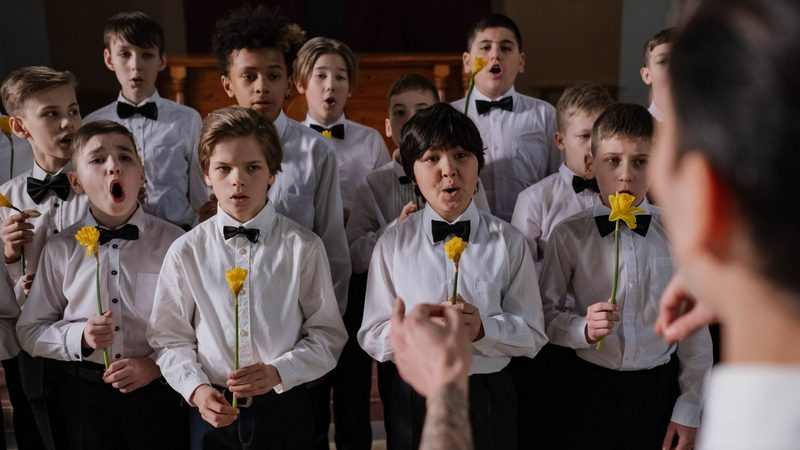
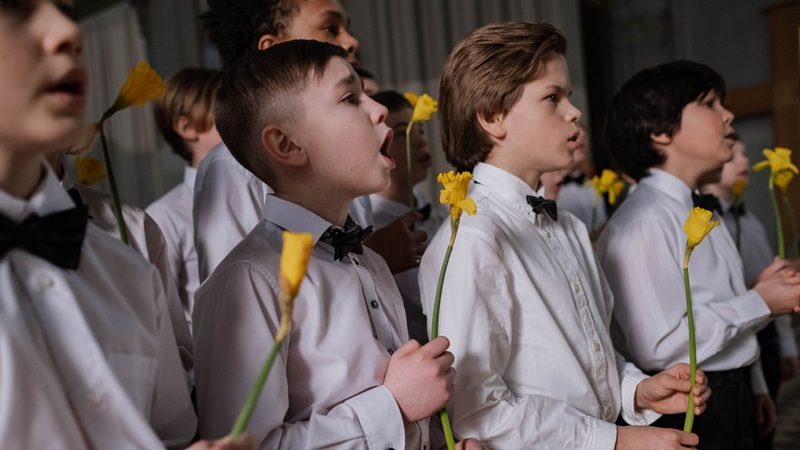
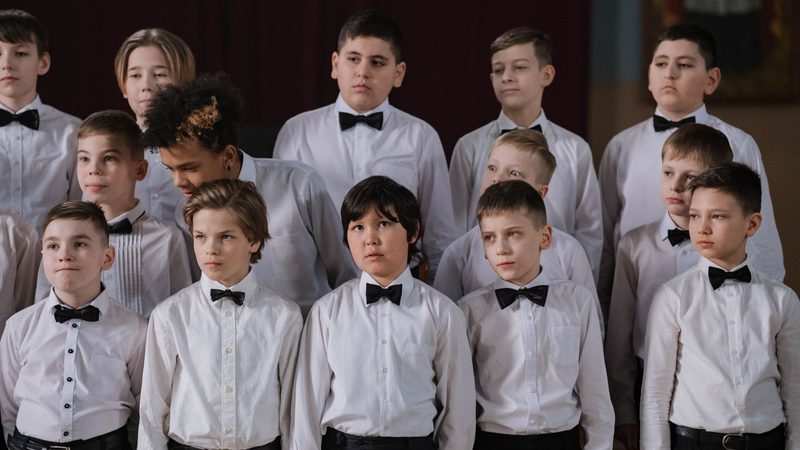
Families at home can see what a parent in the hall sees: the whole stage, then the teacher who is speaking. A second phone and a helper who switches by hand make that possible. It is optional: one wide shot is a complete stream, and the school decides which angles are allowed.

🎭 Choose the angles with the school

The easy pair is a wide shot from the back or side, plus an adult: the teacher who introduces the items or the head teacher. Aim the second phone at that adult, not at the children; a close-up of a child needs the school's yes. Before an item with a child who must not be shown (the school's list, step 1), switch to a title scene; if the person watching still sees one, switch at once.

📱 Bring in the second phone

Windows: add a Phone Camera source for the second phone and scan its own QR code, as in step 4; nothing is installed on it. The next phone or camera is added the same way. Mac: the camera can be an iPhone running the SplitCam iPhone app (step 4; see its App Store page); whether a second iPhone can join too is not documented, so try it at the rehearsal. A USB webcam works too, as far as its cable reaches. Two phone microphones in one hall can sound doubled: keep the one nearest the stage on and mute the rest.

🔀 Switch by hand, calmly

Keep Show as the wide shot; each extra angle gets a scene of its own. Switch with a click on the scene, a keyboard shortcut (on Windows the first six scenes have one) or a tap in SplitCam Remote, as in step 6. On Windows you can choose how scenes change; the default cross-fade (one picture melting into the next) is soft. Stay on the wide shot while children perform.

📍 Where it stands, and who switches

Agree with the school where the second phone stands: a small tripod at the side, charging, no cable across a walkway. Name who switches: the person at the laptop in step 6, or a third volunteer with Remote. If the second phone freezes, go back to Show.

SplitCam will not choose the shot or follow the speaker for you, and you switch straight to a scene without cueing it first, so check every angle at the rehearsal. If you record, you get one file of what went out, not one per camera. Your computer sets how many cameras fit: add each at the rehearsal, one at a time. More on switching between cameras.

Four things to settle before the day

Settle these at the school office and at the dress rehearsal, not on the night. Where a card mentions official guidance or children, it is general information, not legal advice.

🧾 What to bring to the school office

Bring a one-page plan, not a question: the date, where the tripod will stand, who will watch (the families only, by a link), and how long the recording is kept. In England, the government's guidance says volunteers at a school event act for the school, so they follow its policies and use school equipment where possible. It does not mention live streaming, and other countries differ, so ask. On Windows, a slow connection can switch on an optional setting that sends the video through a SplitCam server; tell the school, and check it before you go live.

🧒 Children in the frame

Film the stage, not the audience. A wide shot from the back or the side keeps each child small in the picture; a close-up of one child is the school's call. Frame so that as few seats as possible show. YouTube asks hosts not to post content that reveals a minor's personal details, so ask the school before putting children's names on screen. If a child must not be shown, switch to a title scene for that item.

🎙️ The sound of a stage

The voices are far from the phone, and children speak and sing quietly. A microphone close to the stage helps most, or a feed from the school's sound desk (the mixing board) through a small USB audio box connected to the laptop, if someone who knows it can set that up. Plug it in and check it before you go live, and do not unplug it during the stream. Keep it away from the speakers. No setup can promise clear sound in every hall, so at the dress rehearsal, if the school agrees, record half a minute to a file on the laptop and play it back through the laptop's own speakers, which is how many relatives will hear it.

🔌 If something goes wrong

Tell the families in the invitation that the stream is a bonus, not a promise. If the picture freezes, check the phone's screen, its charging and the Wi-Fi first; if it is not fixed in a minute or two, let the show go on. If the stream turns out to be Public by mistake, open YouTube Studio, Content, Live, and change its visibility. SplitCam can save the finished picture to a file on the laptop while it streams, and YouTube recommends keeping a copy on your own computer as a backup. SplitCam is free and comes as it is, with no promise of running without interruption, so rehearse.

Permission, consent and privacy: settle these first

This is general information, not legal advice. Rules differ by country, school and school district; the school and its safeguarding lead decide, not this page.

📜 The school's permission

Where a school itself films or publishes children's pictures, official guidance in England, Ireland, France and the Netherlands, and in the US under FERPA, expects it to tell families how they will be used and to get permission or offer a clear way to opt out. US schools often treat photos of public events such as concerts as directory information with a written opt-out; private schools are generally outside FERPA.

🧒 Consent, and children who must not be shown

Official guidance in the UK, Ireland, the Netherlands and Germany treats a parent filming their own child differently from showing other people's children to a wide audience. A public live stream is the case it is most careful about, so keep the audience to the families. Some children must not be shown online, for example for safeguarding reasons; in England the government tells schools not to publish pictures of them. Ask for the school's list.

🔒 Who can watch

A Public YouTube stream can be watched by anyone and can appear in search. Send an Unlisted link only through the school's own email or parent app, never in a social media post or a big group chat. Even a Private video can still be checked by YouTube for copyright and policy problems.

💬 Chat, and the "made for kids" question

YouTube asks every host whether a stream is made for kids, and the answer is yours to give. "Family friendly" is not the test; YouTube looks at who the stream is aimed at, and it suggests asking a lawyer if you are unsure, so raise it with the school too. A made-for-kids stream has live chat, chat replay, comments and reminders switched off. Even on other streams, YouTube says content showing children may lose chat, comments and views from signed-out users, so do not promise parents a chat. Decide with the school whether chat should be on at all: you can switch it off at any moment, even after the stream has started, and you can ask YouTube to hold messages it flags for your review. If it stays on, name the second adult as a chat moderator.

🎵 Music in the show

YouTube scans all live streams for other people's content, such as copyrighted music, private and unlisted streams included. If it finds a match it may replace your picture with a placeholder and warn you; if the music stays, it can interrupt or end the stream. Ask the school who holds the music licenses and whether they cover a stream: a license for the hall does not automatically cover the internet.

💾 The recording

When the stream ends, YouTube saves a recording, which you find in YouTube Studio under Content, Live. Do not assume it has the stream's visibility: check it, and change or delete it whenever you like. A Private video will not play in Google Classroom; use Unlisted if the school wants that. Keep a copy only if the school agrees, and agree where each copy lives and when it is deleted. If the laptop is yours rather than the school's, ask where the school wants the file on it to go.

FAQ: live streaming a school play

What is the easiest way to live stream a school play?

One phone on a tripod, one laptop running SplitCam, and one YouTube link that you send only to the families. The school's yes comes first; the six steps above give the order.

How do I live stream a school concert?

To live stream a school concert, follow the same steps as for a school play, but plan the sound first: put a microphone near the choir or band and test it at the rehearsal. A concert also has more music: find out from the school who holds the rights to the songs. For more on microphones and cameras, see live streaming a concert. This is general information, not legal advice.

How do I live stream a graduation?

Live stream a graduation like a school play: ask the school first, choose Unlisted or Private, and keep the laptop on power. A ceremony is longer, so keep a Starting soon scene ready for delays and give the person watching the stream a break. Ask the school whether graduates' names may be read out and shown on screen, and whether older students should agree for themselves. For a second angle, such as a webcam at the lectern, see switching between cameras. This is general information, not legal advice.

Can I use two cameras, or two phones, to live stream a school play?

Yes. Each phone or webcam is added to SplitCam as a source, you build one scene for each angle, and you switch between the scenes by hand, for example from the whole stage to the teacher speaking. The next phone or camera is added the same way, and your computer sets the limit. On Windows, a cross-fade (one picture melting into the next) softens each change. The school decides which cameras and shots are allowed. SplitCam does not switch for you or follow the speaker, so name one person to do the switching and add each extra camera at the rehearsal, one at a time.

Can I live stream a school play for free, and what do I need?

SplitCam itself costs nothing on Windows and macOS: there is no watermark and no paid plan. You also need a phone, a tripod, a laptop (64-bit Windows 10 version 2004 or newer, Windows 11, or macOS 13 or newer), an internet connection and a YouTube account with live streaming switched on.

How can I live stream a school play so that only the parents can watch?

Use YouTube's visibility setting as a guest list. Unlisted lets anyone with the link watch and forward it, so it is not a lock: never post its link on social media. Private lets only invited people watch, each signed in with the invited address; YouTube has said a private video can be shared with up to 50 addresses, a limit that may change, so use Unlisted for a whole grade or year group.

Can I live stream a school play on Facebook, and who can watch?

Yes: SplitCam can send to Facebook as well as YouTube, but who can watch depends on where you go live. A live video from a Page is always Public. From a personal profile you choose the audience, for example Friends, Custom or Only me. In a private group only the members can watch. Check the audience before you press Go live, and try it well before the day. This is general information, not legal advice.

Can parents chat during a school play live stream?

Not reliably. A stream marked made for kids has live chat switched off, and YouTube says content showing children may lose chat even if it is not marked. For an Unlisted stream, test the link in a browser where you are not signed in. This is general information, not legal advice.

Do we need the parents' permission to live stream a school play?

It depends on the country and the school: the school's own policy comes first. Schools that film or publish children's images for their own purposes are generally expected to tell families and to get permission or offer a way to opt out. This is general information, not legal advice.

Can children under 16 be in a YouTube live stream?

Yes, but YouTube has a rule: live streams with children under 16 who are not visibly accompanied by an adult may be removed or have their live chat turned off. YouTube does not say how it applies this rule to a school play filmed from the audience, and this page cannot say either, so keep a teacher or another adult visibly with the children where you can. At the time of writing, you must also be at least 16 to live stream. This is general information, not legal advice.

What if the school hall has poor Wi-Fi?

Test it in the hall at about the time of day of the show (the dress rehearsal will do), because a shared network may give you less than you expect. Read the upload figure, not the download, and switch to a network cable or a phone hotspot if it is too low; then check that the phone camera still reaches SplitCam.

Ready for the school show?

Set it up at home first, with the phone on a table and a test stream only you can see. SplitCam for Windows and macOS is free to download.

⬇ Free Download