The picture can come from a phone. The sound should not. Take the mix from the sound desk into your laptop, add a wide shot and a close-up, and send the show to YouTube and Facebook at once. SplitCam for Windows and macOS is free.
Start with the smallest setup that lets you stream a live concert with acceptable sound, then add one thing at a time.
You need: a phone on a tripod, a laptop with SplitCam and an internet connection.
You get: a wide picture with the phone's own sound. Fine for a quiet recital in a small room; the wrong choice for a band through loudspeakers, where a phone microphone tends to give a loud, muddy sound.
You need: the same, plus a USB audio interface (a small box that connects audio cables to the laptop's USB port) and a cable from a spare output of the sound desk.
You get: the mix that leaves the desk instead of the sound of the room, with the phone as the camera only. Any amplified show should start here.
You need: the setup above plus a webcam on a long USB cable (a second phone may work too: test it) or, on Windows, a DSLR or another external camera through a capture card (a small device that feeds a camera's picture to the laptop; no model is certified, so test yours).
You get: a wide shot and a close-up, cut by hand.
Streaming a church service or a church choir? That has its own guide, written for church sound booths.
Two jobs come well before the show: ask the venue and the performers (see Before you go live, below), and, for YouTube, switch live streaming on for your channel. YouTube verifies the channel with a code sent to your phone, and the first switch-on can take up to 24 hours. Facebook has entry rules too: at the time of writing (October 2026), it asks for an account at least 60 days old, and for 100 followers if you go live from a Page or a professional-mode profile.
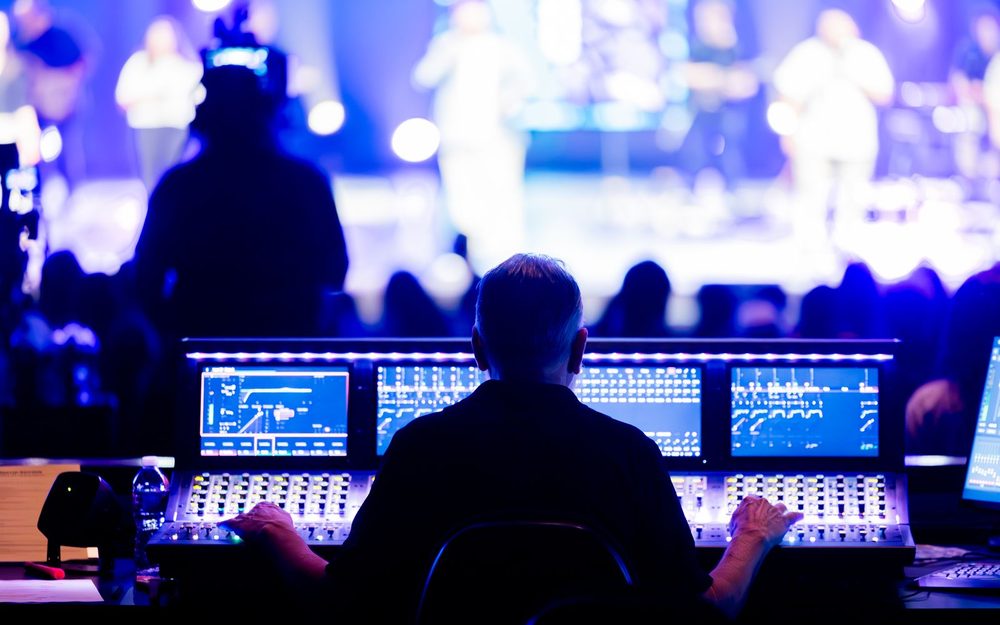
To live stream a concert well, start with the sound, not the camera: a plain picture is fine with good sound, but muddy sound ruins a lovely picture. Run a cable from a spare output of the sound desk (a stereo main or recording output, or an aux send set up for the stream) to a line input on the USB audio interface, not a microphone input. A small mixer with a USB port of its own may need no interface: check that it shows up in SplitCam's list of audio sources. If someone else runs the desk, ask for a clean stereo feed for a stream.
In SplitCam, choose the USB audio interface as the audio source. On Windows the Audio Mixer gives each source a strip with a volume slider, a mute button and filters; on a Mac the Audio Mixer panel gives each one a level and a mute. At the sound check, ask for the loudest part of the loudest song and keep the meter out of the red. Do not unplug a microphone or an interface during a stream.
Start with the wide shot, because it keeps the whole stage in view even when you are late with a cut: a phone on a tripod behind the audience or to one side. On Windows, add a Phone Camera source in SplitCam (SplitCam calls each camera or text item a layer). It shows a QR code; scan it with the phone, and when the web page asks to use the camera and the microphone, tap Allow. No app is needed on the phone. SplitCam's servers only help the two devices find each other; after that the video goes from the phone to your laptop. On a Mac a Phone Camera layer brings the phone in without a cable. Pair it at the sound check, and check the Wi-Fi at the spot where the phone will stand.
For the close-up, add a webcam on a long USB cable; a second phone may work too, but SplitCam does not say how many phones can join at once, so try it at rehearsal. SplitCam publishes no camera limit; your computer sets it, so add cameras one at a time.
A scene is one arrangement of what viewers see, and each item in it (a camera, a line of text, a picture) is a layer. Four scenes cover a concert: Wide (the wide camera), Close-up (the second camera), Title card (the artist's name and the set list as text layers over a picture, for the minutes before the first song) and Break (the same, with a line such as "Back for the second half"). You build them yourself. Every extra camera gets a scene of its own; the next section shows how.
Open the stream settings and add each platform: sign in where SplitCam offers it, or paste the stream address and key from the platform. The key is a private code: treat it like a password and never show it on screen. SplitCam can send the same stream to several platforms at once; see multistreaming. On Windows, set up the destinations, the resolution and the frame rate first: they are locked while you stream or record.
After the sound check, start a recording in SplitCam (YouTube recommends a backup copy on your own computer) and click Go Live. If you pasted a stream key, the platform shows a preview first: look at it, then press its own Go live button. Open on the title card, go to the wide shot when the band walks on and cut to the close-up for solos: click a scene, press its keyboard shortcut (on Windows, Alt+Shift and a number from 1 to 6 switches to that scene from any window) or use SplitCam Remote on a second phone (see the Cameras card below). If you are also mixing, cut only between songs, or stay on the wide shot all night. After the last song, stay on the title card for a few seconds, then stop the stream, then the recording.
A concert holds viewers when the picture changes with the music: the stage for the opening, the singer for the verse, the guitarist's hands for the solo. You need no crew, only cameras on one laptop and someone to switch between them.
A phone at the back shows the stage, a webcam by the singer shows the face, a second phone beside the guitarist shows the hands. On Windows each phone is a Phone Camera source paired by QR code, with nothing installed on the phone; SplitCam does not say how many phones can join at once, so pair the second at rehearsal. On a Mac a Phone Camera layer needs no cable, and the SplitCam iPhone app (a beta; see its App Store page) can make an iPhone a camera: open Remote Camera, wait for the Mac to connect, add the iPhone as a layer. An IP camera (a network camera) or an NDI source (video over a network) can join too.
Each new camera is one more scene, named for what viewers see (Hands, Stage left). On Windows the first six scenes have keyboard shortcuts, so keep main angles among them. At the sound check, switch through every scene: the desk sound should be there, and lips should match it (the Sound card below has the Windows delay filters).
On Windows you can pick how the picture changes when you switch scenes. The Windows default, a cross-fade (one picture melting into the next), suits most songs; keep a slide or a swipe for the interval. A Windows stinger, a short clip of your own such as a sweeping logo, can open the show. Choose one style for the night.
Pick one person to switch. They can click a scene, press its shortcut (step 6 has the Windows keys) or use SplitCam Remote on the switcher's own phone, on the same Wi-Fi as the laptop; its store page has the terms. On Windows an optional Elgato Stream Deck, a button panel, can switch scenes through SplitCam's official plugin. On a Mac, Remote is documented for an iPhone or iPad (see the Cameras card below).
SplitCam does not follow the performer or switch cameras by itself, so someone must press the button. It saves one recording of what you send out, not one file per camera. SplitCam publishes no camera limit; your computer sets it, so add cameras one at a time. More in the multi-camera guide and the Phone Camera guide.
Read the first two cards before your first stream; the interval card matters if the venue plays music in the break.
SplitCam sets the level of each source; the balance between the singer and the guitar is made at the desk. In rehearsal, record thirty seconds of a song and check the singer's mouth against the sound. If they drift apart, Windows has a Render Delay filter that delays the picture (for a picture that is ahead of the sound) and a Sound Offset filter for the audio; change either in small steps. On a Mac, rehearse early: this page cannot point you to a filter.
Cut to the close-up for a solo, then back to the wide shot. SplitCam does not pan, tilt or zoom a camera, switch cameras by itself or follow the performer, so give the switching to someone who knows the set list. A friend with SplitCam Remote on another phone, on the same Wi-Fi network as the laptop, can do the switching for you and also start and stop the stream and the recording; on a Mac, SplitCam documents Remote for an iPhone or iPad, so test an Android phone first. More in the multi-camera guide.
When the band stops, the venue often plays a playlist. If it runs through the desk it goes into your stream, and recorded music is what YouTube and Facebook flag (see the rules below): leave it off the stream mix, or mute the desk source in SplitCam's Audio Mixer for the interval. If you added the computer's own sound as a source, SplitCam captures it, so close other programs. The music rights are for the venue, the performers and your rights society to sort out; this is not legal advice.
This is general information, not legal advice. For a concert the deciders are the venue, each performer, the owners of the songs and the platform; this section says who decides, not what the law is.
Ask the venue first: many venues do not allow cameras or recording devices. Then ask every performer: in the US and the UK, recording or broadcasting a live musical performance without the performers' consent can breach their rights. Put a sign at the door: the audience is in the wide shot too. If students under 18 play, ask the school and the parents. At the time of writing (October 2026), keep an adult visibly with any performer under 16, or YouTube may remove the stream or turn its chat off.
Songs you wrote and own are the simplest case, though a publisher, label or distributor may still control them. A cover is someone else's song. A rights society's license typically covers the public performance of a song, not recording it into a video (synchronization) or the sound recording itself, which belong to other rights holders such as labels and publishers.
A venue's music license is not automatically a streaming license: one US society's standard license does not cover sending performances over the internet to people outside the premises, unless the venue's own agreement says so. Another US society says streaming only through the big platforms needs no other license from it for its own songs, and a Canadian society says organizers of a livestream will likely need one, though for free livestreams on the big platforms the platform holds it. Ask your country's society and the venue before the night.
YouTube scans all live streams for other people's content. A match can get your picture replaced by a placeholder, and if the material stays, YouTube can interrupt or end the stream. A copyright claim can still land on YouTube's saved recording after the show, if you keep it. Facebook says videos with music you do not have the rights to, live videos included, may be muted, blocked or removed; it tries to warn broadcasters first, but do not count on that. For bands it says live singing or playing is generally not restricted unless it includes pre-recorded backing tracks that match protected music: a hint, not a promise. A private or limited audience does not switch the checks off.
Choose by who the show is for. Public suits a gig you want strangers to find, and it can appear in YouTube search. Unlisted stays off your channel's Videos tab and does not normally appear in search, but anyone who gets the link can watch, with no account needed, and can forward it. Private opens only for the accounts you invite, and each guest must sign in with that address. None of these checks tickets. On Facebook, a Page is always public, a profile lets you set the audience, and a private group is for its members only.
Take the sound from the sound desk through a USB audio interface into SplitCam, then add a camera that sees the whole stage. Connect YouTube and Facebook, run a private test on YouTube and click Go Live.
Yes, on the software side: SplitCam for Windows and macOS is free, with no watermark and no paid plan. You may still buy hardware, such as a tripod, a USB audio interface and cables. The platforms have conditions of their own, such as a verified YouTube channel or, on Facebook, an account that is old enough.
Switch on live streaming in your channel days before the show; YouTube says the first time can take up to 24 hours. Then add YouTube in SplitCam: use the sign-in if the app offers one, or paste the stream URL and key from YouTube Studio. Set Private in YouTube for a test and Public or Unlisted for the show.
Choose where to go live first: a Page is always public, a profile lets you set the audience, and a private group is for its members only. In SplitCam, sign in where Facebook is offered or paste the server address and stream key from Facebook's Live setup page, start sending, wait for Facebook's preview to appear, then press Go Live. Make the key shortly before the show.
It depends on the venue, the performers and the country, so ask first. Many venues do not allow cameras or recording devices, and in the US and the UK recording a live musical performance without the performers' consent can breach their rights. This is general information, not legal advice.
A laptop with SplitCam, a phone as the camera and a tripod. For good sound add a USB audio interface, a cable from a spare output of the sound desk and headphones. A webcam gives you a close-up.
Do not rely on the phone's microphone for an amplified show. Take a spare output of the sound desk to a USB audio interface, choose it as the audio source in SplitCam and keep the meter below the red during the loudest song.
Yes. On Windows you scan a QR code that SplitCam shows, and no app is installed on the phone; on a Mac a Phone Camera layer works without a cable. SplitCam also has apps for iPhone and iPad and for Android: see the products page.
Yes, you can bring in several cameras. Add each phone, webcam or IP camera (a network camera) as its own source, make one scene for each angle, and switch between the scenes with a click, a keyboard shortcut or the SplitCam Remote app (on a Mac, for an iPhone or iPad); on Windows the change can be a cross-fade, a slide or a stinger, your own short animated clip. SplitCam publishes no limit on cameras and does not say how many phones can join at once, so add cameras one at a time and try a second phone at rehearsal. It does not follow the performer or switch cameras by itself, so have one person do the switching.
Yes. Put a phone on a stand for the picture, and choose your own microphone (or a USB audio interface with a microphone plugged in) as the audio source in SplitCam: a phone microphone hears the room, not you. Check the Wi-Fi at the spot where the phone will stand.
Yes, and it is simpler: one wide camera, one clean feed from a spare output of the house mixer and a title card with the venue and the host. Ask each performer first whether the set may go online: someone who agreed to play in the room may not have agreed to be online. This is general information, not legal advice.
Ask the school first: it may have its own filming rules, and at least one music school bans live streaming of its recitals. Ask the parents of every student who plays, and set the stream to Private if only the families should watch; Unlisted works for anyone holding the link. See the school events guide. This is not legal advice.
They may. YouTube scans every live stream, and Facebook can mute, block or remove videos with music you lack the rights to. Your own songs are the simplest case; covers and backing tracks need a closer look (see the rules section). This is general information, not legal advice.
Both is possible: SplitCam can send the same stream to several platforms at once. On Windows, if one connection fails, the others keep going and SplitCam tries to reconnect the one that failed. Add every destination before you go live, because on Windows the settings are locked once you stream.
Yes. While you stream, SplitCam can also save the finished picture to a file on your computer: one file with the picture and the sound you send out, not one per camera. At the time of writing (October 2026), Facebook deletes a live video from a profile or Page 30 days after it was published, so download your copy before then.
Download SplitCam for Windows or macOS: free, with no watermark and no paid plan.
⬇ Free Download