Events

How to live stream an event with a phone and a laptop — free software.

A wedding, a birthday, a school show or any family event: relatives who cannot travel can still watch. Film with a phone on a tripod, add a title or the names, and send it to YouTube or Facebook. The laptop does the sending, and SplitCam is free on Windows and macOS.

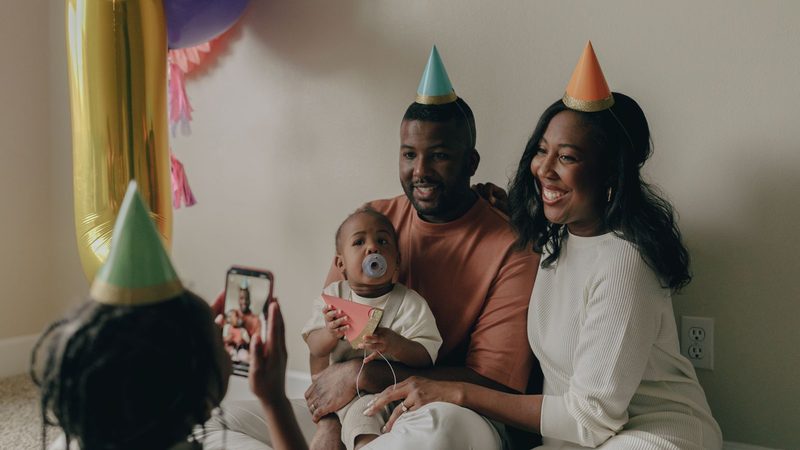
A family waves at the camera over a child's birthday cake; a LIVE mark and platform labels were added to the photo.
Photo: Pexels. The LIVE mark and the platform labels are added to show how a stream can look.
Free · no watermark Windows 10/11 · macOS 13+ · iOS 16.6+ · Android 8+ A link for your guests
Quick answer — how do you live stream an event?
To live stream an event, ask the host or venue first, then set a phone on a tripod and add it to SplitCam on a laptop as a Phone Camera (on Windows you scan a QR code). SplitCam is free on Windows and macOS. Create the broadcast on YouTube or Facebook, choose who can watch, and click Go Live. If someone will give a speech, add another phone or a webcam for their face and switch between the two. Rehearse a few days before, and switch on YouTube live streaming early: the first time it can take up to a day.

Pick your setup: one phone, better sound or two cameras

SetupWhat you needWhat you get
One phone and a laptopA tripod, a charger and a laptop with SplitCamOne steady wide shot with a title over it, sent to YouTube or Facebook and saved to a file. The phone's microphone hears the whole room more than the person speaking, and loudspeakers nearby can make the sound loud and muddy.
A phone and a better microphoneThe same, plus a headset, a USB microphone or a USB audio interface for a cable from the venue's sound deskThe microphone is its own sound source, with its own level and mute, so speech can be clearer.
Two camerasA webcam or an IP camera (a camera that sends its picture over the network) next to the phoneA wide shot and a close-up in separate scenes (layouts your viewers see), switched by a click, a key or SplitCam Remote; SplitCam does not choose the camera for you. More in switching between cameras; for several phones, see more than one camera below.

SplitCam also has apps for iPhone/iPad and for Android (marked beta on the products page).

Which kind of event is yours?

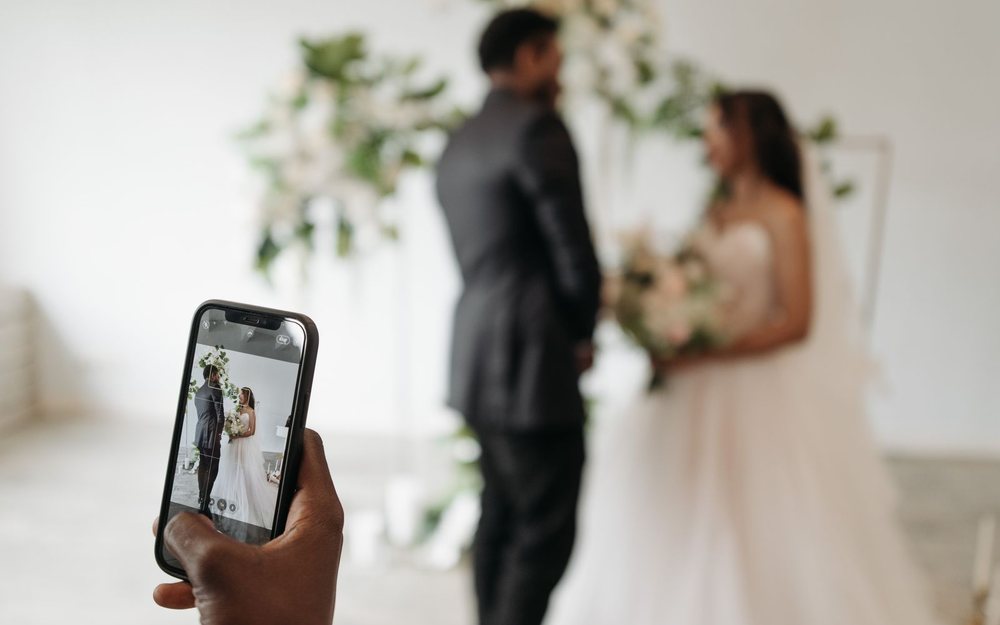
A hand holds a phone that films a couple at a wedding ceremony; a LIVE mark was added.

Weddings

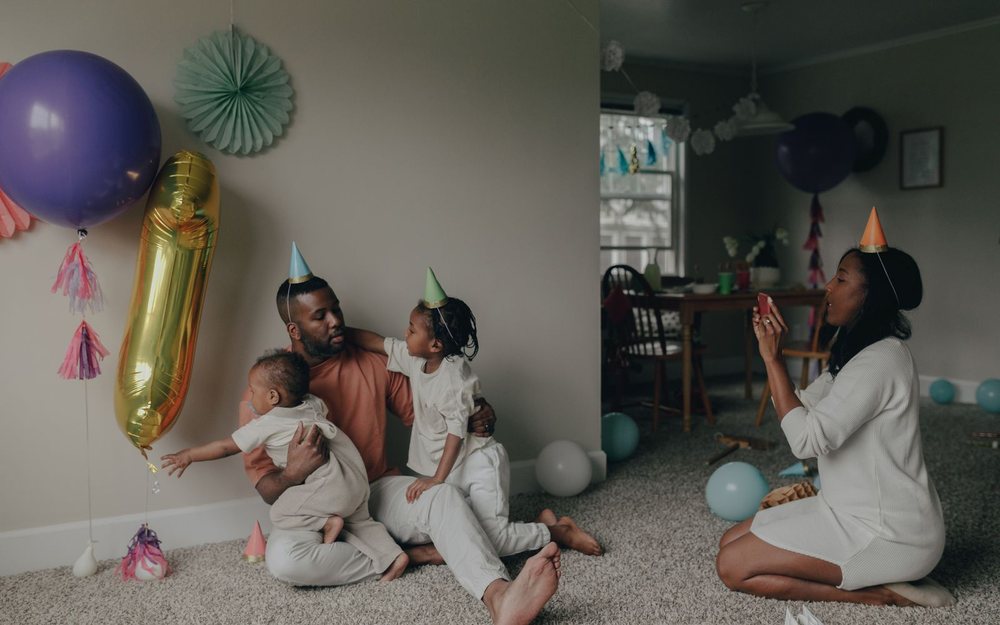
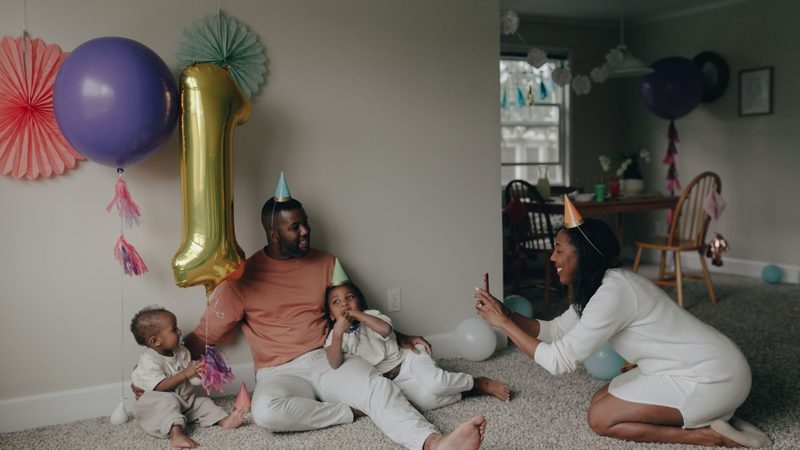
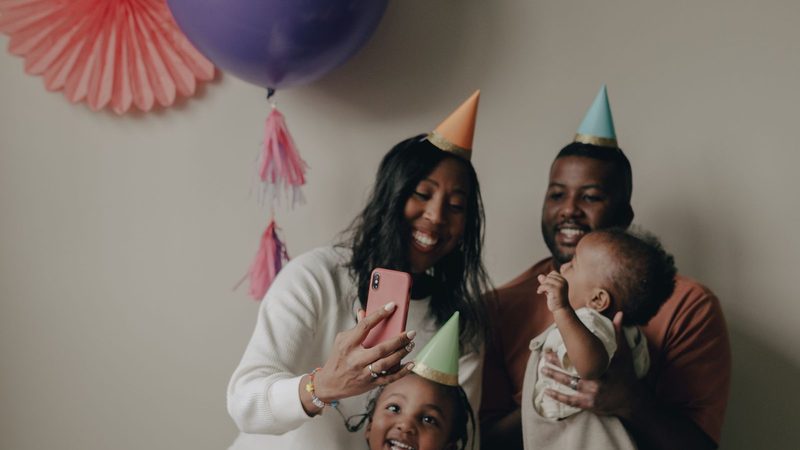
A family at a birthday party with balloons and party hats; a LIVE mark was added.

Birthday parties and anniversaries

  • To live stream a birthday party, start here: one phone, a Happy birthday title and a YouTube link for relatives abroad.
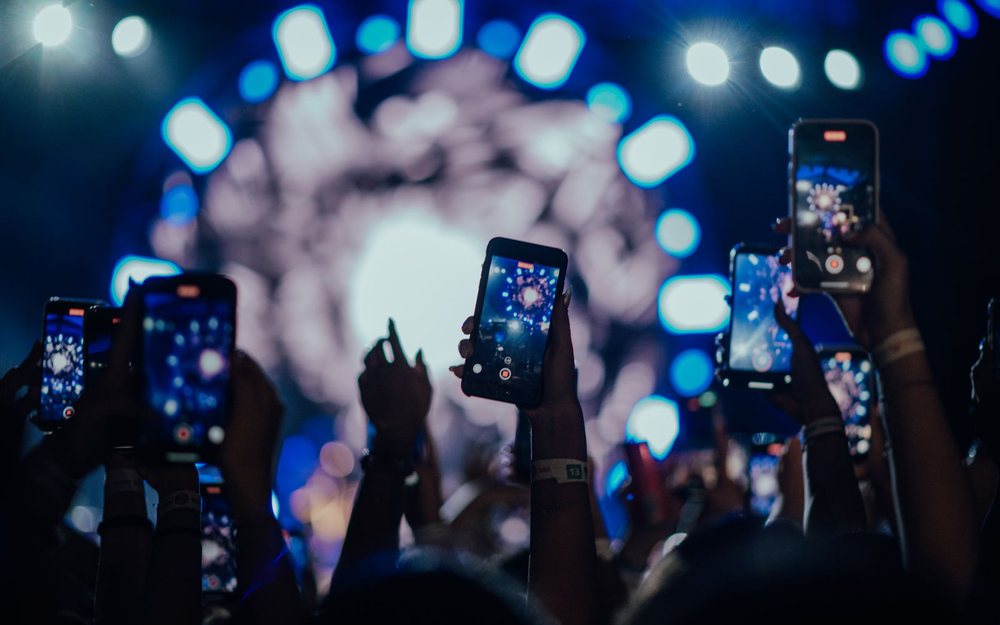
Hands hold up phones to film a concert; a LIVE mark was added.

Concerts and recitals

School events

Funerals and memorial services

Christenings, bar and bat mitzvahs, quinceañeras

  • Follow the six steps and ask the host first: some places of worship and halls have rules of their own.

The LIVE marks are added to the photos to show the idea. Photos: Pexels, free to use.

Matches and tournaments, children's games included: how to live stream a sports game. For a congregation that streams every week, see streaming for churches.

How to live stream an event in six steps

Steps 1 to 4 are for the days before, step 5 covers the rehearsal and the day itself, and step 6 comes after. Limits quoted on this page are from October 2026 and platforms can change them.

1
Decide who it is for, and ask first

Learning how to live stream an event starts with two questions: who will watch, and who decides whether you may film? List the viewers (grandparents, a cousin abroad): they decide the audience setting in step 2. Then ask the couple, the venue, the school or the organizer. See the ground rules.

Who owns the account? YouTube: the person who streams must be 16 or older and have a verified channel (a code sent to a phone number). Facebook: the account must be at least 60 days old (October 2026). Check both this week.
2
Create the broadcast and the link

Schedule the stream in YouTube Studio. On Facebook, create the live video from your profile, a group or a Page. On YouTube, scheduling gives you a link to send early, and YouTube advises sharing it at least 48 hours ahead. Then choose who can watch (see the options below). In SplitCam open Stream Settings (a stream key is a code that says where to send your video). For YouTube sign in or paste its key and address; for Facebook choose "Streaming software" on its Live setup page and paste the server address and key it shows. Windows locks these settings once you stream or record, so add every destination first.

Treat the stream key like a password. Do not post it, and create a Facebook key close to the event, since a normal one works for one stream.
3
Place the phone and connect it

Stand the phone on a tripod, sideways (landscape), at the back or side of the room and high enough to see over heads; keep it charging and set Do Not Disturb. Add a Phone Camera source to your scene and SplitCam shows a QR code for the phone to scan. On Windows the phone needs no app: scanning opens a page in its browser, where you allow the camera and microphone, and the devices find each other through SplitCam's servers; the video then runs between the phone and your computer. A Mac has a Phone Camera layer too, with no cable, but its steps can differ, so read the Phone as a camera page and test early. For another phone, see more than one camera below.

Test the Wi-Fi at the exact spot. The phone connects over the network; there is no cable mode.
4
Build your scenes and fix the sound

A scene is the picture viewers see: the camera plus layers on top. Make a waiting scene with the event name and start time over a photo, a main scene with the camera picture and a text layer for names, and, if you like, a thank-you scene. SplitCam has no event templates: add a text layer such as "Anna and Tom, ceremony at 3 pm" over a photo layer. On Windows a Timer layer can switch scenes when its countdown ends, but events start late, so most people switch by hand. If the person speaking is far from the phone, put a microphone close to them (the table above lists the options).

Sound beats picture. Plug the microphone in early, test its level and leave it connected for the whole stream.
5
Rehearse, then go live early

Rehearse at home with the same gear a few days before; at the venue, test the sound on arrival. On YouTube, rehearse with a broadcast set to Private or Unlisted. Facebook describes a test broadcast only for Pages and professional-mode profiles, and a Facebook key used for a test will not work again, so make a new one for the real stream. On the day YouTube suggests setting up 2 hours before and starting your streaming software 15 minutes before. Start SplitCam's recording and click Go Live; YouTube and Facebook first show a preview, so check it, then press the platform's own Go live button.

Give the laptop to one calm helper who watches the stream on a second phone and changes scenes.
6
Close the stream and keep the recording

At the end, switch to the thank-you (or waiting) scene, then stop the stream and then the recording. Afterwards YouTube keeps the recording in YouTube Studio (Content, then Live); open it and check who can see it. On a profile or Page, Facebook keeps a live video for 30 days after it was published, so download your own copy within that time.

Live stream an event with more than one camera

A second camera shows viewers far away the speaker's face as well as the room, as in a TV interview. Picture a speech: one phone at the back holds the wide shot, another faces the speaker, and a helper at the laptop picks which picture goes out. Ask the venue first (see the ground rules); at a funeral or a school show, one steady camera is often enough.

🎥 More phones, webcams and IP cameras

On Windows each extra phone is one more Phone Camera source: add it, scan the code it shows, and its picture joins the scene. Nothing is installed on the phones. A webcam beside the laptop or an IP camera can be another angle. A Mac has a Phone Camera layer too (step 3); try a second phone there at the rehearsal. An iPhone can also be the camera through the Remote Camera mode of the SplitCam iPhone app (not the Remote app below; see the iPhone app's App Store page): open that mode, let the Mac connect, and add the iPhone to a scene as a layer.

🎬 One scene for each angle

Name each extra angle after what viewers see, such as Speaker close-up, and keep the waiting and thank-you scenes from step 4. On Windows only the first six scenes have shortcuts (Alt+Shift+1 to Alt+Shift+6 from any window), so the angles you use most belong among them. With several phones in one room, keep one sound source on (the microphone from step 4 or the phone nearest the speaker) and mute the rest, so no voice is heard twice.

🖱️ Switching without drama

The helper clicks a scene, presses its shortcut or taps it in the SplitCam Remote app on a phone of their own (not one of the camera phones), on the same Wi-Fi as the laptop. Remote is a separate app (check its store page for its terms); on a Mac, use the iPhone or iPad version. Change camera when the speaker changes, not every few seconds, and return to the wide shot for applause.

✨ A softer change, on Windows

On Windows you pick the effect between two scenes: a cross-fade (the default), slide, swipe, wipe or a stinger, your own short animated clip. A slow cross-fade is calmer than a hard cut, and on Windows you can set the speed.

What SplitCam does not do: choose the camera for you, show the next camera privately before it goes out, or save a file for each camera (the recording is one file of what you send). Your computer and Wi-Fi set how many cameras fit, and SplitCam gives no number: add them one by one, then test the whole set together at the rehearsal (step 5).

The wedding guide, the concert guide and the school guide each place the extra camera for their own day. Longer guides: multi-camera and Phone as a camera.

Streaming a private event: who can watch and how family gets the link

Your relatives need no SplitCam. They open a link in a browser and see the picture you send.

YouTube has three settings, and a new stream is Public by default for adults (October 2026), so choose before you go live.

Public: anyone can watch, and the stream can appear in search results.

Unlisted: anyone with the link can watch, even without a Google account, and can pass it on, so send it only to people you trust.

Private: only the people you invite can watch, once signed in with the address you invited.

Facebook works through the audience you pick: from your own profile, Friends or Custom (people you pick yourself); a Page is always public; in a private group only members can watch, so relatives must join first, and its admins decide whether members may go live. Facebook does not say which ordinary profiles can stream from a computer, so check its Live setup page a few days ahead.

A video call (Zoom, Google Meet, Teams) is for when relatives should talk back. SplitCam adds a virtual camera that you pick from the call app's camera list; on Windows also pick SplitCam Virtual Audio as the microphone. Test a call first, sound included.

Send the link with the date, the start time and the time zone, and open it yourself in a browser where you are not signed in. YouTube's live chat is on by default, and you can switch it off.

An older woman smiles at a tablet at home; a LIVE mark was added to show how a relative could watch.

Backup plan, a helper and a recording

🔋 A backup plan

Keep a mobile hotspot (your phone's data shared as Wi-Fi), a power bank and a spare phone in case the first one fails. Run a speed test where the laptop will sit: the upload number should be about 20% higher than the stream needs, YouTube says. Use a wall outlet with sleep switched off, and on a MacBook keep the lid open. Tell guests to refresh the page if the picture freezes.

📱 A helper with a phone

A second phone with SplitCam Remote lets your helper sit anywhere in the room: tap to change scene, start or stop the recording or lower the sound, and see whether you are live. Keep both on the same Wi-Fi. On a Mac, use Remote on an iPhone or iPad.

💾 A recording, and a very long day

SplitCam records one file with the picture and sound you send out, and YouTube itself recommends keeping a copy on your own computer. On Windows, check that the maximum recording time (0 means no limit) is longer than your event. YouTube says a stream over 12 hours may not be saved, and Facebook ends a live video after 8 hours (October 2026), so plan a break and a new broadcast for a day-long party.

Ground rules: permission, music and children

This part is not legal advice. Halls, churches, schools and countries set their own rules, so first ask whoever is in charge.

📜 Ask who decides

Many venues limit cameras, and some institutions ban live streaming outright. If a band, choir or soloist performs, ask them first: in some countries, including the US and the UK, their consent is a legal requirement. Tell guests a camera is running.

🎵 Music in the room

Songs from the DJ or the speakers will be in your stream too. YouTube scans live streams for copyrighted music and may replace your picture with a placeholder or end the stream; Facebook may mute, block or remove the video. A private setting does not exempt a stream, and a venue's music license does not automatically cover a live stream. SplitCam can mute the phone's sound, so decide beforehand when you would.

🧒 Children in the picture

Ask the school or organizer first: official guidance in several countries is more cautious about a public stream than about filming for a small family circle, and a school can set its own rules. YouTube asks every host whether a stream is made for kids; the answer is yours to give, and a marked stream has chat and comments switched off. YouTube may remove a stream with children under 16 who are not visibly accompanied by an adult, and may switch off chat, comments or signed-out viewing for streams that show children. Test the guest link signed out, do not promise chat, and keep children's full names off the screen.

FAQ: how to live stream an event

How much does it cost to live stream an event?

You can download and use SplitCam on Windows and macOS for free: there is no watermark and no paid plan. You may still spend on a tripod or a microphone.

What is the easiest way to live stream an event?

Stand a phone on a tripod, add it to SplitCam on a laptop as a Phone Camera (on Windows by scanning a QR code), create an Unlisted YouTube broadcast and send the link.

How can I live stream an event for free, and do I need followers?

SplitCam costs nothing on Windows and macOS. From a computer, YouTube needs a verified channel but no minimum number of subscribers. Facebook says the account must be at least 60 days old, and a Page or professional-mode profile needs at least 100 followers (October 2026).

What is the best platform to live stream an event: YouTube, Facebook or Zoom?

It depends on who is watching. YouTube suits relatives without accounts, because an Unlisted link opens for anyone who has it; Zoom suits a short two-way call.

How do I live stream a private event?

Choose the audience before you go live: on YouTube, Unlisted lets anyone with the link watch and Private only the people you invite; on Facebook, use a limited-audience profile or a private group, because a Page is always public. SplitCam normally sends the stream straight to each platform, but on Windows it can switch to a SplitCam server if your upload is too slow, so check that setting first.

How do I live stream an event on YouTube?

Verify your channel, schedule the stream in YouTube Studio and copy its link for your guests. In SplitCam's Stream Settings sign in to YouTube or paste the stream key and address, check the preview and press Go live. The first time you switch on live streaming, it can take up to a day.

How do I live stream an event on Facebook?

On Facebook's Live setup page choose "Streaming software", copy the server address and stream key into SplitCam's Stream Settings, start the stream, check the preview that appears on Facebook, then press Go live. Choose the audience before you start.

Can I live stream an event from my smartphone?

Yes. With SplitCam your phone films and your laptop sends, adding titles and sound control and keeping a recording. Or use a platform's own phone app: the YouTube app needs a verified channel with at least 50 subscribers (October 2026), and Facebook asks phones to use its app.

Can I record the event, and can guests watch it afterwards?

Yes. SplitCam saves a file on your computer while you stream, and YouTube saves the stream too when it ends (streams under 12 hours), so check who can see it. Facebook removes a live video after 30 days, so download your copy by then (October 2026).

Can people watch the live stream on a TV?

Facebook says viewers can watch from a phone, a computer or a connected TV. The simplest way to show any stream on a TV is to open the link on a laptop connected to it with an HDMI cable.

Do I need permission to live stream an event?

Often yes, so ask first (this is not legal advice). Many venues limit cameras, some institutions ban live streaming of their events, and for live music ask the performers too: in some countries, including the US and the UK, their consent is required.

How do I live stream an event on Zoom?

Zoom is a call, so it suits relatives who should talk back. Pick the SplitCam camera in Zoom's camera list (on Windows also SplitCam Virtual Audio as the microphone) and test a call first. A meeting hosted on a free Zoom account is usually limited to 40 minutes (October 2026), so use YouTube or Facebook for a longer event.

How do I live stream an event with two cameras or two phones?

Give every angle its own scene (the layout your viewers see). Another angle can be a webcam, an IP camera or another phone: on Windows each phone is added as its own Phone Camera source, and on a Mac a Phone Camera layer works too, though a second phone is best tried at the rehearsal. Switching is manual: click the scene, press its shortcut or tap it in the SplitCam Remote app, and on Windows the change can be a soft cross-fade instead of a jump. You choose every camera change yourself, and the recording is a single file of what went out, not one file per camera. SplitCam names no maximum, because your computer and Wi-Fi set it, so add cameras one at a time and test them all together before the day.

Should I hire a live streaming company or do it myself?

For a family party, a school show or a small ceremony, one phone, one laptop and one helper are usually enough. A professional makes sense when the venue requires one or you want several camera operators.

Ready to set it up?

Download SplitCam for Windows or macOS, set up one scene and run a rehearsal this week: no watermark and no paid plan.

⬇ Free Download