Funerals and memorials

How to live stream a funeral or memorial service — free software, step by step.

When a relative or friend cannot travel to the service, a live stream lets them follow it as it happens. This page is for whoever has been asked to arrange it. You need a phone, a laptop, free software and a little time to try it before the day.

Free · no watermark Windows 10/11 · macOS 13+ · iOS 16.6+ · Android 8+ You choose who watches
Quick answer — how to live stream a funeral or memorial service
To live stream a funeral, first ask the family, the venue and the officiant, and find out whether the service is already streamed. If not, stand a phone on a stable support at the back of the room and connect it to SplitCam as a Phone Camera (on Windows by scanning a QR code). Add a plain title card with the name and the time, and send the stream to YouTube or Facebook, choosing who can watch and sending the link only to the family. Ask one calm person who is not a close mourner to run it, and keep a recording. One steady camera is usually enough; a second phone aimed at the speaker is optional, and only if the family, the officiant and the venue agree.

How to live stream a funeral or memorial service, in six steps

Read all six steps first. Steps 1 and 2 can be done days ahead, and steps 3 to 5 rehearsed at home, with the phone propped up on a table. First download SplitCam, free on Windows and macOS. Platform rules and numbers are as of October 2026; check the platform's help before the day.

1
Ask the family, the venue and the officiant

Before you work out how to live stream a funeral, find out whether you need to. Start with the family: do they want the service shared, with whom, and where should the stream end? Then ask the funeral director or the venue whether they already stream (if so, you may only need the link) and whether a phone on a stand and a laptop are allowed. Last, ask the officiant, and tell everyone who will speak, read or sing that it is being streamed.

Write down what was agreed and send it to the family.
2
Choose who can watch, and make the link

On YouTube, Public is open to everyone and can appear in search. Unlisted opens for anyone who has the link, without a Google account, and the link can be passed on. Private opens only for people you invite by email, who must sign in with that address. YouTube's default for a new stream is Public (for adults), so look at the Visibility box first.

On Facebook the choices depend on where you go live from: a profile may offer an audience such as Friends, a wide circle; a private group shows the video only to its members, if its admins allow live video; a Page is always public. Check Facebook's Live setup page a few days ahead to see what it offers you.

Create the stream days ahead: in YouTube Studio choose Create, then Go live, and schedule it, so you have a link to send.

Allow time for a new account. On a channel that has never streamed, YouTube says the first switch-on can take up to 24 hours, and the channel must be verified with a code sent to a phone. Facebook asks for an account that is at least 60 days old.
3
Bring the phone in as the camera

On Windows, open SplitCam, add a Phone Camera source and scan the QR code it shows: scanning opens a web address in the phone's browser, you allow the camera and microphone there, and the phone needs nothing installed. Only the pairing step uses SplitCam's servers; after that the video travels between the phone and the computer. On a Mac, add a Phone Camera layer to bring the phone's picture and sound in without a cable, and try it once. The phone joins over the network, not by cable, so test it where it will stand. If the family agrees, a second phone joins in the same way; the section on a second phone says how.

Power and quiet. Plug in phone and laptop, turn off sleep, and silence notifications on both. On a MacBook, leave the lid open: a closed lid can stop the stream. SplitCam does not say what happens when the phone's screen locks, so switch off auto-lock and check in the rehearsal.
4
Make three quiet screens

A scene in SplitCam is a stack of layers: a camera, a picture, a line of text. Make three: waiting, service and closing. The waiting scene is a plain background with a text layer giving the name, the date and the time, and a line such as "The service will begin shortly." On Windows a Color source gives a plain background; on a Mac use a plain-coloured picture on an image layer, or a photograph if the family wishes. The service scene is the Phone Camera, full frame. The closing scene repeats the background with "Thank you for being with us."

Keep the waiting screen silent. Recorded music is someone else's music; see Before the service.
5
Connect the platform and rehearse once

In SplitCam open Stream Settings, choose YouTube or Facebook, and either sign in (where the app offers it) or paste the stream URL and key, a web address and a secret code from the platform. Never post the key. On Windows you cannot change destinations or picture size once you stream or record.

Then rehearse once. For the YouTube rehearsal make the stream Private, open it on a second phone signed in with the invited address, and ask someone elsewhere to open it too; if the family will use an Unlisted link, also open it while signed out of Google. Only Pages and professional-mode profiles have a documented Facebook test broadcast, so on a profile a practice run is a real broadcast: pick the narrowest audience, assume it can see the test, and make a new key afterwards, since a key works for one stream.

Test the connection in the room itself. Your upload speed, not your download speed, must be higher than the stream's bitrate (the data it sends every second), and YouTube advises about 20% spare. On Windows, SplitCam's setup wizard tests upload speed before the first stream, so it has probably run at home. If SplitCam finds the upload too slow for your destinations, it can route the video via a SplitCam server instead of sending it straight to the platform; for a private service, check that setting before the day.
6
On the day: begin quietly, end quietly

Ask the venue how early you may come in. YouTube suggests setting up two hours ahead; if the venue allows far less, do the full test in the room on an earlier day, and start SplitCam at least 15 minutes before the service. With the waiting scene showing and the sound muted, start the recording, then the stream. On YouTube, click Go live when the preview appears in the Live Control Room; on Facebook, create the key shortly before, start from SplitCam, wait for Facebook's preview (about ten seconds), then press Go live. Check the visibility one last time.

Send the family the link and the start time, with its time zone, as soon as the platform gives you a link (a scheduled YouTube stream has one at once), and again an hour before; add a number to call if it does not open, and open the link yourself first.

When the service begins, switch to the service scene and unmute, then leave it alone. When it is over, switch to the closing scene and mute the sound, then stop the stream and the recording: a live microphone carries private words to every viewer.

Afterwards, check the recording's visibility in YouTube Studio under Content, then Live, and agree with the family who keeps the file.
One steady camera, or a second phone for the speaker

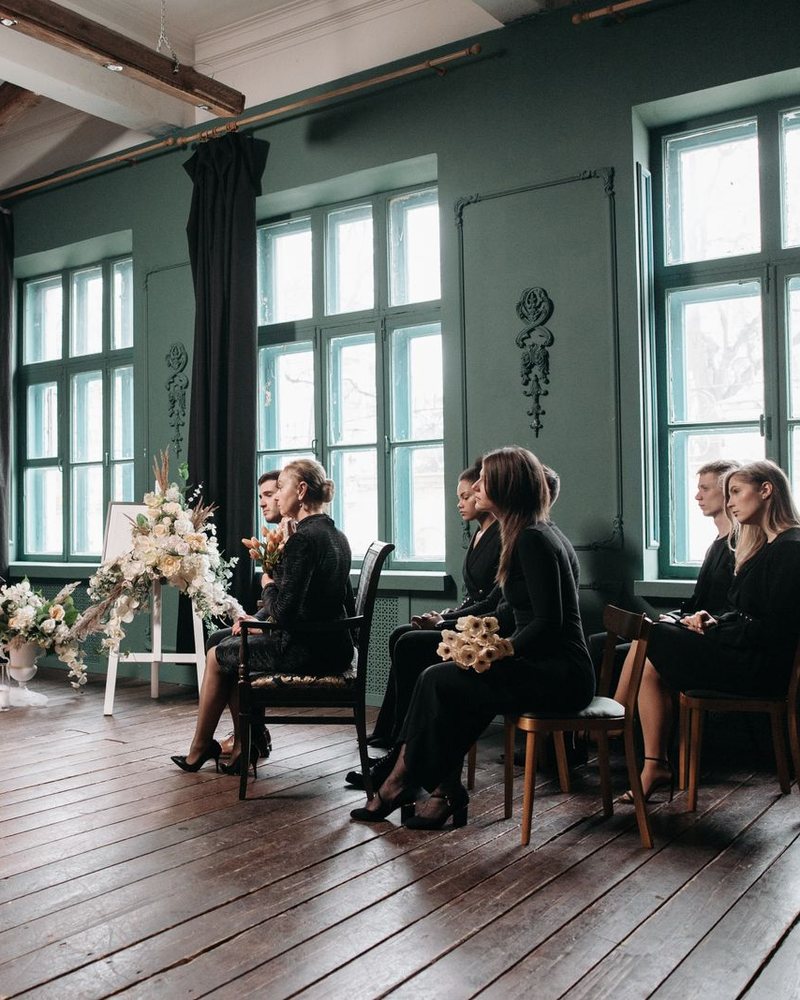
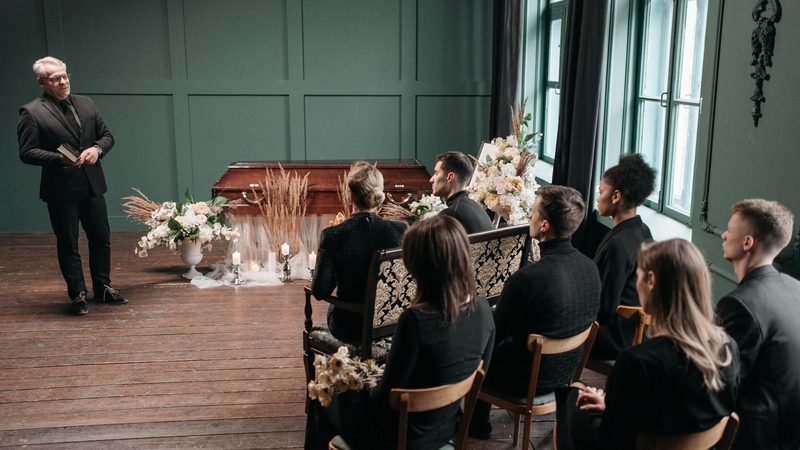
A second phone can show relatives far away the face of whoever is speaking, as well as the whole room. Most services need only one steady camera, though, so add a second view only if the family, the officiant and the venue agree, the speaker knows about it, and someone can look after it.

A view of the speaker

Stand the phone at the lectern or beside the officiant, aimed at the speaker rather than at the seats, and keep mourners' faces out of the picture unless the family agrees. Like the first phone, it needs a tripod or a stable stand.

How the second phone joins

On Windows the second phone gets a Phone Camera source and a QR code of its own, and nothing is installed on it. On a Mac it gets a Phone Camera layer of its own, tried once beforehand. A USB webcam can be the second view instead, if its cable can run out of the way; the laptop's built-in camera faces whoever runs the stream, so do not use it for this.

Sound, power and quiet

Each phone brings its own microphone. Keep either the venue's sound or one phone's microphone on and mute the rest, so no voice is heard twice. Give the second phone the same care as the first: a charger, silenced notifications and auto-lock off (step 3).

Switch by hand, and rarely

The service scene from step 4 stays the wide shot. A new scene, perhaps called Lectern, holds the second phone. The person running the stream (see Who runs the stream below, which also says which phone suits which computer) clicks a scene, presses a keyboard shortcut or uses SplitCam Remote, perhaps once when a reading begins and once when it ends, and otherwise leaves the wide shot alone, as in step 6. On Windows one picture can melt into the next instead of jumping: a cross-fade, which is the default.

SplitCam does not switch by itself or follow the speaker, and the recording is one file of what viewers see, not one per camera. Try the second phone at your rehearsal, in the room if the venue allows, test your laptop and Wi-Fi with both phones connected, and go back to one camera if anything feels shaky. The multi-camera guide explains scenes and switching, and the Phone Camera guide shows how a phone is connected.

Six decisions for a funeral live stream

Each card is a question to settle before the day.

Who runs the stream

Ask one calm person who is not a close mourner and has no part in the service to watch the screen. On Windows, a second person holding a phone with SplitCam Remote can switch scenes and start or stop the stream and recording from the back of the room, on the same Wi-Fi as the laptop. On a Mac, the documented route is Remote for iPhone or iPad. Remote is a separate app; its store page has its terms.

Where the phone stands

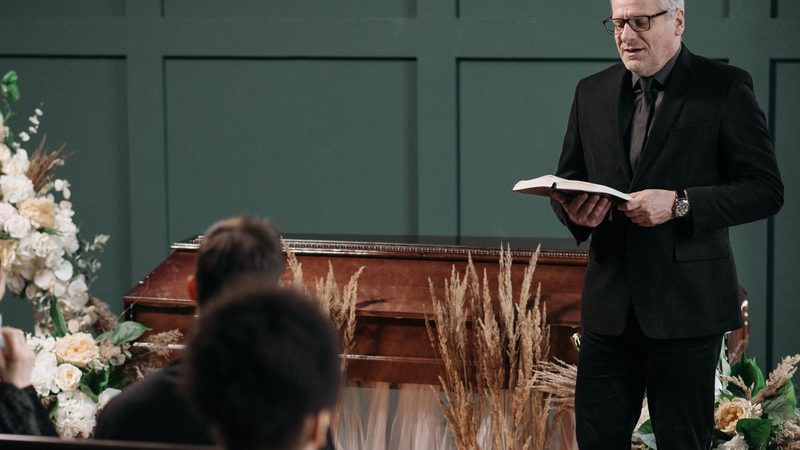
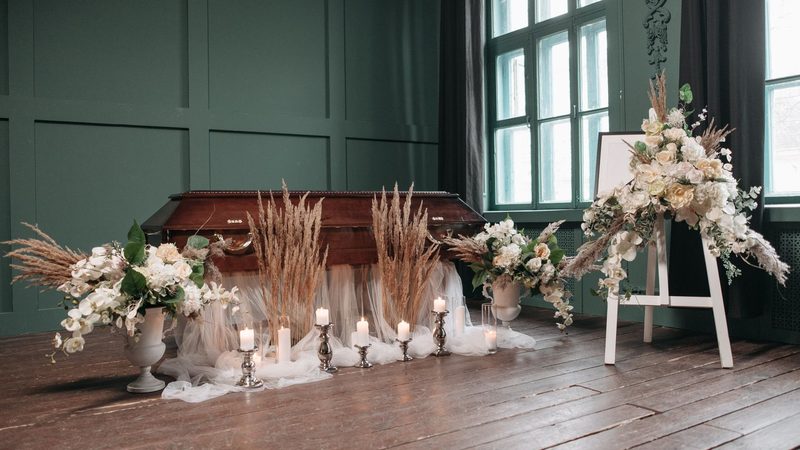
Put it at the back of the room on a tripod or a stable stand. Aim for a wide, still shot of the front: the lectern, the flowers, the photograph and, if the family wishes, the coffin, casket or urn. Keep mourners' faces out of the frame unless the family agrees.

Sound

A phone at the back hears the room more than the speaker. Ask the venue's sound technician for a feed from their system, or clip a microphone on the officiant; a USB audio interface (a small adapter that carries sound into the laptop) can connect either. In SplitCam you pick that microphone or interface as the audio source; every source, the phone's too, has its own level and mute, so mute the phone's microphone once the venue's sound is in. Keep the level meter out of the red, and listen to your rehearsal through headphones.

If the internet fails

Test the connection in the room; if you plan a mobile hotspot as a second way online, test the whole setup on it. No software can promise that a stream will never drop, and SplitCam is free software with no promise of uninterrupted running, so agree a backup with the family: a second phone recording a steady wide shot gives you a file to send afterwards. If the picture stops mid-service, do not leave your seat to fix it; restart quietly, or send the recording later.

Chat and comments

Decide about chat before you go live: it can distract, and a stranger could write something unkind. On YouTube live chat is on unless you change it, and you can switch it off at any time, even mid-stream; private videos have no comments, and YouTube's help does not say whether chat works on a private stream, so test it with an account you have invited. Facebook documents chat limits only for Pages and professional-mode profiles, so on an ordinary profile ask a trusted person to watch.

Far away, or watching later

For relatives in other time zones, give the start time in the service's time zone and add their local time. On YouTube you can switch on the rewind option, called DVR, so a guest who joins late can go back and pause. Agree with the family how long the recording stays online.

Before the service: permission, privacy, music and children

This is general information, not legal advice. What is allowed depends on the country, venue and platform. The family, the officiant and the venue decide, so ask them first.

Permission

Ask the family first. Then ask the funeral director or the venue, the officiant, and anyone who will sing or play: in the United States and the United Kingdom, performers have legal rights over the recording or live broadcast of a live musical performance, so ask for their consent.

Who can watch

Choose the smallest circle that fits the family. If some relatives are older or do not use Google, Unlisted opens for them without an account; choose Private only when everyone you invite can sign in to YouTube. Unlisted is not secret, so send the link only to people who will keep it to themselves. A public YouTube stream can reach your channel's subscribers too. Do not post the link or the stream key on a public page.

Music and hymns

Recorded music, hymns sung to a recording and backing tracks usually belong to other people. Music sung or played live is treated differently from a recording, and platforms and countries differ, so ask rather than assume. Ask the venue and the officiant what will be played, and whether the family wants it in the stream. YouTube scans live streams for copyrighted music and may replace your picture, warn you, and interrupt or end the stream if the music stays; Private or Unlisted does not exempt a stream. Facebook may mute, block or remove a video with unlicensed music. You can mute the sound during a recorded piece, but guests then hear silence, so tell them beforehand.

Children and other mourners

If children are in the room, keep them out of the picture unless a parent agrees; a view from behind does this quietly. YouTube asks every host whether a stream is made for kids: read its explanation and answer for your own stream, because the choice is yours and YouTube cannot make it for you. YouTube may remove a stream or switch off its chat if under-16s appear without an adult visibly with them. For other mourners, a line in the order of service or a sign at the door helps; the Dutch data protection authority, for one, says a funeral director may stream a funeral only for a restricted circle of family and friends, must put up a sign for visitors, and must destroy the recording within a month.

FAQ: live streaming a funeral or memorial service

How do you live stream a funeral?

Ask the family and the venue first. Then put a phone on a stand at the back, add it to SplitCam as a Phone Camera (on Windows by scanning a QR code), and send the stream to YouTube or Facebook, choosing who can watch.

Can you live stream a funeral for free?

Yes. On Windows and macOS SplitCam is free to download and use, with no watermark and no paid plan.

How much does it cost to live stream a funeral?

SplitCam costs nothing on Windows and macOS. You also need a phone, a laptop, an internet connection and a YouTube or Facebook account. If a funeral director or video company streams the service for you, ask what it charges.

How do you live stream a funeral on YouTube?

Verify your channel with a code sent to a phone; the first time, switching on live streaming can take up to a day. In YouTube Studio choose Create, then Go live, set the visibility to Unlisted, or to Private and add each guest's email, schedule the stream and send the link. Private guests must sign in with the invited address; Unlisted guests need no account.

How do you live stream a funeral on Facebook?

Open Facebook's Live setup page, choose streaming software and where to go live: your profile, with the audience Facebook offers you, or a private group. Copy the server URL and key into SplitCam, check the preview and press Go live.

Can you live stream a funeral with just a phone?

Sometimes. Facebook's app can go live from a phone if the account is old enough (Facebook asks for 60 days). YouTube's phone app needs, at the time of writing (October 2026), a verified channel with at least 50 subscribers, which a new family channel may not have; going live from a computer has no such minimum. SplitCam also has apps for iPhone/iPad and Android, listed on the products page.

How do you keep a funeral livestream private?

Choose the narrowest setting and send the link only to people you trust. On YouTube, Private opens only for people you invite, who must sign in with that address, so a relative without a Google account is locked out; Unlisted opens for anyone with the link. A Facebook Page is always public, so use a profile's audience or a private group.

How many cameras do you need to live stream a funeral?

One steady camera is usually enough. If the family and the venue agree, a second phone or a USB webcam can be added to SplitCam as another source, in a scene of its own, and the person running the stream switches between the scenes by hand; on Windows the change can be a soft cross-fade. On Windows the second phone joins by a QR code, with nothing installed on it. On a Mac it joins as another Phone Camera layer, or you open Remote Camera in the SplitCam iPhone app and add the iPhone as a layer (the app is marked Beta on the products page, is a different app from SplitCam Remote, and has its own page in the App Store). SplitCam does not follow the speaker, records one file of what viewers see and publishes no limit on cameras, so rehearse with every phone connected, on the laptop and Wi-Fi you will use on the day.

Can you watch or record a funeral live stream afterwards?

Yes, in most cases. YouTube saves the recording of a stream under 12 hours in YouTube Studio under Content, then Live; check its visibility. Facebook removes a live video from a profile or Page 30 days after it was published, so download your copy.

How do you watch a funeral that is being live streamed?

Open the link you were sent a few minutes before the start. A YouTube stream set to Private opens only if you are signed in with the email address the family invited; an Unlisted one opens for anyone with the link. A Facebook stream shared with a narrower audience needs a Facebook account in that audience.

Can you live stream a memorial service, a wake or a graveside service?

A memorial service, a celebration of life or a wake follows the same six steps. A graveside service is harder: there may be no Wi-Fi, no power socket and wind on the microphone, so visit beforehand and test your exact phone, laptop and connection. Whether the Phone Camera works over a mobile hotspot is not documented, so test that too.

Can I use Zoom for a funeral?

You can, with limits. At the time of writing (October 2026) almost every meeting hosted on a free Zoom account is limited to 40 minutes, shorter than many services, and to 100 people; guests need no Zoom account. SplitCam adds a virtual camera on Windows and macOS that call apps can use as a camera. Zoom lists virtual cameras as a video source but names no product, so run a test call first, and check the sound separately: camera and microphone are two settings.

Try it at home first

Set everything up once at home, phone propped on a table, so that the day itself can be quiet. SplitCam for Windows and macOS is free.

⬇ Free Download