Some of the people you love cannot be in the room: a grandmother who cannot travel, cousins abroad. This guide follows the wedding day, from the "starting soon" screen to the last toast, with a phone on a tripod, a microphone at the vows, one trusted helper and a link you send only to family.
A wedding is five or so moments, each needing something different on screen. In SplitCam a scene is one screen you can switch to, made of layers such as a camera, text or a picture. Four scenes cover the day (step 2); a second phone adds one more, see a second angle.
| Moment | What the family sees | What the helper does |
|---|---|---|
| Guests arriving | The starting-soon screen: names, date, start time in a few time zones, hashtag. | Starts the recording and the stream, checks the link on a second phone, mutes the microphones. |
| The ceremony | One wide, steady shot, clear voices, the officiant's name for a few seconds. | Switches to the ceremony scene as the music starts, then watches the sound meter. |
| Signing and portraits | The "Back soon" screen, with no clock time. | Switches scene and mutes the microphones. |
| Toasts | The speaker, heard clearly, with a name card. | Switches back to the ceremony scene and switches on the next speaker's name card; a guest hands the microphone along. |
| The end | The thank-you scene. If you stay on for the first dance, its music may be muted, blocked or removed (see Before the wedding). | Stops the stream, then the recording. |
Steps 1 to 4 happen before the wedding day, steps 5 and 6 on the day itself. Limits and numbers on this page were checked in October 2026; platforms change them, so check again a week before.
If you are wondering how to live stream a wedding without spending the day at a laptop, start with a person, not a camera: the helper who runs the laptop from the first guest to the last toast. Pick someone steady who is not in the wedding party, so not the couple and not the best man. In the same week, ask the venue, the officiant and any musicians whether filming and streaming are allowed (see Before the wedding).
Install SplitCam and build four scenes. Starting soon: names, date, start time and hashtag over a photo of the two of you (a text layer on an image layer). Ceremony: the phone camera full frame, with the officiant's name on its own layer. Back soon: your names and the words "Back soon", with no clock time, because the day will run late. Thank you: the names and a line of thanks. Reuse the ceremony scene for the toasts.
On YouTube, schedule the stream in YouTube Studio: Create, Go live, then Manage and Schedule stream. YouTube advises sharing the link at least 48 hours before you go live, so copy the link and send it now, with each guest's local start time. Then copy the stream URL and key, the address and password of your stream, into SplitCam's stream settings. Treat the key like a password and never post a screenshot of it.
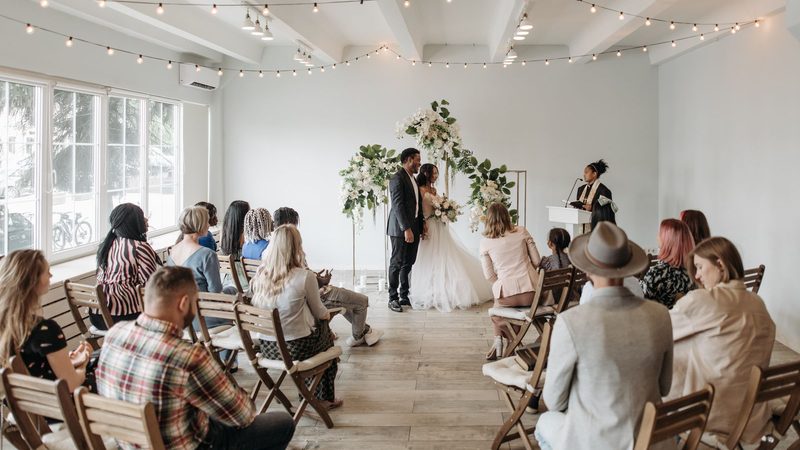
At the venue, at the hour of the ceremony, set the phone on a tripod, turned sideways so the picture is wide, at head height or higher, with a charger. On Windows, add a Phone Camera source in SplitCam; it shows a QR code, which you scan with the phone. Nothing is installed on the phone, because the code opens a web address in its browser, and only that pairing step goes through SplitCam's servers; after that the video travels between the phone and the laptop. The phone cannot connect by USB cable, so test from the spot where the tripod will stand.
YouTube suggests setting up your streaming software at least 2 hours before an event, starting it at least 15 minutes before, and checking the preview, the audio and the video. Select the starting-soon scene, start the recording, then the stream. On YouTube and Facebook, wait for the preview to appear, then press Go live there. Check the link on a second phone in a private browsing window, then run the day from the table.
Put up the thank-you scene, stop the stream, then stop the recording. YouTube saves the recording by itself when the stream was shorter than 12 hours, in YouTube Studio under Content, then Live. Check its visibility there, change it if you want it private or unlisted, then send its link to everyone who could not watch live.
Relatives far away can get a nearer view of the faces and the rings, not only the back of the room. You still need one laptop and one helper, and the day table still applies, plus one choice of angle. More: several cameras in one show, the Phone Camera.
On Windows, add the second phone the way you added the first: another Phone Camera source, another QR code, nothing installed on either phone. Phone 1 keeps the wide shot. Phone 2 stands on its own tripod near the front, to one side, close enough to see faces and hands; ask the officiant and the photographer where it may stand. Each phone sends its own sound track: turn both down and let the vows microphone be heard.
On a Mac, an iPhone can be the camera through Remote Camera in SplitCam's iPhone app (step 4; see its App Store page), or through a Phone Camera layer. The apps are marked Beta (still being tested) on the products page.
Next to the four scenes of step 2, add "Rings and faces" (phone 2, full frame). Each angle scene is one camera plus its name layers, so this one can carry the speakers' name cards for the toasts. A webcam within cable reach, or a network (IP) camera that supports RTSP, can be another angle.
The helper can stay at the laptop and switch with a click, a shortcut (on Windows, Alt+Shift and the scene's number, 1 to 6, from any window) or the SplitCam Remote app on a separate phone that is not one of the cameras (see its store page for its terms). Agree the moments with the couple: close for the vows and the rings, wide for the rest. Five or six changes in a ceremony are plenty.
On Windows, SplitCam can blend one scene into the next instead of jumping: a cross-fade is the default, slide, swipe and wipe are there too, and you can set the speed; a slow cross-fade between wide and close-up suits a ceremony.
SplitCam will not follow the couple or pick the angle, and a scene goes out as soon as you switch to it, with no preview first. The recording is one file of what went out; for separate footage of each angle, ask a videographer too. SplitCam publishes no limit on phones or cameras and your laptop sets the real one: add them one at a time and rehearse with all of them (step 4).
Send relatives one message: the link, the weekday, the date and the start time where they live, with a line such as "open it a few minutes early; you will see the starting-soon screen until we begin". A 4:00 pm ceremony in Lisbon in June is 11:00 am in New York, 8:00 am in Los Angeles and 1:00 am the next day in Sydney, and clocks change on different dates in different countries.
With an Unlisted YouTube link they need nothing else. YouTube lets you share the link early, but Facebook schedules a live video only up to 24 hours ahead, so for an earlier announcement create a live video event, or post the link on the day. Ask older relatives to try it on their own device a day before.
Decide about chat in advance. On YouTube it is on by default and can be switched off at any time, even mid-stream. It works only on YouTube's own watch page, so send the link rather than embedding the stream on a website. YouTube's help does not say whether chat works on a Private stream, so test it with an invited account.

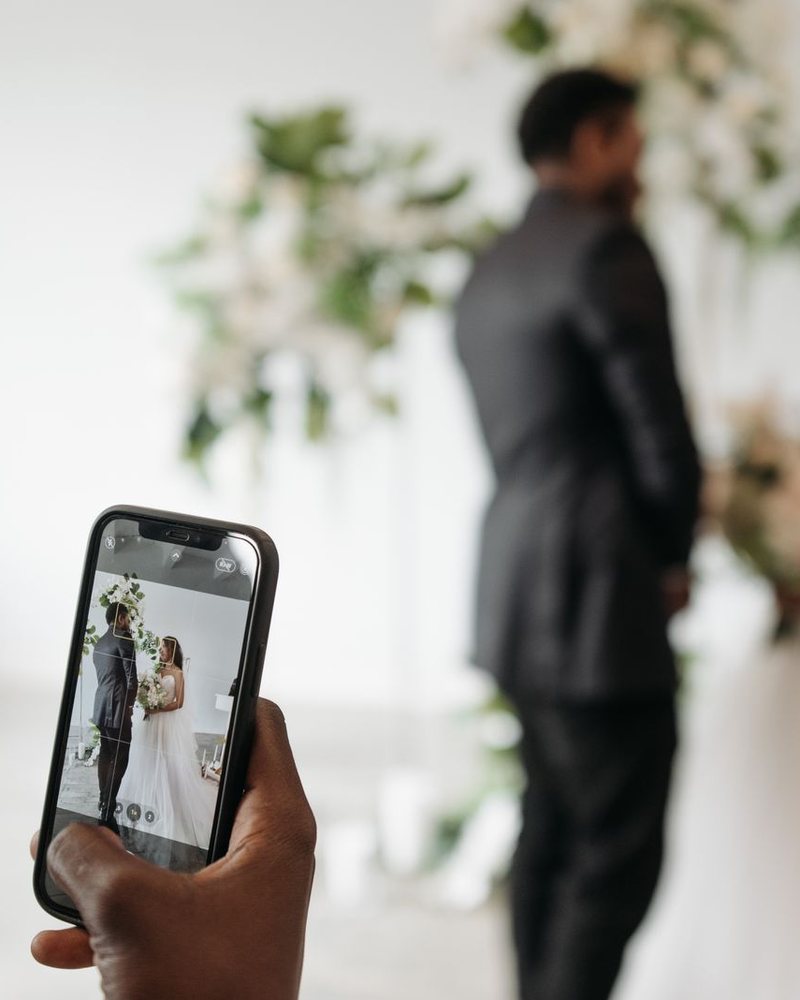
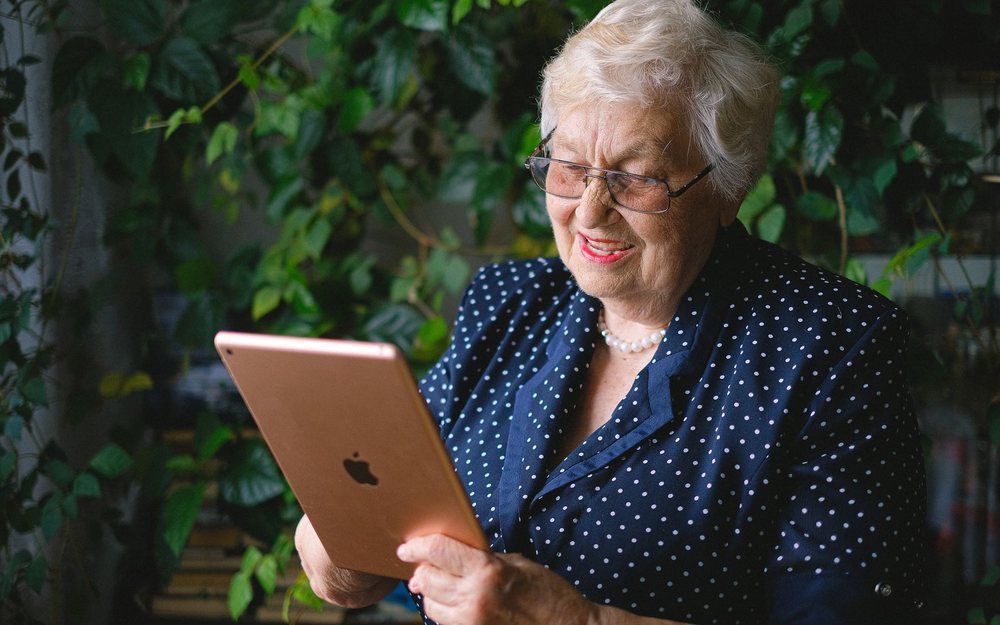
Photo: Pexels. The LIVE mark is added to show how a stream can look.
A phone's microphone hears the whole room, not the vows. The laptop usually sits at the back, so a wired microphone at the front needs a very long cable: use a wireless clip-on microphone for whoever speaks the vows, with its receiver plugged into the laptop. A clip-on on the officiant hears only the officiant.
With a sound desk at the venue, ask the technician for a feed and connect it through a USB audio interface, a small box that turns the desk's output into a laptop input. Choose that microphone or interface as SplitCam's audio source, and turn the phone's own microphone down: it comes in as a separate audio track.
Upload speed is how fast your connection sends video out, not how fast it downloads. Test it from the helper's chair at the hour of the ceremony: YouTube and Facebook both advise keeping the stream about 20% below it. If you send to two platforms, each gets its own copy, so your upload speed has to cover both added together, plus about 20% spare. Guest Wi-Fi is shared and may ask for a sign-in, so bring a cable or a separate phone as a hotspot. By default SplitCam sends the video straight from your computer to each platform; on Windows an optional slow-internet mode sends it through a SplitCam server instead, so check that setting.
Give the helper one page: the order of the day, the scene names, the venue contact and a number that reaches the couple. Scenes switch with a click or a keyboard shortcut. With the SplitCam Remote app (see products) on a second phone on the same Wi-Fi, a second person can switch scenes and start or stop the stream and the recording; on a Mac, Remote works with the iPhone or iPad app. Check its store page for its terms.
Switch on Do Not Disturb so a call cannot land on the camera phone mid-vow, keep it plugged in and out of direct sun, and check in your rehearsal that its screen does not lock. Stand the phone nearer, at the side, rather than zooming in from the back row, and keep the couple in front of a wall, not a bright window.
Treat this as general information, not legal advice. A wedding has many people to ask: the venue, the officiant, the musicians, the couple and both families. Rules differ by country, venue and platform.
Venues and places of worship set their own filming rules. The Church of England, for example, says some churches do not permit filming and that filming music can involve copyright permissions and extra fees for an organist or choir, and it tells couples to discuss filming or live streaming with the vicar first. A live musical performance can need the performers' consent too, so ask the musicians before the day.
Ceremony music counts too: a processional played from speakers is recorded music, and a live singer or organist is a performer whose consent you may need. Ask the couple and the venue what will be played, and expect that recorded songs may be muted, blocked or removed.
Do not assume the venue's music licence covers a stream: BMI, a US licensing society, says its standard venue licence does not include internet transmission, so ask the venue and your country's music rights society.
YouTube scans live streams and may replace your picture with a placeholder, then interrupt or end a stream that keeps the music in; private and unlisted ones are not exempt. Facebook warns that a song playing in the background at a wedding can still infringe the owner's copyright. If music plays from the laptop itself, SplitCam can capture that sound too, so keep it off while you are live.
Tell people the ceremony is streamed: a line in the invitation or a small sign at the door. Point the camera at the front, not at the guests, and keep out of the shot anyone who asks. YouTube's rule says streams with under-16s who are not visibly accompanied by an adult may be removed or have live chat turned off; how it applies to children in a wedding crowd is not spelled out, so ask the families. Content showing children may also have chat, comments or signed-out views switched off, so test the link signed out.
A new YouTube live stream is public by default for adults, so check the visibility box. Unlisted is not secret: anyone with the link can watch without an account and can pass the link on, so send it only to people you trust. Private means only the people you invite, each signed in with the invited email address. On Facebook a profile has an audience selector, a Page is always public, and a private group is limited to its members.
The software can cost nothing: SplitCam for Windows and macOS is free, with no watermark and no paid plan. You may still pay for a tripod, a microphone and mobile data for a hotspot. A professional crew makes sense for a large multi-camera shoot, or if nobody on your side can run the laptop; ask what is included and what their music and privacy terms say.
The best way for most weddings is to keep it small: a phone on a tripod, a wireless microphone on whoever speaks the vows, SplitCam on a laptop run by a helper and one Unlisted YouTube stream. A phone can go live alone through the YouTube or Facebook app (YouTube asks for at least 50 subscribers for that), but its one microphone hears the room, not the vows.
Yes. Add each phone as its own Phone Camera source and give each angle its own scene, for example a wide shot and a close-up from the side near the front. On Windows you scan a QR code with each phone and nothing is installed on it; on a Mac, an iPhone can be the camera through the SplitCam iPhone app. The helper switches between the scenes with a click or a keyboard shortcut, and on Windows a cross-fade softens each change. SplitCam does not switch by itself and publishes no limit on how many phones can join, so add them one at a time and test with all of them before the day. For a large shoot with many cameras, or if nobody can rehearse, a professional crew is the better choice.
In YouTube Studio click Create, then Go live, and on the Manage tab click Schedule stream. Choose Unlisted or Private and copy the stream URL and key into SplitCam. Wait for the preview in the Live Control Room and click Go live there. The first time, switching live streaming on can take up to 24 hours, so start days ahead.
Choose where to go live first (your profile, a Page or a private group), because that sets the audience. Then open Facebook's live setup page, choose Streaming software and copy the server URL and key into SplitCam. If the option is missing, Facebook's rules on account age and followers may be the reason. SplitCam can also send the same stream to YouTube and Facebook at once; see multistreaming.
Unlisted is not secret: anyone who has the link can watch and pass it on, so send it only to people you trust. Private opens only for the Google accounts you invite, and each guest must sign in with the invited address; for grandparents Unlisted is usually easier.
At the time of writing (October 2026), YouTube's guide for streaming software lists a verified channel, no live-streaming restriction in the past 90 days and an owner aged 16 or over, but no subscriber minimum; YouTube's own phone app needs at least 50 subscribers. Facebook asks for an account at least 60 days old, and Pages and professional-mode profiles need at least 100 followers.
At the time of writing (October 2026), almost every meeting on a free Zoom account is limited to 40 minutes, and the limit follows the host's licence. In Zoom, Google Meet or Teams you pick the SplitCam camera in the camera list; none of their help pages names SplitCam, so make a test call first. On Windows, choose SplitCam Virtual Audio as the microphone in the call app, so the call hears your mix. More on the virtual camera.
A simple plan is to stream the ceremony and the toasts and stop before the dancing. Facebook ends a live video after 8 hours and YouTube may not save a stream longer than 12 hours, and a longer stream puts more guests on camera and brings in more music. If the toasts are in another room or hours later, schedule a second stream with its own link.
Check that the laptop is still online and that the recording is still running. If only one platform fails, SplitCam tries to reconnect that one and leaves the other streams running. If the venue Wi-Fi is the problem, switch the laptop to your own hotspot, but rehearse that first, because the phone's picture may have to reconnect. Message the family that you are fixing it. As a backup, ask a guest to film on an ordinary phone.
YouTube is the easiest for relatives: an Unlisted link opens for anyone who has it, with no account. Facebook suits families who already use it, but only a public live video can be watched without a Facebook account. Zoom or Google Meet suits a few close relatives, not a crowd, because free meetings have time limits. SplitCam can also send one stream to YouTube and Facebook at once.
Install it a week early and run the whole day once at home with your helper: SplitCam for Windows and macOS is free, with no watermark and no paid plan.
⬇ Free Download