Virtual Audio · Windows

Virtual audio for Windows — a microphone other programs can pick.

SplitCam for Windows registers its own virtual audio device when you install it. Everything you balance in the Audio Mixer keeps feeding your stream, and the same session is offered to Windows as an input device — so a call, a recorder or a browser tab can listen to SplitCam simply by selecting it in an ordinary microphone list.

The part people mix up

Two outputs, not one.

SplitCam has always been able to combine audio: the Audio Mixer is where a microphone, a music playlist, a browser page and the sound Windows itself is making get balanced against each other, and that balance is what your broadcast and your recording carry. The virtual microphone replaces none of it. It is a second, parallel destination for the same session — SplitCam offers it to Windows as an input device, and any program that lists microphones can point at it. The mixer decides what SplitCam sounds like. The virtual microphone decides who else gets to hear it.

🎚

Audio Mixer — inside SplitCam

A strip per source, each with its own volume, mute and monitoring. Noise suppression on the microphone, and filters that belong to the individual source: VST plug-ins, Delay, Sound Offset and the Audio Compressor.

🎙

Virtual microphone — at the Windows level

An audio input registered with Windows, sitting in the same list as your sound card and your headset. Programs do not integrate with it one by one; they enumerate the inputs Windows reports, and this is one of them.

Inside the app

What ends up on the channel.

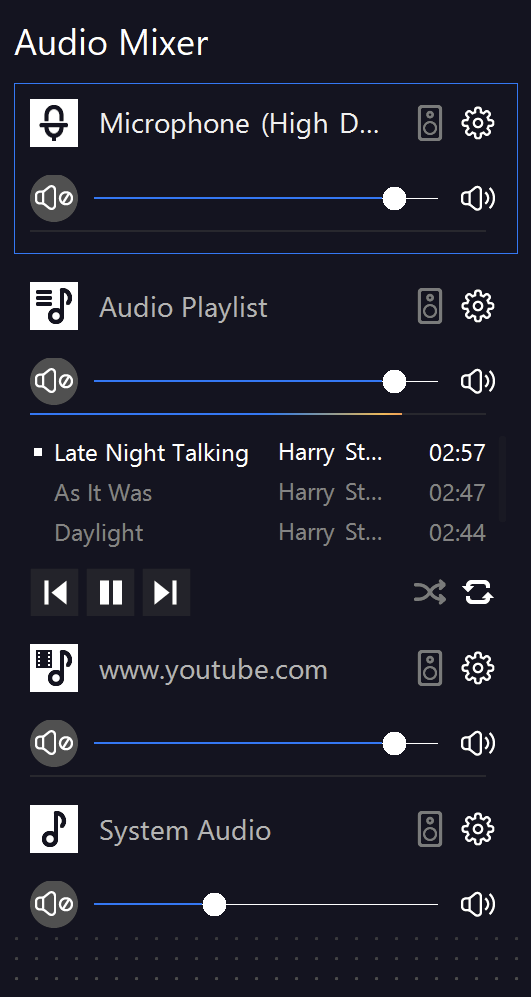
The mixer panel holds one strip per source. The capture beside this is a live session with four of them: the microphone Windows reports as a High Definition Audio Device, an Audio Playlist with its own track list and transport controls, a browser page — here www.youtube.com — and System Audio, the sound Windows itself is producing.

Every strip carries a mute button, a volume slider, a monitoring toggle and a gear for its filters. In this session the microphone, the playlist and the browser all sit high, while System Audio is pulled well down — a common shape, because notification sounds and app beeps belong under the voice rather than beside it. Whatever this panel adds up to is what the broadcast carries, and it is the same session the virtual microphone makes available.

SplitCam Audio Mixer on Windows — channel strips for microphone, audio playlist, a browser page and system audio
Outside the app

It appears wherever Windows offers a choice of input.

There is no integration to arrange and no plug-in to add on the receiving side. The program opens the input list Windows hands it, and the SplitCam device is in that list beside the hardware.

💬

Meetings and calls

A conference program gives you one input and no way to add a second track to it. Selecting SplitCam turns that single input into everything you have balanced — the voice, the clip you are reacting to, the page you are demonstrating.

Recorders and note takers

Anything that records from a microphone can capture the assembled session instead of just the room, which keeps a walkthrough and its sound in one file rather than two that have to be lined up afterwards.

🌐

Browser tabs

Web apps ask the browser for a microphone and get the same Windows list. A recording page, a web meeting or a voice widget can take the SplitCam device without installing anything.

🎛

Other broadcast software

If you also run OBS or a similar tool, it can add the SplitCam device as an audio input capture and treat the assembled sound as a single source instead of rebuilding the same routing twice.

What can listen to it

Anything that lists microphones can use it.

The device is registered with Windows itself, not with one program at a time. Whatever a program calls its input — microphone, audio device, recording device — it is reading the list Windows keeps, and the SplitCam entry sits in that list next to your sound card. That is the whole requirement: an input selector.

Zoom
Discord
Microsoft Teams
OBS Studio
Google Meet
Webex
Slack
Telegram
GoToMeeting
Jitsi
+ anything else
with an input selector
From install to first call

There is no driver step.

1

Install SplitCam for Windows

The setup registers the audio device along with the application. Windows has no separate driver package to fetch, and the device leaves again when SplitCam is uninstalled.

2

Assemble the sound you want carried

Audio sources are added from the Add new source layer menu, under its Audio Source submenu, then balanced in the mixer. Set each level, mute what should stay out, and add per-source filters if you need them.

3

Choose SplitCam where the sound is wanted

In the other program, open the input or microphone list and take the SplitCam audio device instead of your hardware. If that list was built before SplitCam was installed, reopen the program's audio settings so it re-reads what Windows offers.

Two things worth knowing.

🎧Accentuate Microphone reacts to sound, not to speech. The option lowers the other sources whenever the microphone picks something up — but in the current version that means any sound, not only your voice, so it works best with a headset rather than open speakers.
🛠A driver problem does not stop SplitCam. The program checks at startup whether the virtual microphone device loaded and warns you if it did not. SplitCam keeps running normally in that case; only the device stays unavailable until it is fixed.
Questions

Virtual audio on Windows, answered.

What the device is, and what it is not.

Do I have to download a virtual audio driver for Windows?

No. The audio device is registered by SplitCam's own setup, so installing SplitCam for Windows is the whole job. There is no separate package to fetch.

How is this different from the Audio Mixer?

The Audio Mixer is where you combine sources inside SplitCam, and that combination is what your stream and your recording carry. The virtual microphone is an extra output for the same session: it makes the sound available to Windows as an input device, so a program that knows nothing about SplitCam can select it and listen.

Which programs can use it?

Any program that lets you choose a microphone or an audio input. It appears in the Windows input list next to your sound card, so call apps, recorders, browsers and OBS all reach it the same way.

Does using it change what my viewers hear?

No. Your stream and your recording keep taking their audio from the mixer as before. The virtual microphone is an additional listener, not a replacement.

The device is missing from the list. What now?

SplitCam checks at startup whether the driver loaded and shows a warning if it did not; in that case the program keeps running but the device is unavailable. If there was no warning, the receiving program may have built its input list before SplitCam was installed — reopen its audio settings.

Is it free?

Yes. It is part of the Windows build rather than an add-on, so nothing about it sits behind a licence key or an account.

The mixer and the microphone arrive together.

Free download. SplitCam for Windows v10.9.2 — Windows 10 and 11, 64-bit.

⬇ Download SplitCam for Windows All platforms