虚拟音频 · Windows
Windows 虚拟音频——一个别的程序可以选中的麦克风。
Windows 版 SplitCam 在安装时就会注册自己的虚拟音频设备。你在音频混音器里调好的一切照常送往直播,同一路会话还会以输入设备的形式提供给 Windows——于是通话、录音工具或浏览器标签页只要在普通的麦克风列表里选中它,就能听到 SplitCam。
Windows 版 SplitCam 在安装时就会注册自己的虚拟音频设备。你在音频混音器里调好的一切照常送往直播,同一路会话还会以输入设备的形式提供给 Windows——于是通话、录音工具或浏览器标签页只要在普通的麦克风列表里选中它,就能听到 SplitCam。
SplitCam 一直都能把多路声音合到一起:音频混音器就是麦克风、音乐播放列表、浏览器页面和 Windows 自身发出的声音彼此调平衡的地方,而直播和录制传出去的,正是这份调好的声音。虚拟麦克风并不取代其中任何一环。它是同一路会话的第二个去处,与前者并行——SplitCam 把它以输入设备的形式交给 Windows,任何能列出麦克风的程序都可以指向它。混音器决定 SplitCam 听起来是什么样,虚拟麦克风决定还有谁能听到。在 Mac 上,这是一个需要单独安装的驱动——参见 macOS 虚拟音频驱动。
每一路音源占一条通道条,各有自己的音量、静音和监听。麦克风上带降噪,还有属于单路音源的滤镜:VST 插件、Delay、Sound Offset 和 Audio Compressor。
一个向 Windows 注册的音频输入,和你的声卡、耳麦排在同一份列表里。不需要逐个应用做集成:程序读取的是 Windows 报告的那份输入设备列表,而它就是其中之一。
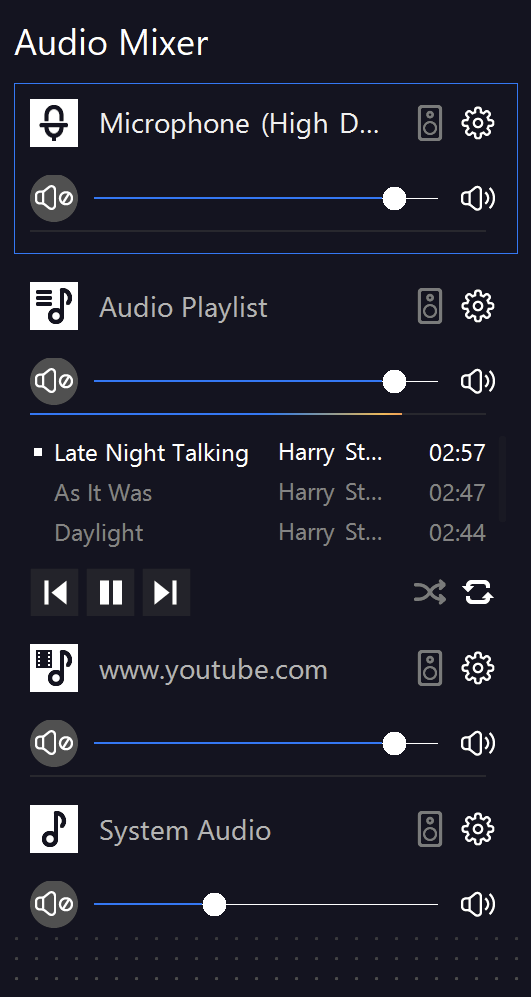
混音器面板里每一路音源占一条通道条。旁边这张截图是一次真实会话,其中有四路:Windows 报告为 High Definition Audio Device 的麦克风、带有自己曲目列表和播放控制的 Audio Playlist、一个浏览器页面——这里是 www.youtube.com——以及 System Audio,也就是 Windows 自身正在发出的声音。
每条通道条都带有静音按钮、音量滑块、监听开关,以及一个用于调滤镜的齿轮。在这次会话里,麦克风、播放列表和浏览器的音量都推得比较高,而 System Audio 被拉得很低——这是很常见的配比,因为通知音和应用提示音应该垫在人声下面,而不是和人声平起平坐。这块面板最终合成出什么,直播传出去的就是什么;虚拟麦克风提供的,也正是这同一路会话。
接收端不需要安排任何集成,也不用加插件。程序打开 Windows 递给它的输入设备列表,SplitCam 设备就在那份列表里,紧挨着硬件设备。
会议软件只给你一个输入,也没法再往里加第二条音轨。选中 SplitCam,这个唯一的输入就变成了你调好的全部内容——人声、你正在点评的那段视频、你正在演示的页面。
任何从麦克风录音的工具,都可以录下整合好的这一路会话,而不只是房间里的动静;于是演示过程和它的声音留在同一个文件里,不必事后再去对齐两个文件。
网页应用向浏览器请求麦克风,拿到的是 Windows 的同一份列表。录音网页、网页会议或语音组件都能直接选用 SplitCam 设备,不用另外安装任何东西。
如果你同时还在用 OBS 或类似工具,它可以把 SplitCam 设备添加为音频输入采集,把整合好的声音当成单独一路音源,不必把同一套路由再搭一遍。
这个设备是向 Windows 本身注册的,而不是逐个程序分别注册。不管程序把输入叫作麦克风、音频设备还是录音设备,它读取的都是 Windows 维护的同一份列表,SplitCam 这一项就在其中,紧挨着你的声卡。唯一的要求:程序里有输入选择功能。
 Zoom
Zoom Discord
 Microsoft Teams
 OBS Studio
 Google Meet
 Webex
Webex Slack
Slack Telegram
 GoToMeeting
 Jitsi
Jitsi安装程序会连同应用一起注册这个音频设备。Windows 上没有需要另外下载的驱动包,卸载 SplitCam 时该设备也会一并离开。
音频源从 Add new source layer 菜单下的 Audio Source 子菜单里添加,然后在混音器里调平衡。设定每一路的音量,把不该出去的静音,需要时再给单路加上滤镜。
在另一个程序里打开输入或麦克风列表,用 SplitCam 音频设备代替你的硬件设备。如果那份列表是在 SplitCam 安装之前建立的,就重新打开该程序的音频设置,让它重新读取 Windows 提供的设备。
这个设备是什么,又不是什么。
不用。音频设备由 SplitCam 自己的安装程序注册,所以装好 Windows 版 SplitCam 就等于全部搞定,没有另外要下载的安装包。
音频混音器是你在 SplitCam 内部把各路声音合到一起的地方,而这份合成结果正是你的直播和录制所承载的声音。虚拟麦克风则是同一路会话的额外输出:它把这份声音以输入设备的形式交给 Windows,于是一个完全不了解 SplitCam 的程序也能选中它并收听。
任何允许你选择麦克风或音频输入的程序。它会出现在 Windows 的输入设备列表里,紧挨着你的声卡,所以会议软件、录音工具、浏览器和 OBS 都用同样的方式接上它。
不会。你的直播和录制仍然像以前一样从混音器取声音。虚拟麦克风只是多了一个收听者,而不是替代品。
SplitCam 启动时会检查驱动有没有加载成功,没成功会给出警告;那种情况下程序照常运行,但设备不可用。如果并没有出现警告,那可能是接收端的程序在 SplitCam 安装之前就建好了自己的输入列表——重新打开它的音频设置即可。
免费。它是 Windows 版本身的一部分,而不是附加组件,所以它的任何功能都不需要许可证密钥或账号。
免费下载。Windows 版 SplitCam v11.0.14——支持 Windows 10(版本 2004 或更高)和 11,64 位。