Where is your Instagram stream key? In Live Producer on instagram.com, together with the server URL. Both go into a custom channel in SplitCam.
All four apps are free, and each takes Instagram as a custom channel.
For vertical video, set “This is a vertical stream” and turn on the vertical canvas (the “Set canvas orientation” button); the stream starts only while that canvas is visible.
Use a “Custom Server” channel. The Mac app streams to secure RTMPS servers and sends to several services at once.
Use a “Custom” channel; it takes rtmps:// addresses and warns if an address lands in the key field. For vertical, set “Orientation” to “Portrait” first: it locks once you are live.
Use “Custom Server”. The app streams vertically, to several platforms at once, and keeps streaming in Picture in Picture.
Labels in quotes match Instagram's help pages as of 25 November 2026; your screen may differ.
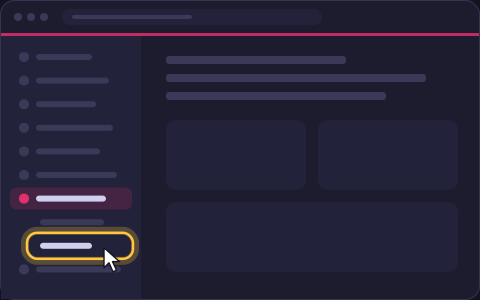
Click “Create”, then “Live video”. Not there? See who can go live.
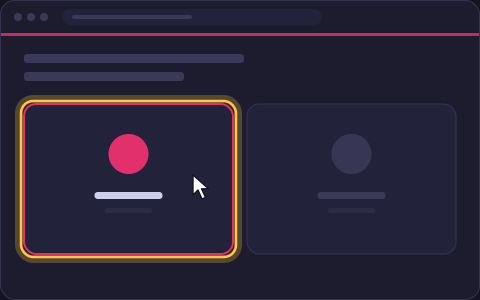
On the “Go live” screen, type a title. “Practice” broadcasts to no one, so use it for a test; “Public” goes live to your followers.
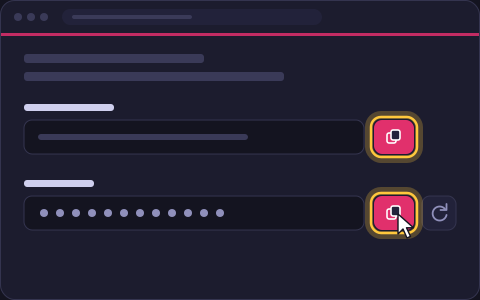
Instagram shows your unique URL and stream key. Copy both; the key can also be reset here.
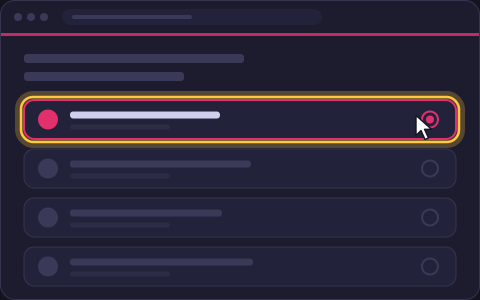
Add a custom channel (where each app keeps it), paste both and start streaming.
When the preview in Live Producer looks right, press “Go live”. To end, click “End live video” before stopping SplitCam; otherwise the live video keeps showing its last frame.
Worth knowing before you go live.
Instagram lets public accounts with 1,000 or more followers go live. Meta adds that teens under 16 need a parent's permission.
Instagram says the key refreshes each time you use Live Producer, so update your SplitCam channel first. On Windows, a stream cannot be added or edited mid-broadcast.
Our advice: close the channel settings before sharing your screen, and crop the key from screenshots. If it leaks, reset it in Live Producer.
Instagram calls it “Custom RTMP”; in SplitCam it is a custom channel.
| App | How to connect | Where it goes |
|---|---|---|
| Windows | Stream Settings → “Add new stream” (custom) | “Stream URL”, “Stream Key”, “Stream name”; then “Save and close” |
| Mac | Stream Settings → “Add Channel” → “Custom Server” | The server field and the stream key field |
| Android | “Channels” → “Add New Channel” → “Custom” | “Stream URL” and “Stream Key” |
| iPhone | Add a channel → “Custom Server”, first in the list | “Stream URL” and “Stream Key” |
Sources: Instagram Help Center, Start a live video on Instagram; Instagram, Instagram Live Producer (2 November 2022); Meta, Teen Accounts (April 2025). Third-party guides: Restream, Bambuser, Upstream.
Instagram is a trademark of its owner; SplitCam is not affiliated with it.
Extras for Instagram Live.
Add Instagram as one more channel and start them together (see multistreaming). Other key guides: Twitch, YouTube, Facebook, Kick.
A “Web Browser” source on Windows (“Browser” on a Mac) or the “Widgets” layer on Android adds Streamlabs or StreamElements alerts to your Instagram video.
SplitCam for Windows (11.0.15 or newer) can use a phone running SplitCam as a camera over your local network; on a Mac, an iPhone can do the same in “Remote Camera” mode.
Replay, in SplitCam for Windows, Mac, Android and iPhone, shows viewers the last seconds of your Instagram stream again.
Instagram says Live Producer, the screen with the key, is only on instagram.com; it does not mention phone browsers. Open it on a computer, type the URL and key into SplitCam on your phone, then click “Go live” on the computer.
Use the key Live Producer shows now: Instagram says each session brings a new one (some services describe a reusable key). Nobody can see you? Check that you clicked “Go live” in Live Producer and chose “Public”, not “Practice”.
Instagram does not say. Third-party services show RTMPS (secure RTMP) addresses on port 443; paste the URL as shown. SplitCam for Mac and Android accept RTMPS, and SplitCam for Windows (11.0.16) works with the Instagram URL and key in a custom channel.
Instagram recommends vertical 9:16 at 720x1280 and 30 fps (60 fps is supported), 2,250 to 6,000 kbps video and 44.1 kHz stereo audio up to 256 kbps (Live Producer post, November 2022).
Download SplitCam, paste your Instagram URL and key into a custom channel, and click “Go live” when the preview appears.
⬇ Download