Control SplitCam from a Stream Deck — or from the phone you already own.
A Stream Deck is a box of buttons that saves you from hunting for windows mid-broadcast. If those buttons only ever need to drive your stream, the phone in your pocket does the same job for nothing: SplitCam Remote switches scenes, starts and stops the stream and the recording, and tells you what is live — over your own Wi-Fi.
Free companion appScene switchingPairs by QR or Wi-FiiOS and Android
Short answer: when the phone is enough, and when it is not
Buying nothing is the point. SplitCam Remote is free and works over your own network. There is no hardware, no dongle and no subscription attached to it.
It drives SplitCam, and only SplitCam. A real Stream Deck presses buttons in any program — OBS, a browser, your lights, a macro. The phone app does not. This is the difference that decides it for most people.
It runs on iPhone and Android. Free on the App Store and on Google Play — the desktop app does the streaming either way.
Already own a Stream Deck? Keep it. There is an official, free SplitCam plugin in the Elgato Marketplace — Windows only, and it needs SplitCam 10.8.25 or newer.
What the phone actually does during a broadcast
Everything below is what SplitCam Remote is documented to do — not a wishlist of what a control surface could theoretically be.
Switch scenes from your hand
The reason most people want a control surface at all. Change camera, change layout, cut to slides — without walking back to the computer or hunting for the window behind your full-screen game.
Start and stop the stream and the recording
Go live, end the broadcast, start or stop recording, take a snapshot, pause or mute — the actions you need at the exact moment when reaching for the keyboard is most visible to your audience.
See what is actually happening
The app reports your stream name and status back to your hand, so you can tell whether you are live from across the room instead of guessing.
Pairs in seconds, stays on your network
Scan the QR code on the Remote Control tab in SplitCam Settings, or let the app find your PC by itself over Wi-Fi. The QR route uses our servers to introduce the two devices; Wi-Fi discovery keeps it on your network.
Why this is worth doing without the hardware
The case for the phone is not that it is cheaper. It is that for this job it is not worse.
The buttons are already in your pocket
A control surface earns its place by being reachable without breaking eye contact with the camera. A phone propped next to your keyboard is exactly as reachable as a box of keys, and you did not buy it.
Labels change with your scenes
Physical keys need their legends set up. A screen shows your current scene list as it is, so renaming a scene does not leave a stale label on a button.
Nothing more to fail on stage
One less USB device, one less cable, one less thing to unplug when you move rooms or take the setup to a venue.
The rest of SplitCam is free too
Scenes, multistreaming to 84+ platforms, virtual camera, effects and the audio mixer are in the same free download — no tier gates the control app.
When you should buy the Stream Deck instead
Be honest with yourself about what you want to press. If your buttons need to do anything outside SplitCam — trigger an OBS scene, fire a sound effect from another app, run a macro, dim your lights, mute Discord, paste a link in chat — then a Stream Deck is the correct tool and the phone app is not a substitute for it, because SplitCam Remote controls SplitCam and nothing else. The same applies if you want tactile keys you can hit without looking, an always-on surface that never sleeps or takes a call mid-stream, or per-key screens that stay lit. None of that is a small list — a Stream Deck is a good product, and plenty of people should own one.
Already own a Stream Deck? Here is how to wire it up
SplitCam publishes an official plugin in the Elgato Marketplace. It is free, it is Windows only, and it talks to the running app directly — no ports, passwords or pairing.
1. Update SplitCam
Stream Deck support arrived in the Windows build 10.8.25 (January 2025). Anything newer works; the current release is fine.
2. Install the plugin
In the Stream Deck app (6.9 or newer) open the Marketplace and search for SplitCam, or install it from the listing directly. Published by SplitCam, not a third party.
3. Put actions on keys
Start/Stop Stream, Switch Scene, Start/Stop Recording, Pause Scene, Mute and Snapshot. Scene names are pulled from SplitCam, so a key shows the scene it switches to; keys also reflect SplitCam's live status and your session time.
4. Chain it if you like
The actions work inside Multi Actions, so one press can switch a scene, start the stream and fire whatever else lives on that key. SplitCam has a short walkthrough video on its channel — it was recorded for plugin 1.0 in late 2024, so the listing is the current reference.
What the plugin does not do: it does not run on macOS — on a Mac, the free SplitCam Remote app on a phone is the way to switch scenes from a control surface. It has no dial support and ships no profiles. For anything beyond these six actions, check the current listing, which carries the plugin's own version history.
What the keys do
The six actions the official plugin puts on your keys, as they appear in SplitCam's own listing. Keys show SplitCam's live status, and the stream key shows how long you have been live.
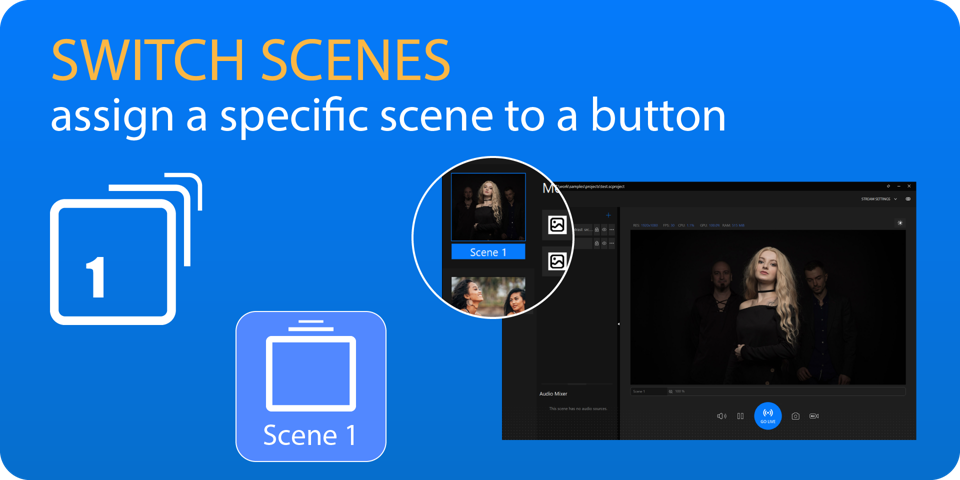
Switch scene
One key per scene. Scene names are pulled from SplitCam, so the key is labelled with the scene it switches to.
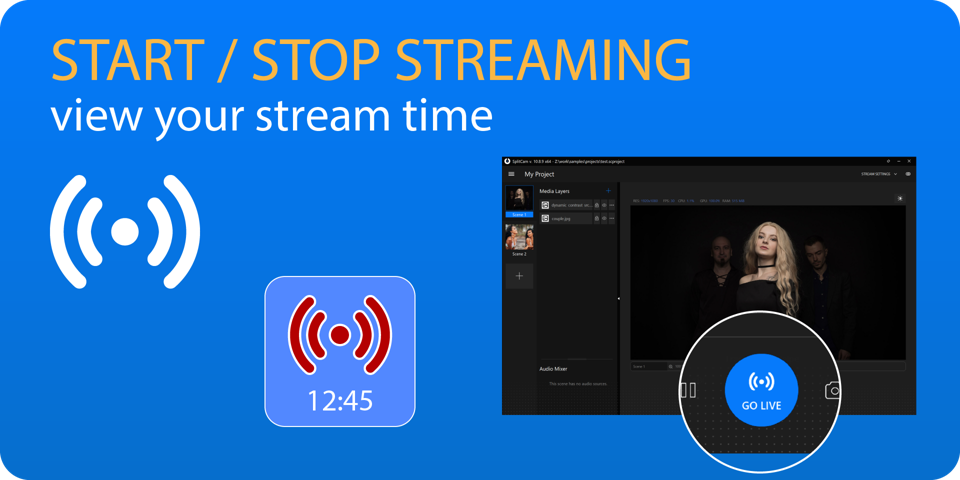
Start / stop streaming
Go live and end the broadcast from the key. While you are live, the key shows your session time.
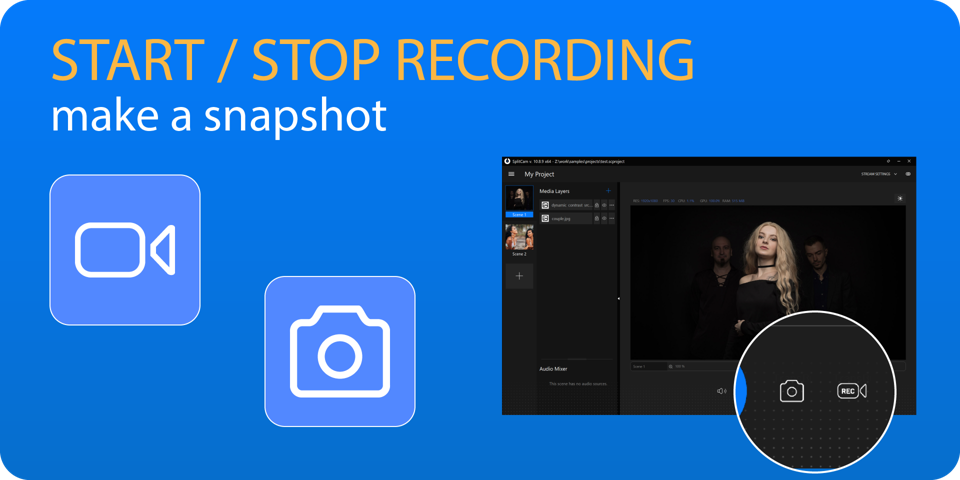
Start / stop recording, snapshot
Record to a file, or grab a still of the current scene, without touching the keyboard.
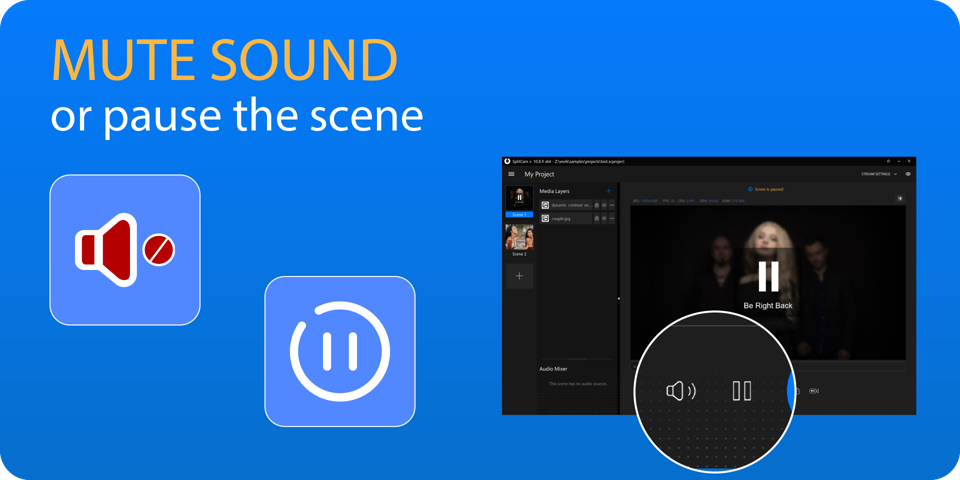
Mute, pause scene
Mute the sound, or pause the whole scene — every source stops at once — and resume the same way.
All six work inside Multi Actions. No dial (Stream Deck +) actions and no bundled profiles. The plugin's own Marketplace listing carries its version history; the current release is 1.2.
No plugin? The hotkeys work with any Stream Deck
On a machine where you cannot install the plugin, the standard Stream Deck «Hotkey» action still drives SplitCam. Use the global shortcuts — they work while SplitCam is minimised or another window is active; the Ctrl variants only fire while the SplitCam window is focused. Hotkeys can be switched off in SplitCam's settings, so check they are on.
Action
In the SplitCam window
Global (any window)
Switch to scene 1–6
Ctrl + 1 … 6
Alt + Shift + 1 … 6
Start / stop stream
Ctrl + S
Alt + Shift + S
Start / stop recording
Ctrl + R
Alt + Shift + R
Take a snapshot
Ctrl + O
Alt + Shift + O
Mute scene sound
Ctrl + M
Alt + Shift + M
Pause / resume scene
Ctrl + Space
Alt + Shift + Space
Rewind all sources
Ctrl + Home
Alt + Shift + Home
Replay
Assigned by you in Settings — none by default
These are the Windows shortcuts as SplitCam's settings panel lists them. The full assignment table is in the app under Settings → Hotkeys.
SplitCam Remote as a free Stream Deck alternative
Elgato sells several models at different prices and the line changes, so this compares what each approach does rather than quoting prices we cannot stand behind.
Feature
SplitCam
Stream Deck
Cost
Free with SplitCam
Hardware purchase
Controls SplitCam
Yes — scenes, live, recording
Yes — official plugin, Windows (SplitCam 10.8.25+)
Controls other programs
No — SplitCam only
Yes, that is its main strength
Physical keys you can hit blind
On-screen only
Tactile buttons
Works on Android today
Yes — on Google Play
Yes — the hardware is platform-independent
Works on iPhone today
Yes, on the App Store
Elgato ships its own mobile app — check current terms
SplitCam Remote is free on the App Store and on Google Play. It controls SplitCam running on your computer.
What SplitCam does not do
The same list on every comparison here, because you should be able to rule us out quickly rather than discover this after the download.
No guests joining by link
There is no browser link to send someone. You can put a guest's Zoom, Meet or Discord window into a scene with window capture, which works, but it is a workaround rather than a feature.
No Preview/Program, no multiview
You switch to a scene, you do not cue it first and cut to it. There is no wall of source previews either. If you direct from a proper switcher workflow, this will feel wrong immediately.
No per-camera recordings, no PTZ control
Recording captures the composed scene, not one file per camera for editing later. Nothing in SplitCam pans, tilts or zooms a camera for you.
NDI comes in, it does not go out
You can take NDI as a source. SplitCam is not an NDI sender for another machine to pick up.
Some sources are Windows only
Documented on Windows: the Whiteboard, Application Audio, the Replay source and the solid Color source. Scenes, layers, the virtual camera, multistreaming and recording run on both.
The phone remote is not a streamer
SplitCam Remote is on the App Store and on Google Play, but it only controls SplitCam running on your computer — it does not stream by itself. Phone-as-a-camera is a separate feature.
Controlling SplitCam — questions
Is SplitCam Remote really free?
Yes. It is a companion app for SplitCam, and SplitCam itself is free with no watermark and no paid tier. There is nothing to unlock in either of them.
Can it replace a Stream Deck completely?
Only if everything you press belongs to SplitCam. It switches scenes, starts and stops streaming and recording, takes snapshots and mutes — but it cannot press buttons in other applications. If your workflow spans several programs, buy the hardware.
Is there an Android version?
Yes. SplitCam Remote is on Google Play for Android, and on the App Store for iPhone.
I already have a Stream Deck. Does SplitCam work with it?
Yes, on Windows. Install the free official SplitCam plugin from the Elgato Marketplace (Stream Deck app 6.9 or newer) and update SplitCam to 10.8.25 or later. Keys get Start/Stop Stream, Switch Scene, Start/Stop Recording, Pause Scene, Mute and Snapshot, and they show SplitCam's live status. There is no macOS version of the plugin.
How does the phone find my computer?
Either scan the QR code on the Remote Control tab in SplitCam Settings, or let the app discover your PC over Wi-Fi automatically. Both work; the QR code is the quicker one the first time.
Does the connection go through your servers?
Pairing goes through SplitCam's servers to introduce the phone to your computer. Only that handshake does — once they have found each other, the control traffic runs between your own two devices.